Introdução
The Asus X551CA WiFi card allows the laptop to connect to wireless internet servers.
O que você precisa
-
-
Turn the laptop upside-down and remove the following screws using a Phillips #0 driver:
-
Two 9.5 mm screws in the middle of the back edge, and one 9.5 mm screw in the right edge
-
Two 4.3 mm screws in the back corners
-
One 17.5 mm screw at the left edge near the optical drive
-
Three 4.3 mm screws in the front edge
 Pergunte ao FixBot
-
-
-
Use the plastic opening tool to separate the keyboard plate cover from the bottom cover. In order to do this, insert the plastic opening tool in between the keyboard plate cover and the bottom cover, then slide along edges to pry open.
-
-
-
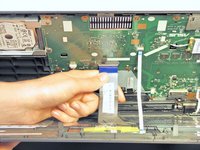
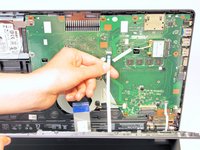
Locate the three ribbons connecting the keyboard plate cover to the bottom cover.
-
-
-
-
Invert the laptop in order to gain access to the ribbons.
-
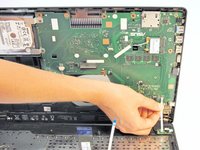
Remove each ribbon by flipping the small white plastic flap up and gently pulling on the ribbon.
-
-
-
Now that the ribbons have been detached from the bottom cover, carefully remove the keyboard plate cover. Once it has been removed, place it in a safe and moisture free area so it does not get damaged.
-
-
-
Use the Phillips #0 Screwdriver to unscrew the 3.2 mm Phillips #0 screw which attaches the WiFi card to the motherboard.
-
-
-
Disconnect the Wifi card from the motherboard by gently sliding it towards the right edge of the laptop.
-
-
-
Remove each of the two small antenna connections by disconnecting one wire at a time. Each wire should easily unsnap from the Wifi card.
-




To reassemble your device, follow these instructions in reverse order.
Cancelar: não concluí este guia.
7 outras pessoas executaram este guia.

Equipe

Cal Poly, Team 7-22, Regan Spring 2014 Membro de Cal Poly, Team 7-22, Regan Spring 2014
CPSU-REGAN-S14S7G22
5 Membros
Autoria de 15 guias
