Introdução
Over time, your laptop's optical drive may fail to read discs due as a result of being used excessively. You will be able to replace your failing optical drive with the help of a Phillips #0 screwdriver and a prying tool.
O que você precisa
-
-
-
Push the two locking mechanisms at the top of your laptop away from each other.
-
Pull the battery away from your laptop using your hands.
 Pergunte ao FixBot
-
-
-
Remove the two black 7.0 mm Phillips #0 screws from the back cover of your laptop.
-
-
-
Remove the back panel by sliding the panel downwards with your hands.
-
-
-
-
Use your Phillips #0 screwdriver to remove the four 7.0 mm Phillips #0 screws surrounding the hard drive.
-
Use your hands to slowly pull the hard drive out of your laptop.
-
-
-
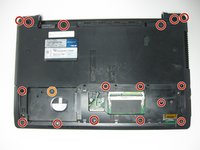
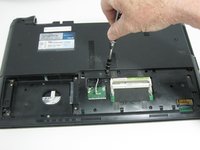
Using your Phillips #0 screwdriver, remove the following seventeen screws from your laptop:
-
Sixteen black 7.0 mm Phillips #0 screws
-
One silver 4.0 mm Phillips #0 screw
-
-
-
Flip the laptop over and open the lid to reveal the keyboard.
-
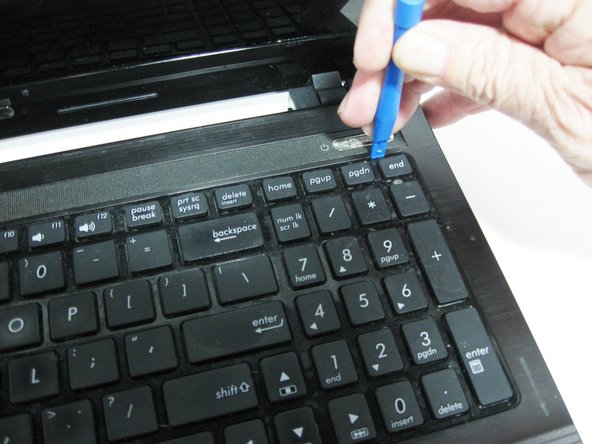
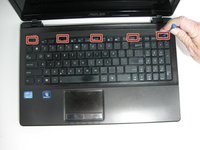
Insert the blue prying tool into each of the five tabs located at the top of the keyboard, pulling upwards on the keyboard to separate it from the palm rest.
-
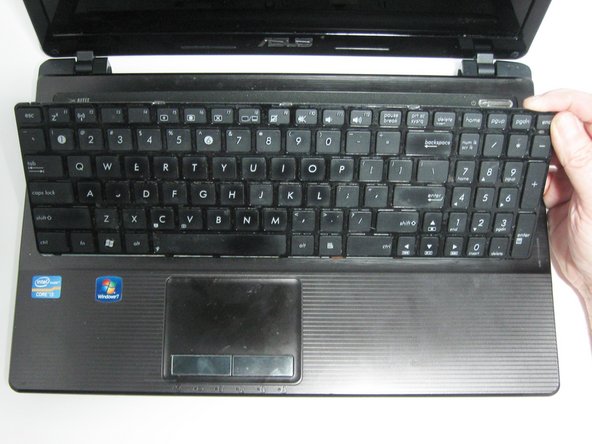
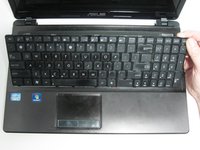
Once the top of the keyboard has been separated from the device, slowly begin pulling the keyboard away from the laptop using your hands.
-
-
-
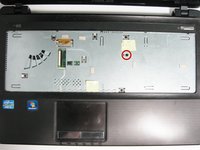
Using your fingers, gently disconnect the silver ribbon cable from the laptop by pulling the cable out of the slot and to the right.
-
-
-
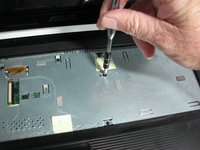
Remove the single silver 6.0 mm Phillips #0 screw that connects the optical drive to the palm rest.
-
-
-
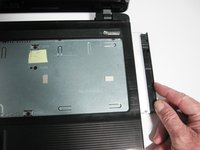
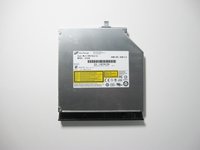
Remove the optical drive from the laptop by pulling it to the right with your hands.
-
-








To reassemble your device, follow these instructions in reverse order.
Cancelar: não concluí este guia.
2 outras pessoas executaram este guia.

Equipe

UW Tacoma, Team 1-3, Rose Fall 2016 Membro de UW Tacoma, Team 1-3, Rose Fall 2016
UWT-ROSE-F16S1G3
4 Membros
Autoria de 46 guias
1Comentário do guia
Most of these steps are unnecessary to get to the dvd-drive. The keyboard clicks loose without removing these screws too, so only steps 7, 8 and 9 are needed.
