Ir para o conteúdo principal
Participe da comunidade de reparos - Criar conta

Apple PowerBook G3 400 RAM Replacement

O que você precisa

  1. Apple PowerBook G3 400 RAM Replacement, Keyboard: passo 1, imagem 1 %32
    • Pull the keyboard tabs toward you while lifting up on the keyboard until it releases from it's hold.

    • To lift the keyboard out pull it up and away from you. Then place the keyboard on the track pad.

    Pergunte ao FixBot

    Comentar

  2. Apple PowerBook G3 400 RAM Replacement: passo 2, imagem 1 %32
    • Pull the keyboard ribbon vertically from the logic board to release connection.

    • The connector may be tight and difficult to remove. If stuck try rocking the connector back and forth while pulling up until it releases. This same process can be used for many of the connectors on this device.

    • Remove battery and CD/DVD drives before proceeding any further.

    Pergunte ao FixBot

    Comentar

  3. Apple PowerBook G3 400 RAM Replacement: passo 3, imagem 1 %32
    • Your computer should look approximately like this.

    Pergunte ao FixBot

    Comentar

  4. Apple PowerBook G3 400 RAM Replacement, RAM: passo 4, imagem 1 %32
    • Remove the two silver Phillips #1 screws that attach the heat shield to the metal framework.

    • Lift the heat shield up and toward you.

    Pergunte ao FixBot

    Comentar

  5. Apple PowerBook G3 400 RAM Replacement: passo 5, imagem 1 %32
    • Pull the PRAM battery cable vertically upward to disconnect it.

    • Remove the battery by pulling up and to the left.

    Pergunte ao FixBot

    Comentar

  6. Apple PowerBook G3 400 RAM Replacement: passo 6, imagem 1 %32
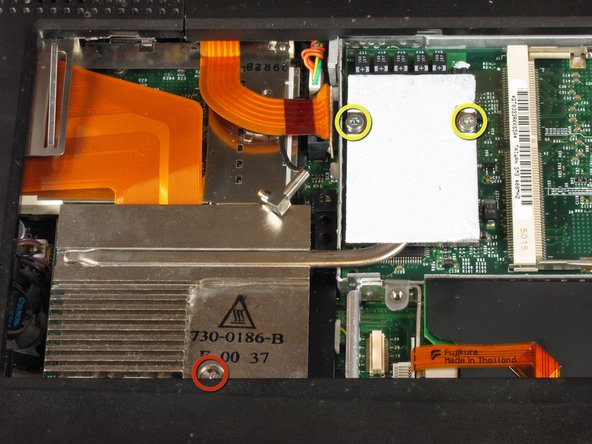
    • Remove the two T8 Torx screws that attach the heat sink to the processor.

    • Remove the long silver Phillips #1 screw from the heat sink.

    Pergunte ao FixBot

    Comentar

  7. Apple PowerBook G3 400 RAM Replacement: passo 7, imagem 1 %32
    • Lift up the heat sink unit from the left side and remove.

    Pergunte ao FixBot

    Comentar

  8. Apple PowerBook G3 400 RAM Replacement: passo 8, imagem 1 %32
    • Lift the processor on the right side and pull directly up.

    • The RAM chips should be in the slots on the processor.

    Pergunte ao FixBot

    Comentar

  9. Apple PowerBook G3 400 RAM Replacement: passo 9, imagem 1 %32
    • After removing the RAM, your laptop should now look like this.

    Pergunte ao FixBot

    Comentar

Conclusão

To reassemble your device, follow these instructions in reverse order.

Cancelar: não concluí este guia.

2 outras pessoas executaram este guia.

Ian

Membro desde: 04/18/11

57 Reputação

Autoria de 1 guia

Equipe

Cal Poly, Team 4-2, Regan Spring 2011 Membro de Cal Poly, Team 4-2, Regan Spring 2011

CPSU-REGAN-S11S4G2

4 Membros

Autoria de 6 guias

0Comentários do guia

Comentar

Visualizações:

Últimas 24 horas: 3

Últimos 7 dias: 11

Últimos 30 dias: 52

Ao todo: 2,457