Ir para o conteúdo principal
Participe da comunidade de reparos - Criar conta

AmazonBasics B00Q3KFX8U Power Cable Replacement

O que você precisa

  1. AmazonBasics B00Q3KFX8U Power Cable Replacement, Drive Gear: passo 1, imagem 1 %32
    • Remove the shredder assembly from the paper scrap bin.

    Pergunte ao FixBot
    Comentar

  2. AmazonBasics B00Q3KFX8U Power Cable Replacement: passo 2, imagem 1 %32
    • Remove the two 10mm PH1 screws holding the small black panel in place.

    Pergunte ao FixBot
    Comentar

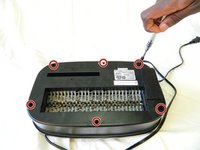
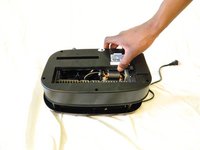
  3. AmazonBasics B00Q3KFX8U Power Cable Replacement: passo 3, imagem 1 %32 AmazonBasics B00Q3KFX8U Power Cable Replacement: passo 3, imagem 2 %32
    • Remove the six 14mm PH1 screws holding the bottom cover in place.

    • Remove the cover by lifting straight upwards.

    • One of the screws will be hidden beneath a warranty sticker. Simply push the head of the screwdriver through the sticker to access the screw.

    Pergunte ao FixBot

    Comentar

  4. AmazonBasics B00Q3KFX8U Power Cable Replacement: passo 4, imagem 1 %32
    • Remove the blade/motor assembly from the top cover by lifting straight upwards. Do not disconnect any wiring just yet.

    • The blades are sharp. Coming into contact with them may result in injury.

    Pergunte ao FixBot

    Comentar

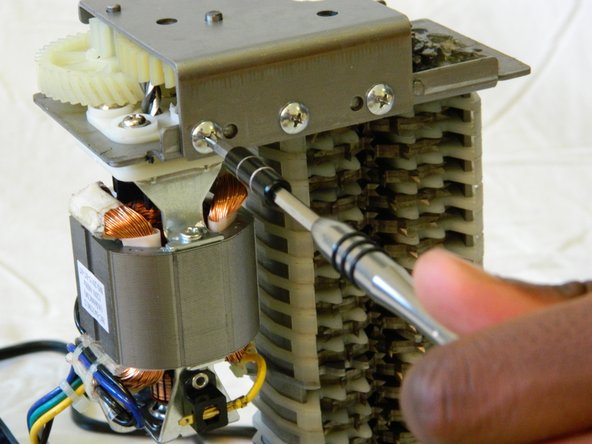
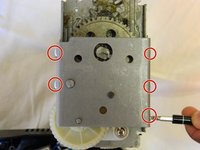
  5. AmazonBasics B00Q3KFX8U Power Cable Replacement: passo 5, imagem 1 %32 AmazonBasics B00Q3KFX8U Power Cable Replacement: passo 5, imagem 2 %32
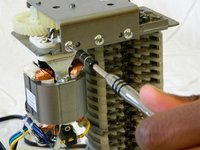
    • Remove the five 8mm PH2 screws from the bracket holding the gears in place.

    Pergunte ao FixBot

    Comentar

  6. AmazonBasics B00Q3KFX8U Power Cable Replacement: passo 6, imagem 1 %32
    • Use a metal spudger to pry the bracket from the main shredder assembly.

    • If the bracket is attached too tightly for the spudger, carefully use a metal screwdriver to pry it loose.

    Pergunte ao FixBot

    Comentar

  7. AmazonBasics B00Q3KFX8U Power Cable Replacement: passo 7, imagem 1 %32 AmazonBasics B00Q3KFX8U Power Cable Replacement: passo 7, imagem 2 %32
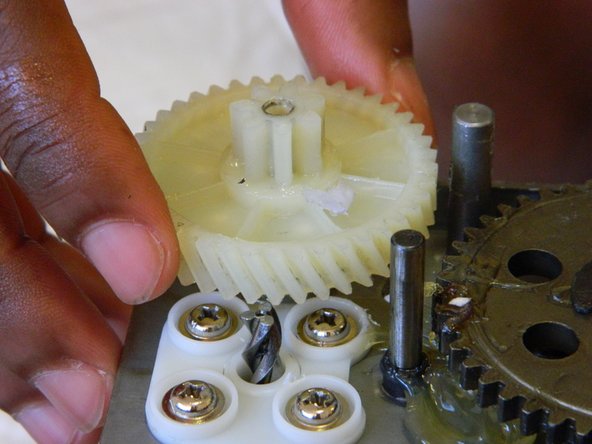
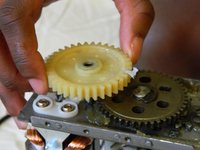
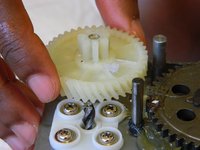
    • Remove the two plastic drive gears from the shredder assembly by lifting straight upwards.

    Pergunte ao FixBot

    Comentar

  8. AmazonBasics B00Q3KFX8U Power Cable Replacement, Motor: passo 8, imagem 1 %32
    • Remove the four 18mm PH2 screws holding the motor to the main shredder assembly.

    Pergunte ao FixBot

    Comentar

  9. AmazonBasics B00Q3KFX8U Power Cable Replacement: passo 9, imagem 1 %32
    • Disconnect the motor from the motherboard by either clipping the wires, or using a soldering iron to disconnect the wires directly at the board.

    • To reattach the motor, solder the wires back together, or to the motherboard depending on how you removed them.

    Pergunte ao FixBot

    Comentar

  10. AmazonBasics B00Q3KFX8U Power Cable Replacement, Power Cable: passo 10, imagem 1 %32
    • Remove the two 8mm PH1 screws holding the IR sensor wire in place. This will give you more room to work with later on.

    Pergunte ao FixBot

    Comentar

  11. AmazonBasics B00Q3KFX8U Power Cable Replacement: passo 11, imagem 1 %32 AmazonBasics B00Q3KFX8U Power Cable Replacement: passo 11, imagem 2 %32
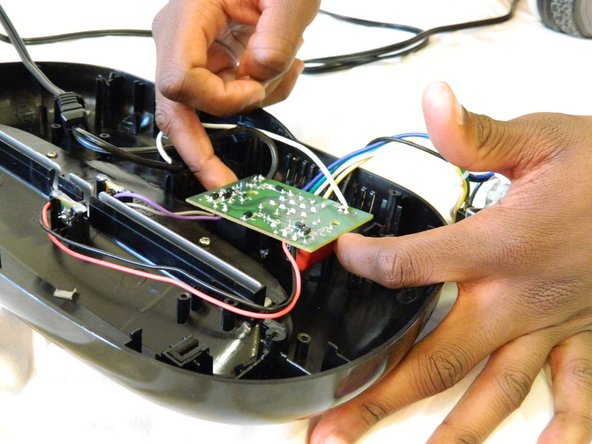
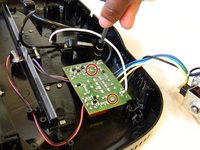
    • Remove the two 10mm PH1 screws holding the motherboard in place.

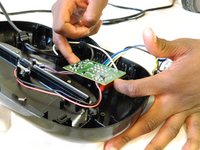
    • Remove the motherboard by lifting straight upwards from the top cover.

    Pergunte ao FixBot

    Comentar

  12. AmazonBasics B00Q3KFX8U Power Cable Replacement: passo 12, imagem 1 %32
    • To disconnect the power wire, remove the black and white wires on the far edges of the motherboard.

    • To reassemble, solder the wires back to the motherboard in the same location as they previously were.

    • When reassembling, be sure to replace the wires in the correct locations. Reversing the wires will short circuit the motherboard and may damage the device or injure yourself.

    Pergunte ao FixBot

    Comentar

Conclusão

To reassemble your device, follow these instructions in reverse order.

Cancelar: não concluí este guia.

William Foley

Membro desde: 03/25/16

548 Reputação

Autoria de 4 guias

Equipe

0Comentários do guia

Comentar

Visualizações:

Últimas 24 horas: 2

Últimos 7 dias: 8

Últimos 30 dias: 36

Ao todo: 931