Introdução
The Amazon Fire 8 HD 12th Generation has a screen that is useable for near every function necessary on the tablet. To put it lightly, you cannot use the tablet at all without a functioning screen. Possible things that can lead to a broken screen range from cracking/breaking the screen itself, your tablet not being up to date, or the screen is not responding to your input/touch.
In this guide we will show you how to replace a faulty screen. This guide is difficult so please take your time and be patient when performing the steps. You may want to have a pair of safety gloves. These can be used throughout the guide as there are dangers such as loose or broken glass cutting you.
O que você precisa
-
-
-
Put picks around the corner and move them along the edge to pry the case off.
-
Once there is separation between the case and the screen, place a pick in between the screen and on the corner of the back case.
 Pergunte ao FixBot
-
-
-
With the corners lifted, take the opening tool and pry each corner off.
-
Repeat this for the corner diagonal from the initial corner.
-
Once both corners are pried off, gently take the back case off the device.
-
-
-
-
-
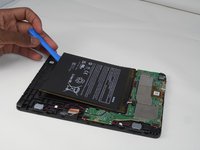
Using the iFixit opening tool, disconnect the battery from the circuit board.
-
-
-
-
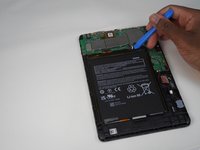
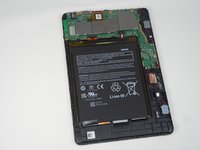
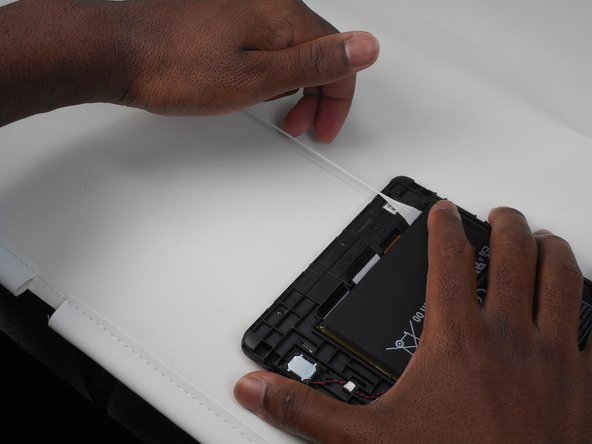
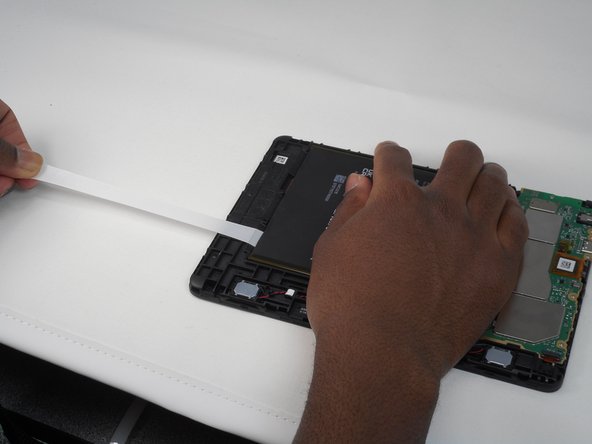
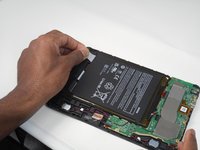
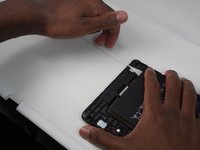
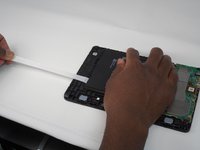
Slowly and gently, pull and remove the 3 adhesives under the old battery.
-
Remove all 3 by pulling the adhesive, signified by a black flap with white adhesive. You will know it is removed when the adhesive has come out from under the battery and you are now able to move the battery.
-
-
-
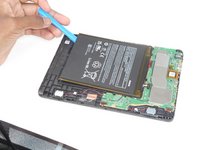
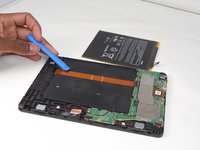
Remove the old battery from the device using the opening tool.
-
If necessary, clean under your old battery and then insert the new battery with new adhesive to ensure the battery stays in place.
-
-
-
-
-
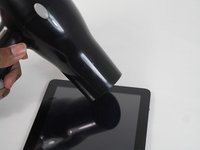
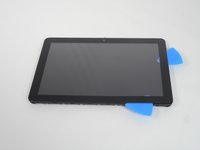
Start off by heating the edges of the screen to melt the adhesive.
-
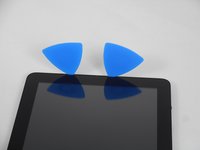
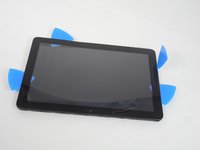
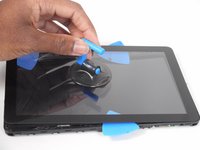
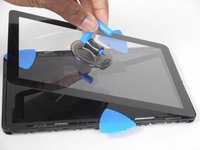
Insert the opening picks between the screen and device.
-
-
-
Slide the opening pick in between the screen and device, prying it just above the device.
-
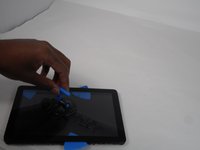
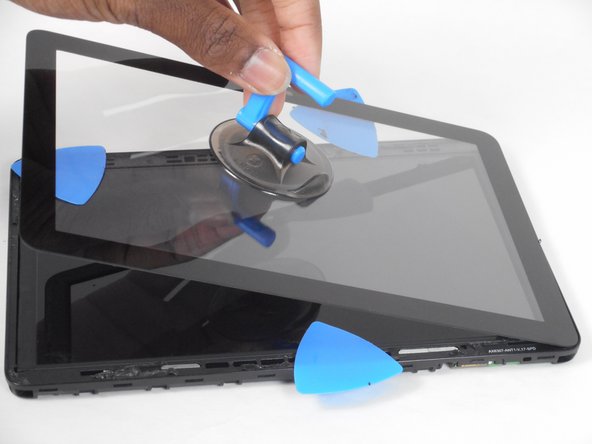
Place the suction on the screen
-
-
Ferramenta utilizada neste passo:Tweezers$4.99
-
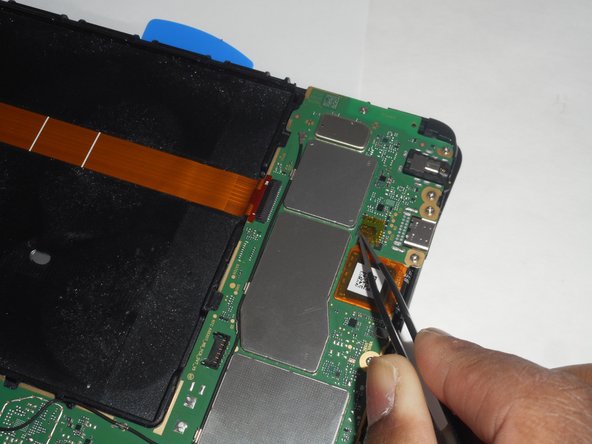
Heat up the little black square with yellow orange tape around it on the back of the device, atop the motherboard.
-
Once heated, remove the little black square using tweezers. Unhooking the screen from the screen.
-
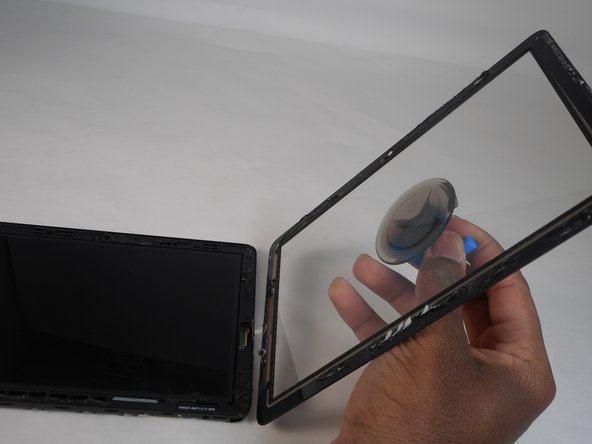
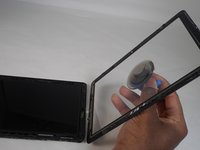
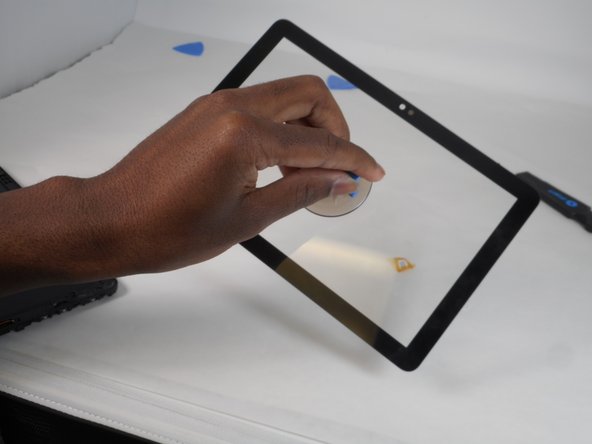
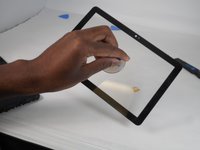
Pulling the suction cup, fully remove the screen from the device.
-
-












To reassemble your device, follow these instructions in reverse order.

Equipe

University of Memphis, Team 1-1, Sneed Fall 2023 Membro de University of Memphis, Team 1-1, Sneed Fall 2023
UM-SNEED-F23S1G1
4 Membros
Autoria de 7 guias
