Introdução
This guide will show you how to replace the optical lens on the Alienware Pro Wireless Gaming Mouse. The optical lens is a key component that helps the mouse accurately detect movement and control cursor precision. Over time, dust, scratches, or internal damage can cause tracking issues that affect performance.
This guide will walk you through step-by-step how to safely remove and replace the optical lens. To replace the optical laser, please refer to the Motherboard Replacement Guide for complete motherboard removal.
Caution: Be careful when handling internal components to avoid damaging the delicate sensor or surrounding circuitry. Always disconnect the mouse and remove the battery before starting this procedure.
O que você precisa
-
-
Flip the mouse over so the bottom is facing up..
-
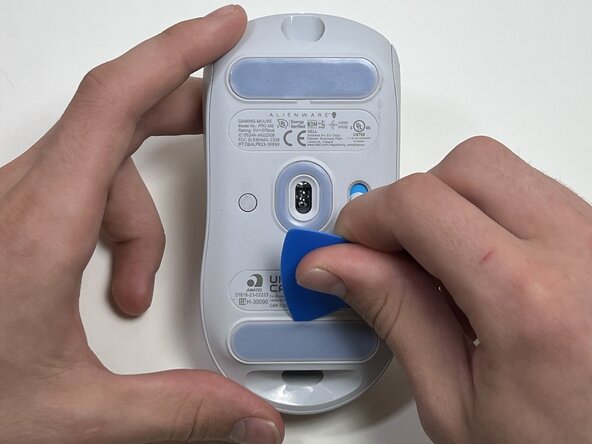
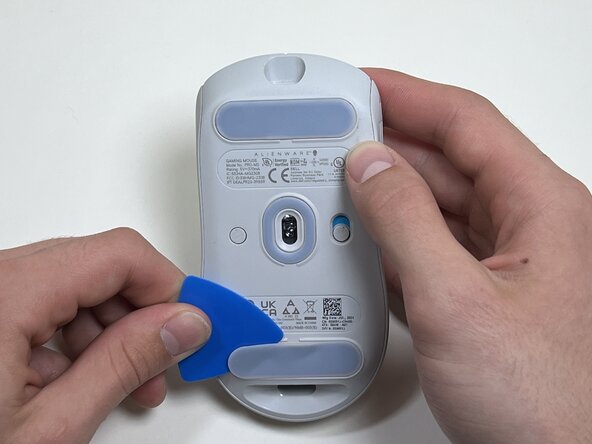
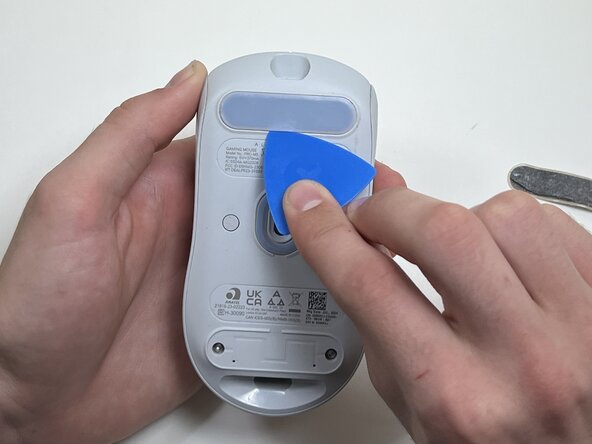
Use an opening pick to gently peel the mouse foot off the bottom case.
 Pergunte ao FixBot
-
-
-
Use a TR6 Torx security screwdriver to remove the four 6 mm screws under the foot pads.
-
-
-
Use your hands or a spudger to separate the bottom and top of the mouse.
-
Insert the end of the spudger in the seam between the top and bottom case, and slide it around the perimeter to release the clips holding it together.
-
-
-
Use the pointed end of a spudger to push on alternating sides of the battery connector to "walk" it out of its socket.
-
-
-
-
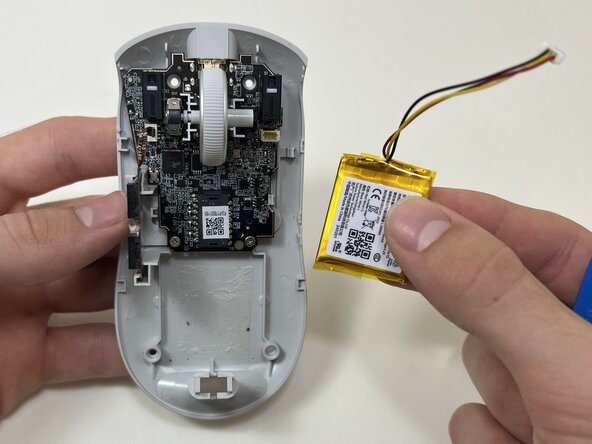
Use an opening tool or spudger to loosen the adhesive under the battery.
-
Remove the battery.
-
-
-
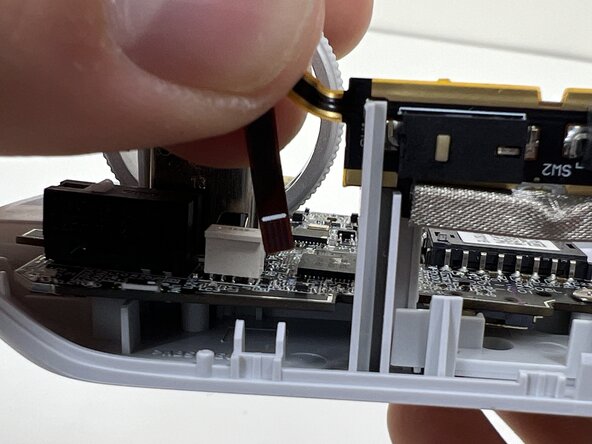
Pinch the upper part of the ribbon cable.
-
Pull the ribbon cable gently to detach it from the socket on the motherboard.
-
-
-
Hold the scroll wheel encoder steady and gently pull the scroll wheel to the right to remove it.
-
-
-
Use a Phillips #00 screwdriver to remove the two 5 mm screws at the bottom of the motherboard.
-
-
-
Gently pull the side clip away from the motherboard to release it from the plastic frame.
-
-
-
Bend the front nose of the mouse body to release the motherboard.
-
Remove the motherboard from the bottom case.
-
-
-
On the bottom of the motherboard, remove the clear plastic lens.
-









To reassemble your device, follow these instructions in reverse order. Take your e-waste to an R2 or e-Stewards certified recycler.

Equipe

Austin Community College, Team 10-3, Watkins Fall 2025 Membro de Austin Community College, Team 10-3, Watkins Fall 2025
AUSTINCC-WATKINS-F25S10G3
4 Membros
Autoria de 7 guias
