Introdução
If your RAM can't keep up with the demands of today's mundane and daily tasks, use this guide to remove and replace your RAM cards.
O que você precisa
-
-
-
Flip the laptop over so the model stickers face the ceiling.
 Pergunte ao FixBot
-
-
-
Remove the two 3.5 mm Phillips #0 screws holding the cover in place.
-
Slide cover forward then carefully lift up.
-
-
-
Remove the two 5.5 mm Phillips #0 screws holding the battery in place.
-
-
-
-
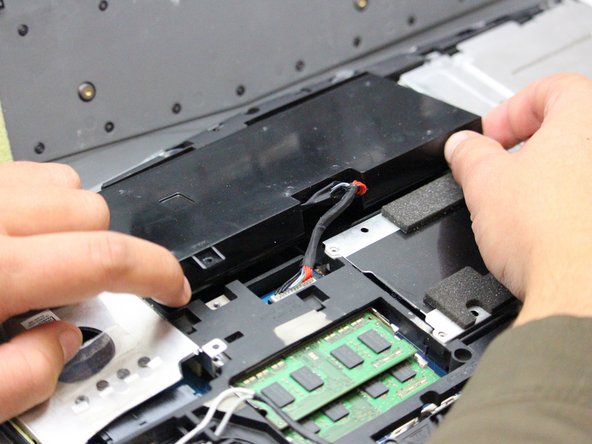
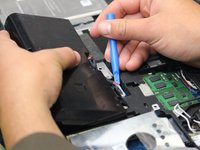
Carefully use the Plastic Opening Tool to unplug the battery.
-
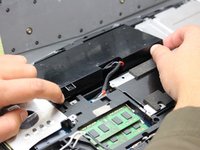
Lift the battery up and out to remove.
-
-
-
-
-
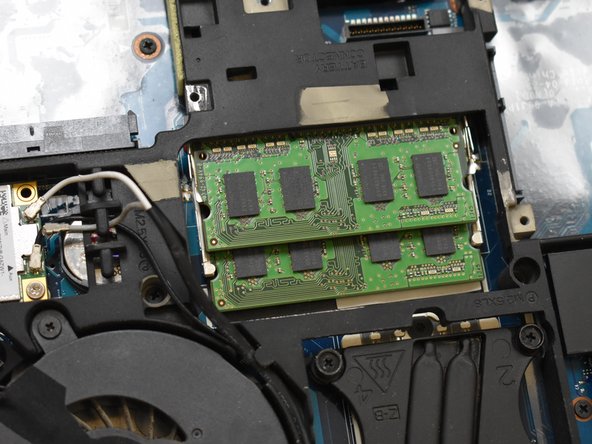
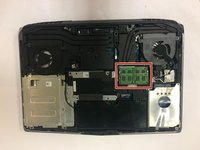
With the laptop flipped over, cover removed, and battery removed; continue by locating your RAM cards.
-
-
-
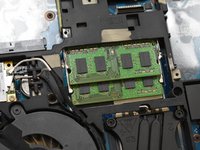
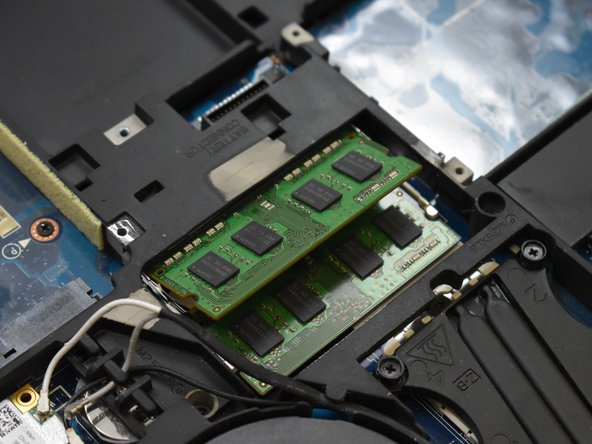
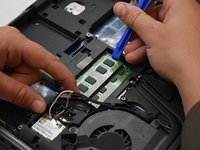
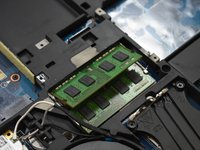
Remove the top RAM card by pressing the tabs to the sides using the Plastic Opening Tool.
-
Once the top card has popped up, carefully remove it by holding the sides and sliding it out.
-
-





To reassemble your device, follow these instructions in reverse order.
Cancelar: não concluí este guia.
Uma outra pessoa concluiu este guia.

Equipe

Oregon Institute of Technology, Team S1-G2, Lancaster Fall 2018 Membro de Oregon Institute of Technology, Team S1-G2, Lancaster Fall 2018
OIT-LANCASTER-F18S1G2
3 Membros
Autoria de 40 guias
1Comentário do guia
The only problem is that this laptop has 4 slots of ram there are 2 more under the keyboard that must also be accessed to update. If anyone wants to know how I know it’s because I have this laptop and I have seen where the next lot of ram is located
