Essa tradução foi gerada por um programa e ainda não foi revisada por uma pessoa. Falas essa língua? Dá uma olhada.

Substituição do disco rígido do Acer Extensa 4420

TheMasterG e um outro colaborador
Última atualização em 7 de ago de 2026
Visualizações: 333
Visualizar Estatísticas:
- Últimas 24 horas:
- 2
- Últimos 7 dias:
- 9
- Últimos 30 dias:
- 61
- Ao todo:
- 333
Comentários: 0
Ninguém deixou comentários sobre este guia. Você será o primeiro?
Go to guide commentsConcluído: 0 1
Ninguém marcou este guia como "concluído". Será você o primeiro?
1 pessoa marcou este guia como "concluído". Você — ótimo trabalho!
Favorites: 0 1
Ninguém favoritou (e se inscreveu) neste guia como favorito. Você será o primeiro?
1 pessoa marcou como favorito (e assinou) este guia — você!
Guia colaborativo
Foi um incrível membro de nossa comunidade quem criou este guia. Não foi ninguém da equipe iFixit, não.
Ferramentas incorretas
Ajude a fazer melhor este guia usando as ferramentas corretas em imagens e/ou texto.
O que você precisa
Ferramentas
-
Spudger4.9


-
-
-
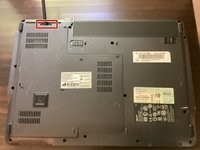
Primeiro, certifique-se de que a trava da bateria esteja desativada.
 Pergunte ao FixBot
-
-
-
-
Ferramenta utilizada neste passo:Phillips #00 Screwdriver$5.49
-
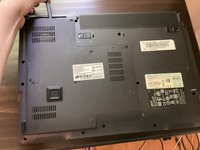
Desparafuse todos os cinco parafusos do painel traseiro com uma chave Phillips #0
-
-
Ferramenta utilizada neste passo:Spudger$3.99
-
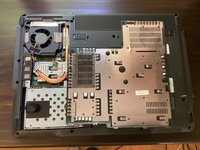
Pegue uma espátula e comece a fazer alavanca para abrir o painel traseiro. Termine de abri-lo com as mãos.
-
-
-
-




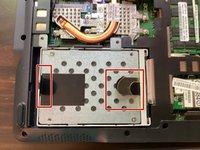
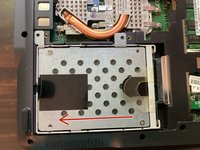
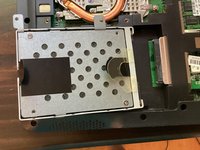
Para a remontagem de seu dispositivo, siga estas instruções na ordem inversa.