Ir para o conteúdo principal
Participe da comunidade de reparos - Criar conta

Accessing LCD Screen

O que você precisa

  1. Accessing LCD Screen, Front and Back Cover: passo 1, imagem 1 %32 Accessing LCD Screen, Front and Back Cover: passo 1, imagem 2 %32
    • Remove the following screws:

    • Two silver 3.15mm Phillips #00 screws on the right side of the camera

    • Two silver 2.08mm Phillips #00 screws on the left side of the camera

    Pergunte ao FixBot

    Comentar

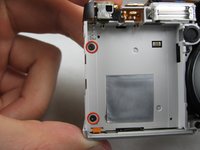
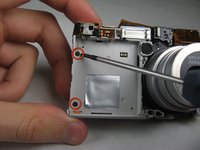
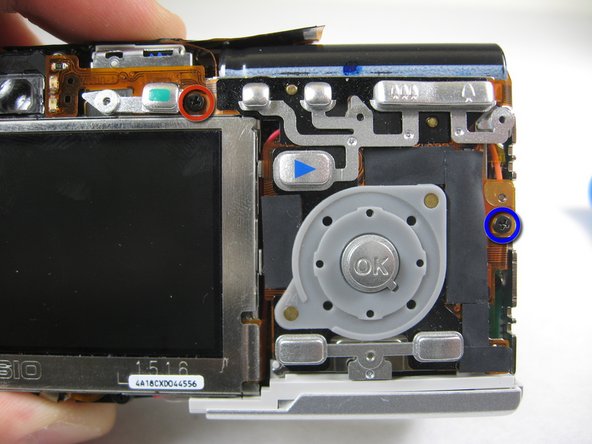
  2. Accessing LCD Screen: passo 2, imagem 1 %32
    • Remove the two indicated screws on the bottom of the camera:

    • The screw circled in red is a longer silver 3.15mm Phillips #00 screw

    • The screw circled in blue is a shorter silver 2.25mm Phillips #00 screw

    Pergunte ao FixBot

    Comentar

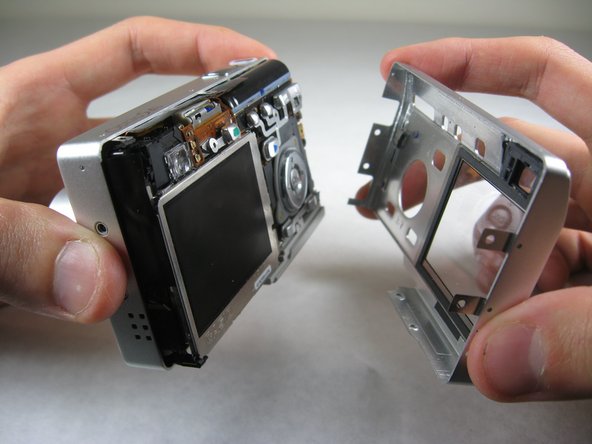
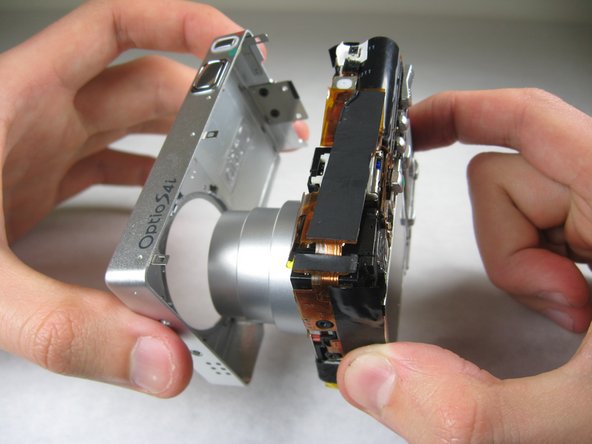
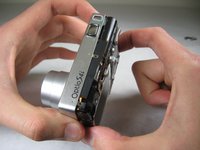
  3. Accessing LCD Screen: passo 3, imagem 1 %32 Accessing LCD Screen: passo 3, imagem 2 %32
    • Carefully pull the back of casing away from the front.

    Pergunte ao FixBot

    Comentar

  4. Accessing LCD Screen: passo 4, imagem 1 %32 Accessing LCD Screen: passo 4, imagem 2 %32 Accessing LCD Screen: passo 4, imagem 3 %32
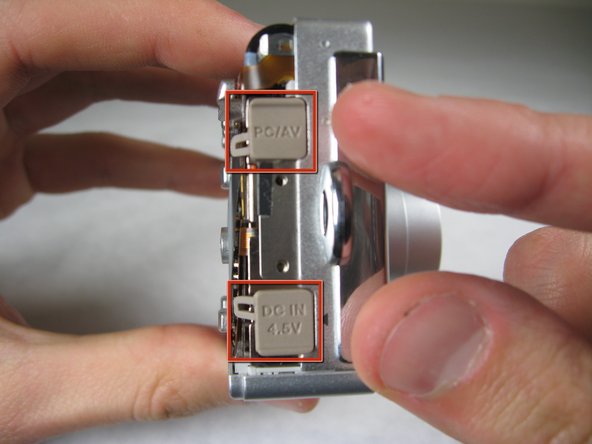
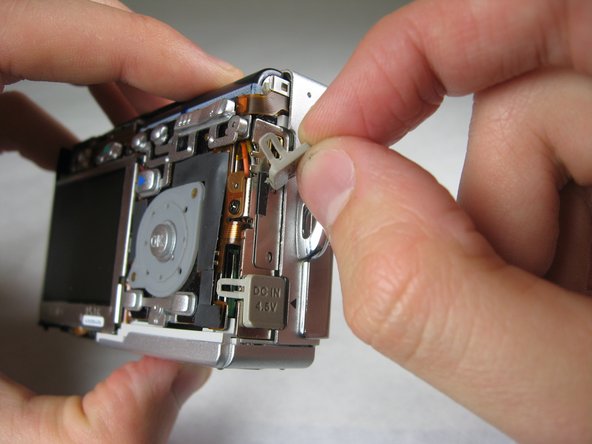
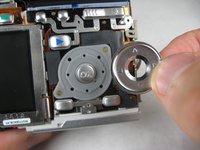
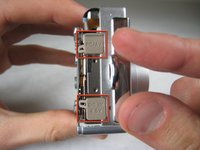
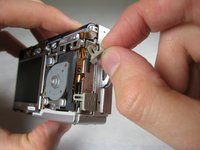
    • After removing the back cover, several things must be removed.

    • Silver donut-shaped button will fall off. Place separately. Remove the plug covers on the right side of camera, labeled “PC/AV” and “DC IN 4.5V”.

    Pergunte ao FixBot

    Comentar

  5. Accessing LCD Screen: passo 5, imagem 1 %32 Accessing LCD Screen: passo 5, imagem 2 %32
    • To remove the front cover, gently hold the inside structure of the camera and slowly pull the front cover off.

    Pergunte ao FixBot

    Comentar

  6. Accessing LCD Screen, LCD: passo 6, imagem 1 %32 Accessing LCD Screen, LCD: passo 6, imagem 2 %32
    • On the front of the camera, in battery case, remove screws indicated:

    • Two black 2.05mm Phillips #00 screws

    Pergunte ao FixBot

    Comentar

  7. Accessing LCD Screen: passo 7, imagem 1 %32 Accessing LCD Screen: passo 7, imagem 2 %32
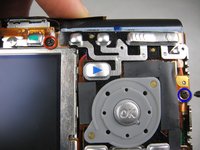
    • Flip the camera over to the backside and remove screws indicated:

    • The screw circled in red is a longer black 3.00mm Phillips #00 screw

    • The screw circled in red is a shorter black 2.00mm Phillips #00 screw

    Pergunte ao FixBot

    Comentar

  8. Accessing LCD Screen: passo 8, imagem 1 %32
    • Pull the cover plate off for the two power cord jacks.

    Pergunte ao FixBot

    Comentar

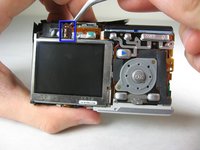
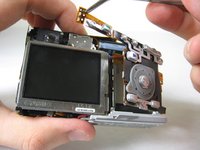
  9. Accessing LCD Screen: passo 9, imagem 1 %32 Accessing LCD Screen: passo 9, imagem 2 %32 Accessing LCD Screen: passo 9, imagem 3 %32
    • Cautiously and gently pull up the control board at the upper left corner, next to the viewfinder.

    Pergunte ao FixBot

    Comentar

  10. Accessing LCD Screen: passo 10, imagem 1 %32
    • Remove the orange tape on top of the SD cardholder.

    Pergunte ao FixBot

    Comentar

  11. Accessing LCD Screen: passo 11, imagem 1 %32 Accessing LCD Screen: passo 11, imagem 2 %32 Accessing LCD Screen: passo 11, imagem 3 %32
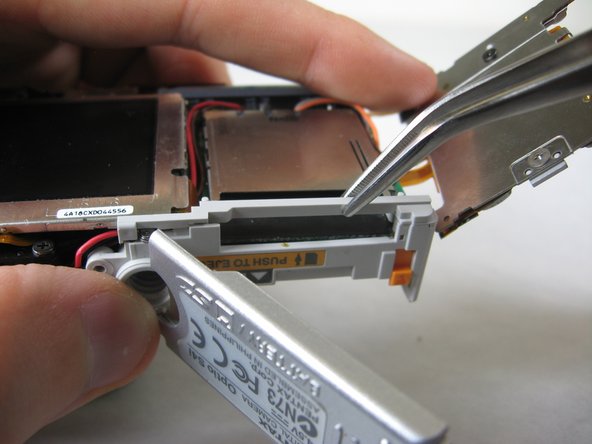
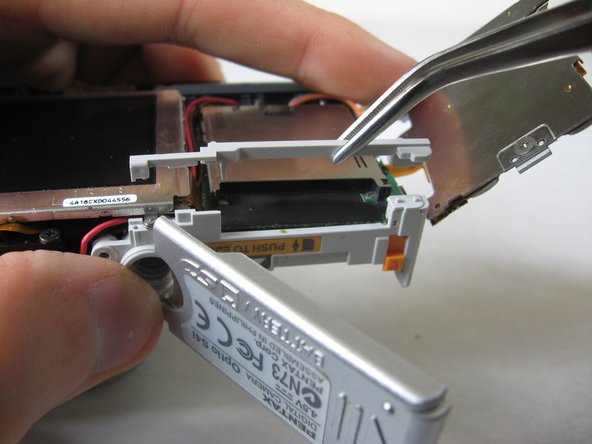
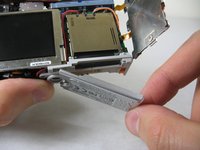
    • Open the battery cover and lift plastic piece off.

    Pergunte ao FixBot

    Comentar

  12. Accessing LCD Screen: passo 12, imagem 1 %32
    • Remove tape on left side of camera.

    Pergunte ao FixBot

    Comentar

  13. Accessing LCD Screen: passo 13, imagem 1 %32
    • Remove the indicated 2.40mm Phillips #00 screw to release top left LCD bracket.

    Pergunte ao FixBot

    Comentar

  14. Accessing LCD Screen: passo 14, imagem 1 %32
    • Remove top left LCD bracket.

    • This is a small piece, be careful not to lose it.

    Pergunte ao FixBot

    Comentar

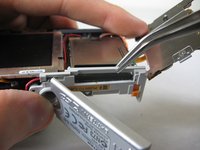
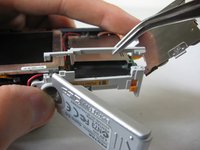
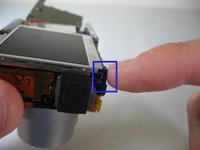
  15. Accessing LCD Screen: passo 15, imagem 1 %32 Accessing LCD Screen: passo 15, imagem 2 %32
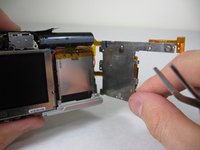
    • Push down bottom left LCD bracket to release the LCD from grip.

    Pergunte ao FixBot

    Comentar

  16. Accessing LCD Screen: passo 16, imagem 1 %32
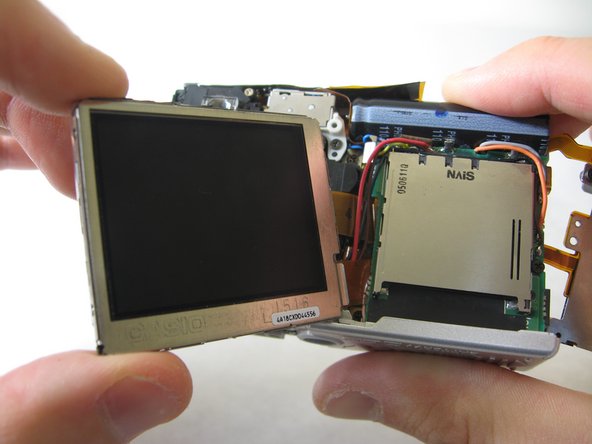
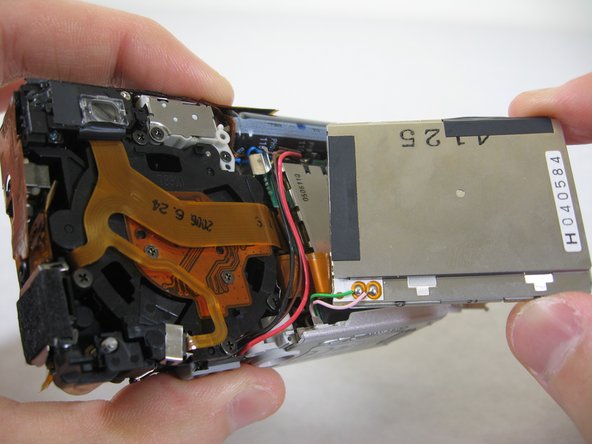
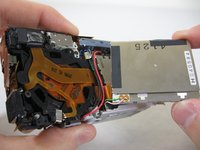
    • Gently lift up LCD screen.

    Pergunte ao FixBot

    Comentar

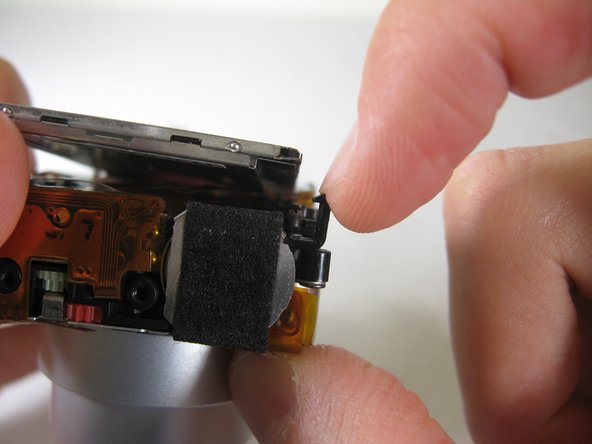
  17. Accessing LCD Screen: passo 17, imagem 1 %32 Accessing LCD Screen: passo 17, imagem 2 %32 Accessing LCD Screen: passo 17, imagem 3 %32
    • Slowly pull LCD screen to the left to remove it from the other grips.

    • BEWARE: The LCD screen is attached to the logic board by two wires at the bottom.

    Pergunte ao FixBot

    Comentar

Conclusão

To reassemble your device, follow these instructions in reverse order.

Cancelar: não concluí este guia.

Bassem Tossoun

Membro desde: 01/21/11

201 Reputação

Autoria de 2 guias

Equipe

Cal Poly, Team 4-29, Regan Winter 2011 Membro de Cal Poly, Team 4-29, Regan Winter 2011

CPSU-REGAN-W11S4G29

3 Membros

Autoria de 10 guias

0Comentários do guia

Comentar

Visualizações:

Últimas 24 horas: 1

Últimos 7 dias: 18

Últimos 30 dias: 56

Ao todo: 1,500