Ir para o conteúdo principal
Participe da comunidade de reparos - Criar conta

ASUS K50IJ Screen replacement 15.6" Replacement

O que você precisa

  1. ASUS K50IJ Screen replacement 15.6" Replacement, Battery: passo 1, imagem 1 %32
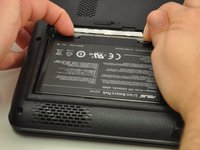
    • Slide the tab over to unlock the battery cover located on the bottom-left corner of the laptop.

  2. ASUS K50IJ Screen replacement 15.6" Replacement: passo 2, imagem 1 %32 ASUS K50IJ Screen replacement 15.6" Replacement: passo 2, imagem 2 %32 ASUS K50IJ Screen replacement 15.6" Replacement: passo 2, imagem 3 %32
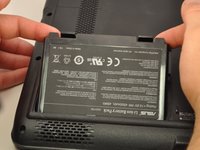
    • Lift the exposed lip and remove the battery cover.

  3. ASUS K50IJ Screen replacement 15.6" Replacement: passo 3, imagem 1 %32 ASUS K50IJ Screen replacement 15.6" Replacement: passo 3, imagem 2 %32 ASUS K50IJ Screen replacement 15.6" Replacement: passo 3, imagem 3 %32
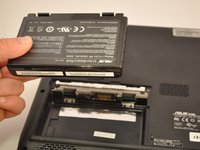
    • Press the tabs on the battery and lift them. The battery should come out easily.

  4. ASUS K50IJ Screen replacement 15.6" Replacement, Fan: passo 4, imagem 1 %32 ASUS K50IJ Screen replacement 15.6" Replacement, Fan: passo 4, imagem 2 %32 ASUS K50IJ Screen replacement 15.6" Replacement, Fan: passo 4, imagem 3 %32
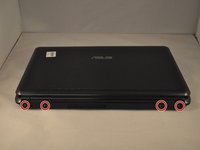
    • Using the PH1 screwdriver, remove the four 4 .75 mm screws that are located on the vent panel.

  5. ASUS K50IJ Screen replacement 15.6" Replacement: passo 5, imagem 1 %32
    • Remove the one .5 mm screw located in the top right corner of the battery compartment.

  6. ASUS K50IJ Screen replacement 15.6" Replacement: passo 6, imagem 1 %32 ASUS K50IJ Screen replacement 15.6" Replacement: passo 6, imagem 2 %32
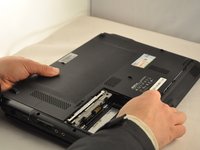
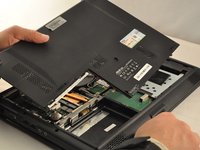
    • Remove the bottom panel by sliding it toward the hinges and lifting the back panel up.

  7. ASUS K50IJ Screen replacement 15.6" Replacement: passo 7, imagem 1 %32
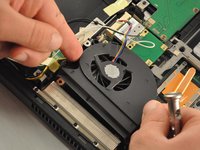
    • Unplug the wire cable attached to the fan by pulling it out .

  8. ASUS K50IJ Screen replacement 15.6" Replacement: passo 8, imagem 1 %32 ASUS K50IJ Screen replacement 15.6" Replacement: passo 8, imagem 2 %32
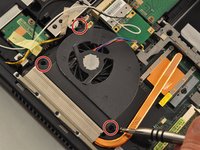
    • Using the PH1 screwdriver, remove the 3 .75mm screws labeled as 1, 2, and 3 on the fan. NOTE these screws have the labels "1", "2", and "3" next to them.

    • Lift the fan up with your fingers.

  9. ASUS K50IJ Screen replacement 15.6" Replacement, Charging Port: passo 9, imagem 1 %32
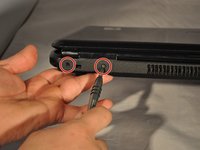
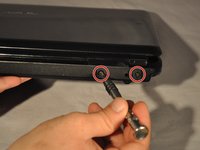
    • Using the PH1 screwdriver remove the two .75 mm screws from the hinge side of the laptop.

  10. ASUS K50IJ Screen replacement 15.6" Replacement: passo 10, imagem 1 %32 ASUS K50IJ Screen replacement 15.6" Replacement: passo 10, imagem 2 %32 ASUS K50IJ Screen replacement 15.6" Replacement: passo 10, imagem 3 %32
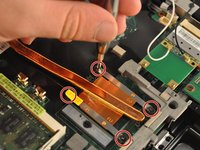
    • Using the PH1 screwdriver, remove the four .75 mm screws from the copper heat sync. They will be labeled 1-4.

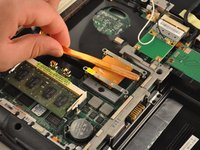
    • Pull the copper heat sync out of the laptop.

  11. ASUS K50IJ Screen replacement 15.6" Replacement: passo 11, imagem 1 %32
    • Using the PH1 screwdriver, remove four .75 mm screws from the driver, located in the bottom-right corner of the laptop.

  12. ASUS K50IJ Screen replacement 15.6" Replacement: passo 12, imagem 1 %32 ASUS K50IJ Screen replacement 15.6" Replacement: passo 12, imagem 2 %32 ASUS K50IJ Screen replacement 15.6" Replacement: passo 12, imagem 3 %32
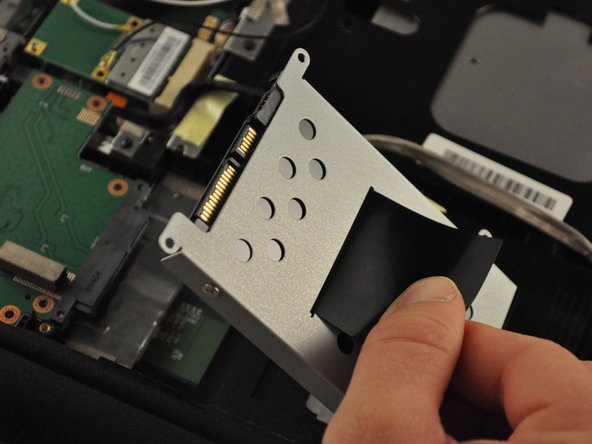
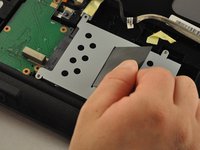
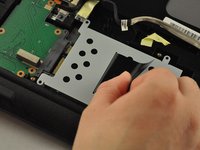
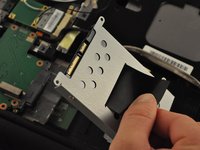
    • Pull on the black tab on the driver to slide the driver back, and lift the driver out of the laptop.

  13. ASUS K50IJ Screen replacement 15.6" Replacement: passo 13, imagem 1 %32 ASUS K50IJ Screen replacement 15.6" Replacement: passo 13, imagem 2 %32 ASUS K50IJ Screen replacement 15.6" Replacement: passo 13, imagem 3 %32
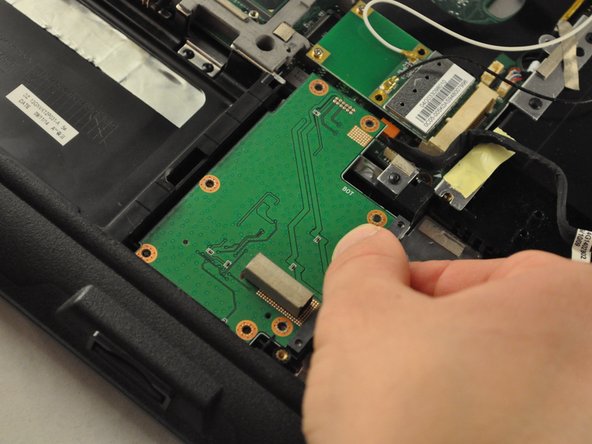
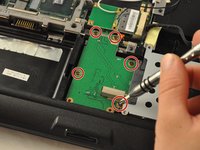
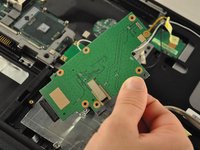
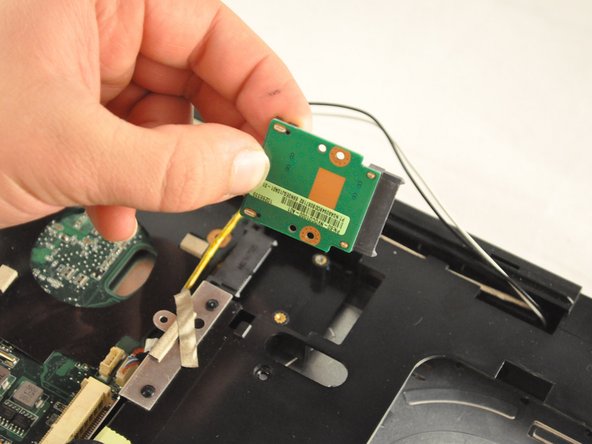
    • Using the PH1 screwdriver, remove the five .5 mm screws from the SD card reader, located in the bottom-middle corner of the laptop.

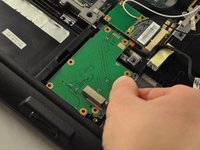
    • Slide the SD card reader away and out.

  14. ASUS K50IJ Screen replacement 15.6" Replacement: passo 14, imagem 1 %32 ASUS K50IJ Screen replacement 15.6" Replacement: passo 14, imagem 2 %32 ASUS K50IJ Screen replacement 15.6" Replacement: passo 14, imagem 3 %32
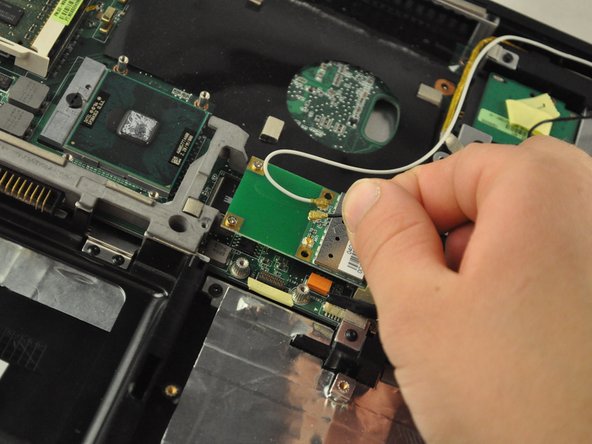
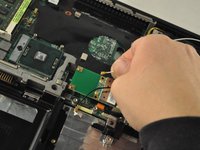
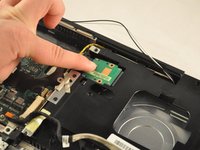
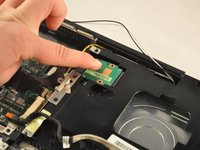
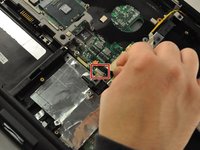
    • Detach the white and black wires from the Wi-Fi card, located in the central area of the laptop.

  15. ASUS K50IJ Screen replacement 15.6" Replacement: passo 15, imagem 1 %32 ASUS K50IJ Screen replacement 15.6" Replacement: passo 15, imagem 2 %32
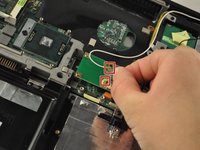
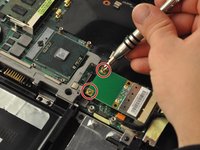
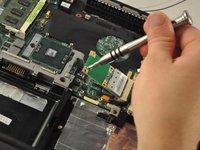
    • Using the PH 1 screwdriver, remove the two .25 mm screws from the Wi-Fi card.

  16. ASUS K50IJ Screen replacement 15.6" Replacement: passo 16, imagem 1 %32
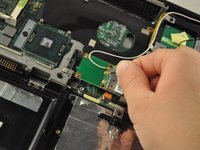
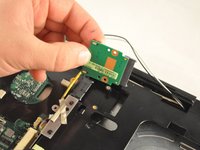
    • Slide the Wi-Fi card out of its slot to remove.

  17. ASUS K50IJ Screen replacement 15.6" Replacement: passo 17, imagem 1 %32
    • Using the PH1mm screwdriver, remove one .5 mm screw from the disk drive, located inthe top-right corner of the laptop.

  18. ASUS K50IJ Screen replacement 15.6" Replacement: passo 18, imagem 1 %32 ASUS K50IJ Screen replacement 15.6" Replacement: passo 18, imagem 2 %32 ASUS K50IJ Screen replacement 15.6" Replacement: passo 18, imagem 3 %32
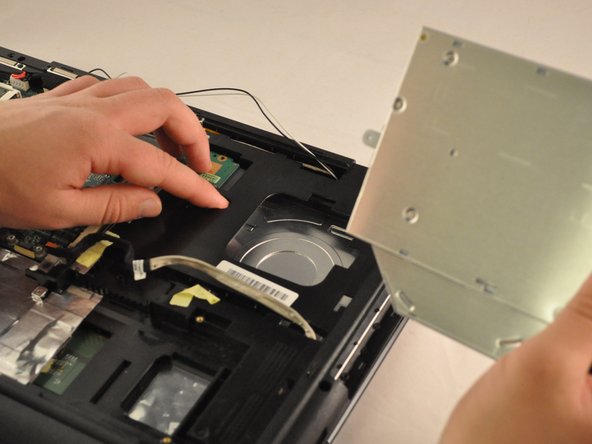
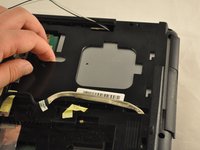
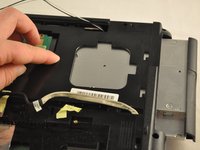
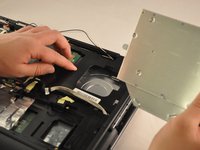
    • Slide the disc drive out of its slot.

  19. ASUS K50IJ Screen replacement 15.6" Replacement: passo 19, imagem 1 %32
    • Using the PH 1 screwdriver, remove the two .5 mm screws from the RAM drive.

  20. ASUS K50IJ Screen replacement 15.6" Replacement: passo 20, imagem 1 %32 ASUS K50IJ Screen replacement 15.6" Replacement: passo 20, imagem 2 %32 ASUS K50IJ Screen replacement 15.6" Replacement: passo 20, imagem 3 %32
    • Slide and lift the RAMdrive out of its port.

  21. ASUS K50IJ Screen replacement 15.6" Replacement: passo 21, imagem 1 %32
    • Using the PH1 screwdriver, remove the .75 mm screw from the plastic housing corner, located in the bottom-right corner of the laptop.

  22. ASUS K50IJ Screen replacement 15.6" Replacement: passo 22, imagem 1 %32 ASUS K50IJ Screen replacement 15.6" Replacement: passo 22, imagem 2 %32
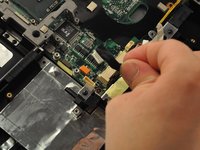
    • Unplug the black cable from the central area of the laptop.

  23. ASUS K50IJ Screen replacement 15.6" Replacement: passo 23, imagem 1 %32 ASUS K50IJ Screen replacement 15.6" Replacement: passo 23, imagem 2 %32
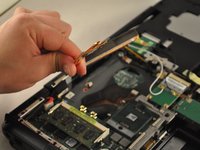
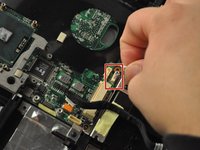
    • Unplug the wire cable in the central area of the laptop.

  24. ASUS K50IJ Screen replacement 15.6" Replacement: passo 24, imagem 1 %32 ASUS K50IJ Screen replacement 15.6" Replacement: passo 24, imagem 2 %32
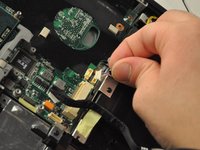
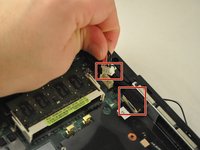
    • Unplug the wire and black cables on the motherboard, located in the upper-left corner of the laptop.

  25. ASUS K50IJ Screen replacement 15.6" Replacement: passo 25, imagem 1 %32
    • Using the PH1 screwdriver, unscrew the two .75 mm screws from the top-left corner of the motherboard.

  26. ASUS K50IJ Screen replacement 15.6" Replacement: passo 26, imagem 1 %32
    • Using the PH 1 screwdriver, remove the .75 cm screw from the top-middle section of the motherboard.

  27. ASUS K50IJ Screen replacement 15.6" Replacement: passo 27, imagem 1 %32
    • Using the PH1 screwdriver, remove the .75 mm screw from the top-middle corner of the motherboard.

  28. ASUS K50IJ Screen replacement 15.6" Replacement: passo 28, imagem 1 %32
    • Using the PH1 screwdriver, remove the three .75 mm screws from the bottom corner of the motherboard.

  29. ASUS K50IJ Screen replacement 15.6" Replacement: passo 29, imagem 1 %32 ASUS K50IJ Screen replacement 15.6" Replacement: passo 29, imagem 2 %32
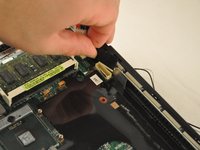
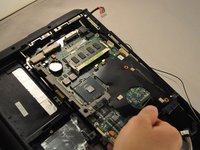
    • There is a ribbon cable connected to the back of the motherboard. Be careful not to break the ribbon cable.

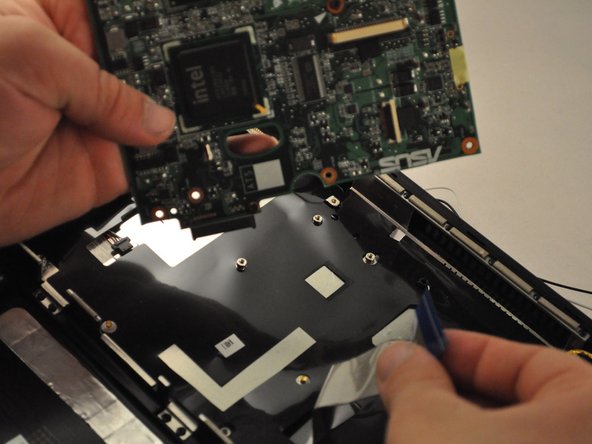
    • Slide the motherboard to the right and lift it up, but do not pull it completely out.

  30. ASUS K50IJ Screen replacement 15.6" Replacement: passo 30, imagem 1 %32 ASUS K50IJ Screen replacement 15.6" Replacement: passo 30, imagem 2 %32 ASUS K50IJ Screen replacement 15.6" Replacement: passo 30, imagem 3 %32
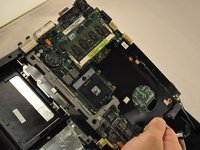
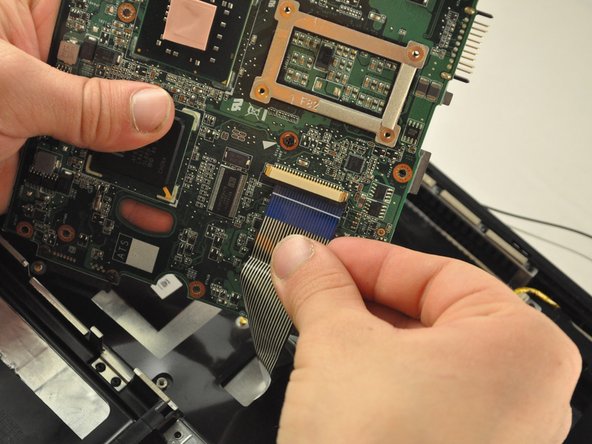
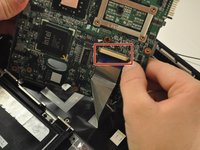
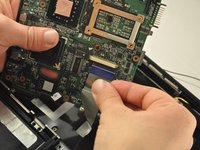
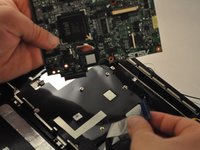
    • Gently unplug the ribbon cable from the underside of the motherboard.

  31. ASUS K50IJ Screen replacement 15.6" Replacement: passo 31, imagem 1 %32 ASUS K50IJ Screen replacement 15.6" Replacement: passo 31, imagem 2 %32 ASUS K50IJ Screen replacement 15.6" Replacement: passo 31, imagem 3 %32
    • The ribbon cable that was plugged into the motherboard is attached to the keyboard. Be sure not to damage it.

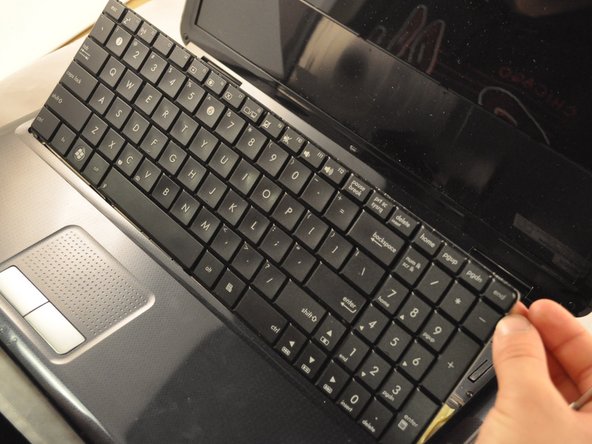
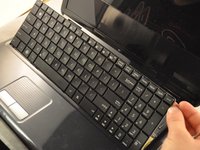
    • Use the metal spudger or opening tool across the top edge of the keyboard to pop it out.

  32. ASUS K50IJ Screen replacement 15.6" Replacement: passo 32, imagem 1 %32 ASUS K50IJ Screen replacement 15.6" Replacement: passo 32, imagem 2 %32
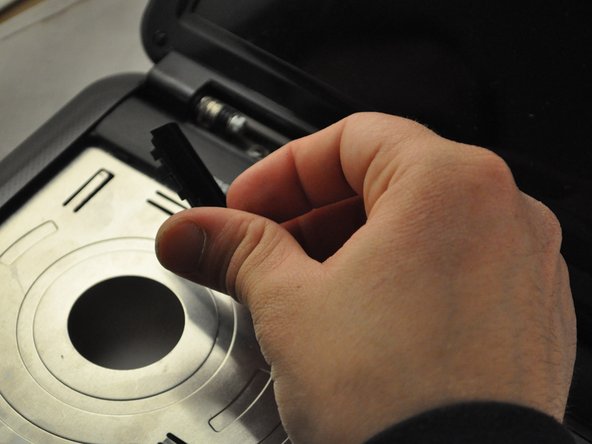
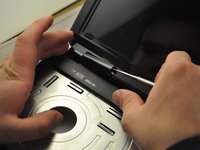
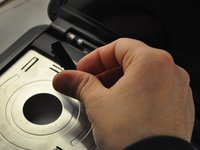
    • Use the metal spudger or opening tool to pop out the plastic hinge covers.

  33. ASUS K50IJ Screen replacement 15.6" Replacement: passo 33, imagem 1 %32
    • Use the PH1 screwdriver to remove the .75 mm screws from the hinges. Each hinge has one screw.

  34. ASUS K50IJ Screen replacement 15.6" Replacement: passo 34, imagem 1 %32
    • Be careful not to damage the cables that are attached to the screen frame. Be sure to pull them through the laptop carefully.

    • The screen should separate from the rest of the laptop.

  35. ASUS K50IJ Screen replacement 15.6" Replacement: passo 35, imagem 1 %32
    • Using the PH1 screwdriver, remove the .75 mm screw from the bottom-middle section was previously covering.

  36. ASUS K50IJ Screen replacement 15.6" Replacement: passo 36, imagem 1 %32
    • Using the PH 1 screwdriver, remove the .75 cm screw from the bottom-middle section where the keyboard was previously covering.

  37. ASUS K50IJ Screen replacement 15.6" Replacement: passo 37, imagem 1 %32
    • Lift the front cover off of the laptop.

  38. ASUS K50IJ Screen replacement 15.6" Replacement: passo 38, imagem 1 %32 ASUS K50IJ Screen replacement 15.6" Replacement: passo 38, imagem 2 %32 ASUS K50IJ Screen replacement 15.6" Replacement: passo 38, imagem 3 %32
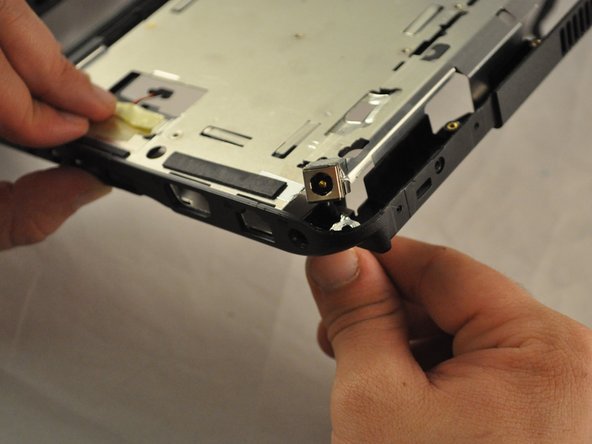
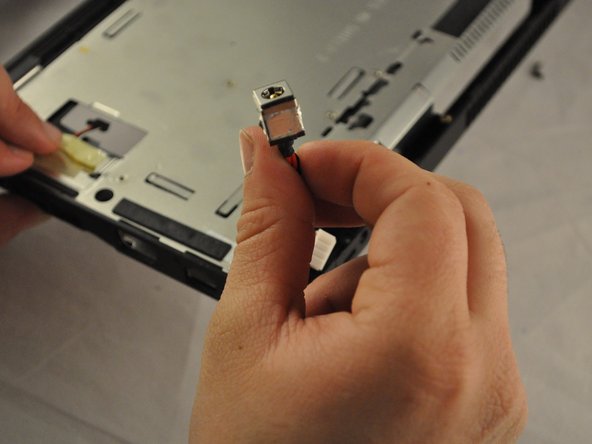
    • Flip the laptop back over. The charging port will be located in the top-right corner.

  39. ASUS K50IJ Screen replacement 15.6" Replacement, Screen replacement 15.6": passo 39, imagem 1 %32 ASUS K50IJ Screen replacement 15.6" Replacement, Screen replacement 15.6": passo 39, imagem 2 %32
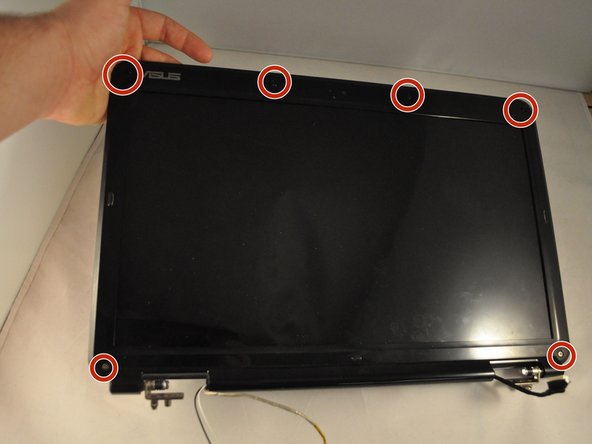
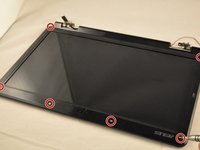
    • Using a metal spudger, pop off the six rubber screw covers.

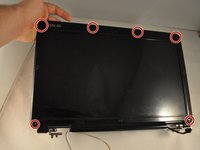
  40. ASUS K50IJ Screen replacement 15.6" Replacement: passo 40, imagem 1 %32 ASUS K50IJ Screen replacement 15.6" Replacement: passo 40, imagem 2 %32
    • Using the PH1mm screwdriver, remove the six .75 mm screws from the front of the screen frame.

  41. ASUS K50IJ Screen replacement 15.6" Replacement: passo 41, imagem 1 %32 ASUS K50IJ Screen replacement 15.6" Replacement: passo 41, imagem 2 %32 ASUS K50IJ Screen replacement 15.6" Replacement: passo 41, imagem 3 %32
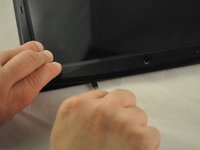
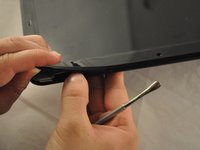
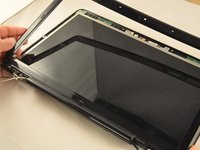
    • Use the plastic opening tool or spudger along the edge of the frame, to pry off the frame.

  42. ASUS K50IJ Screen replacement 15.6" Replacement: passo 42, imagem 1 %32 ASUS K50IJ Screen replacement 15.6" Replacement: passo 42, imagem 2 %32 ASUS K50IJ Screen replacement 15.6" Replacement: passo 42, imagem 3 %32
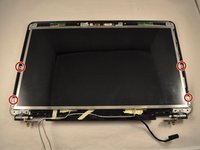
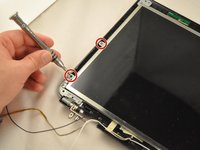
    • Using the PH1 screwdriver, remove the four bottom .75 mm screws from the screen frame.

  43. ASUS K50IJ Screen replacement 15.6" Replacement: passo 43, imagem 1 %32
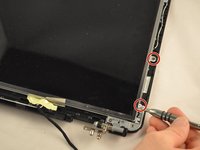
    • Using the PH1 screwdriver, remove the two .75 cm screws from the top of the screen frame.

  44. ASUS K50IJ Screen replacement 15.6" Replacement: passo 44, imagem 1 %32
    • Lift the bracket off the top of the screen frame.

  45. ASUS K50IJ Screen replacement 15.6" Replacement: passo 45, imagem 1 %32
    • Lift the screen should out.

Conclusão

To reassemble your device, follow these instructions in reverse order.

Uma outra pessoa concluiu este guia.

3Comentários do guia

Very well done. Thank You

Rc wells - Responder Compartilhar

Thank you for your time!

tatiana.morais.89 - Responder Compartilhar

Now, I don´t know how to connect the cables to the motherboard because they are too short.

tatiana.morais.89 - Responder Compartilhar
Comentar

Visualizações:

Últimas 24 horas: 2

Últimos 7 dias: 6

Últimos 30 dias: 47

Ao todo: 1,399