Introdução
Follow the steps in this guide to replace the display assembly in an iPad mini 4 Wi-Fi.
Note that if you would like to maintain Touch ID functionality or your replacement part does not include a home button, you should follow the screen and digitizer replacement guide, which includes removing and transferring your home button to the new display panel.
O que você precisa
-
-
-
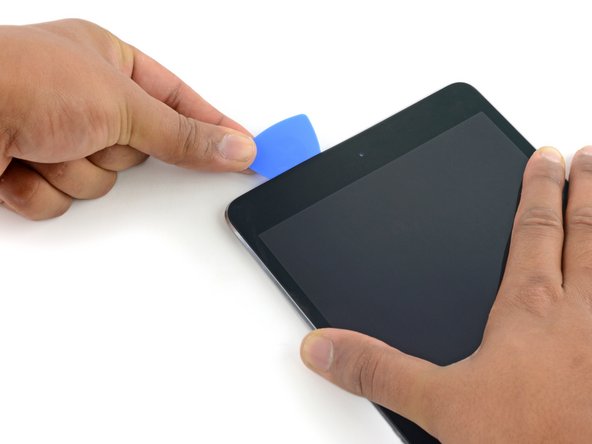
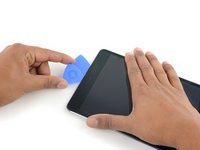
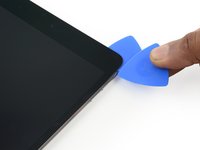
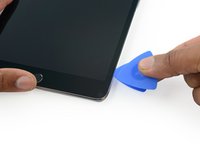
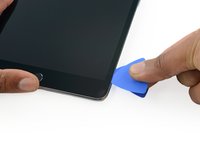
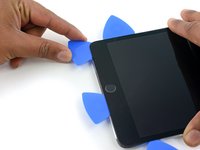
Leave the opening pick in the iPad slightly past the front-facing camera.
-
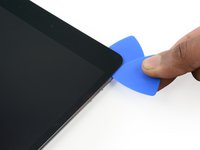
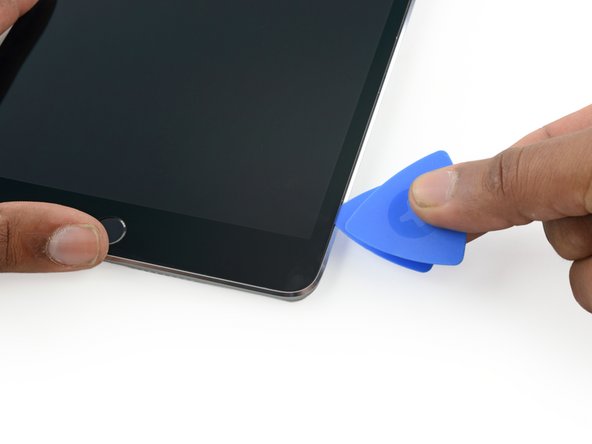
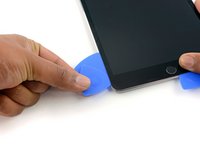
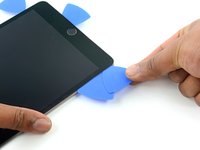
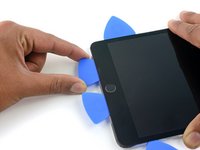
Take a third pick and insert it to the left of the camera, where the first pick just was. Slide it back to the corner to completely cut any remaining adhesive.
-
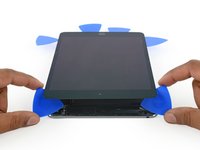
Leave the third pick in place to prevent the corner adhesive from re-sealing as it cools.
-
-
-
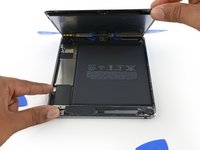
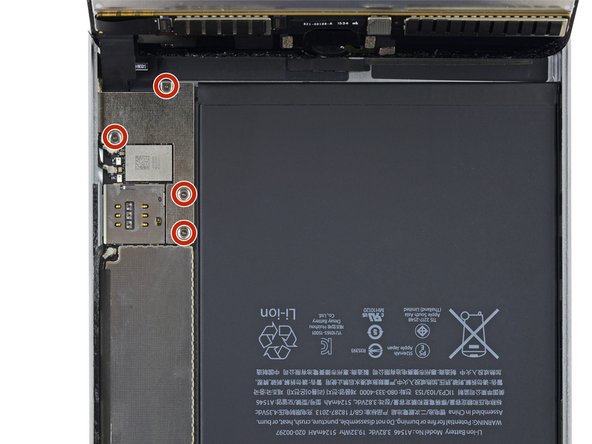
Remove the four 1.2 mm Phillips screws over the battery/display connector bracket.
-
-
-
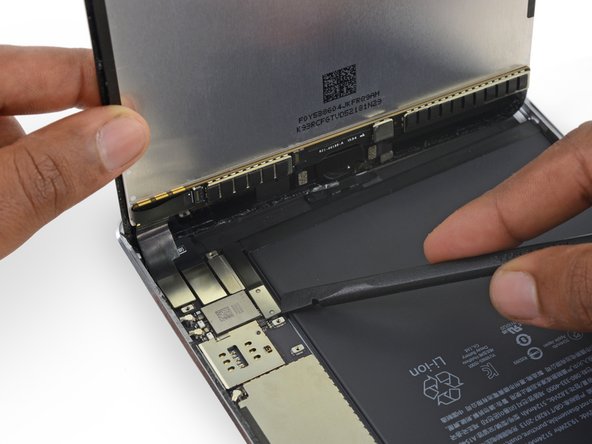
Use the flat tip of a spudger to disconnect the display data connector from its socket on the logic board.
-
Disconnect the digitizer cable connector from its socket on the logic board.
-


































































To reassemble your device, follow these instructions in reverse order.
Cancelar: não concluí este guia.
36 outras pessoas executaram este guia.



3Comentários do guia
why after replacement power button doesn’t lock screen, where is those smart cover sensor are located?
great guide but u dont discuss reapplying the adhesive strips .. which is very important.
I would like to say these instructions are missing key parts of the repair that would increase the success rate, I am a technician and firstly you should start from the top, where there is the most free space, secondly you should pry the screen enough high so you can insert the pick under the lcd as not to damage it, I didn’t insert more than 2mm this one time and I still ended up breaking the display. I would have expected ifixit to contain these vital pieces of information… ;(
