Ir para o conteúdo principal
Participe da comunidade de reparos - Criar conta

UTStarcom XV6700 Screen Replacement

O que você precisa

  1. UTStarcom XV6700 Screen Replacement, Battery: passo 1, imagem 1 %32
    • Press the on/off button on the top to power the phone off.

    Pergunte ao FixBot

    Comentar

  2. UTStarcom XV6700 Screen Replacement: passo 2, imagem 1 %32
    • Remove the battery cover by pressing and sliding the cover down and off of the phone.

    Pergunte ao FixBot

    Comentar

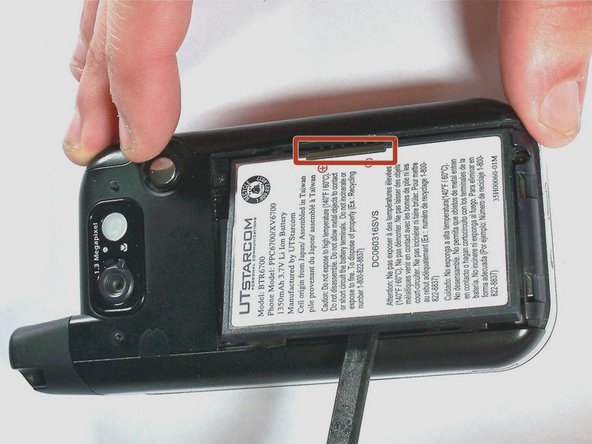
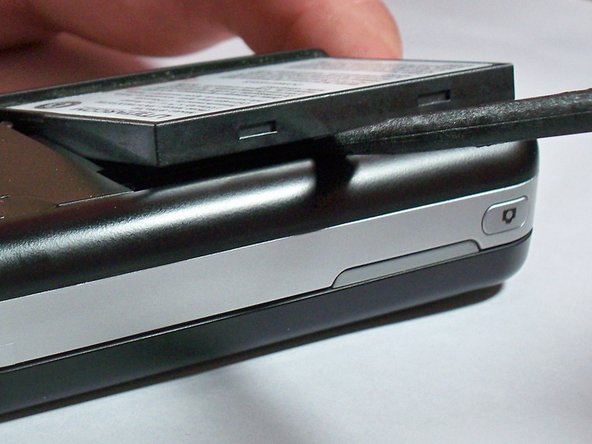
  3. UTStarcom XV6700 Screen Replacement: passo 3, imagem 1 %32 UTStarcom XV6700 Screen Replacement: passo 3, imagem 2 %32 UTStarcom XV6700 Screen Replacement: passo 3, imagem 3 %32
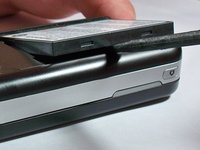
    • Pull the battery removal tab and lift the battery out of the phone.

    • If the battery removal tab is missing, place a spudger on the opposite side of the highlighted connector and pry the battery up.

    Pergunte ao FixBot

    Comentar

  4. UTStarcom XV6700 Screen Replacement, Camera: passo 4, imagem 1 %32
    Ferramenta utilizada neste passo:
    Tweezers
    $4.99
    • Remove the two 4.0-mm #000 Phillips screws at the top of the battery compartment. Tweezers may be useful to remove the screws.

    Pergunte ao FixBot

    Comentar

  5. UTStarcom XV6700 Screen Replacement: passo 5, imagem 1 %32 UTStarcom XV6700 Screen Replacement: passo 5, imagem 2 %32
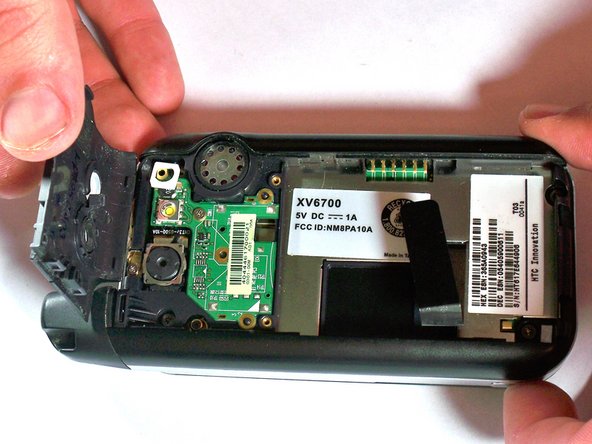
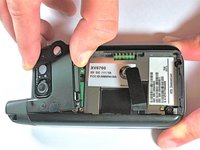
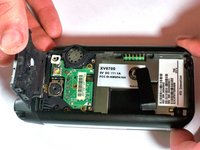
    • Use firm pressure to carefully pry off the cover with your fingers.

    Pergunte ao FixBot

    Comentar

  6. UTStarcom XV6700 Screen Replacement: passo 6, imagem 1 %32
    • Remove the 4.0-mm #00 Phillips screw securing the camera flash circuit board. The board is still connected by a connector on the bottom of the board.

    Pergunte ao FixBot

    Comentar

  7. UTStarcom XV6700 Screen Replacement: passo 7, imagem 1 %32
    • Gently pry off the camera flash circuit board with the spudger.

    Pergunte ao FixBot

    Comentar

  8. UTStarcom XV6700 Screen Replacement: passo 8, imagem 1 %32
    • Gently pry off the camera with the spudger.

    Pergunte ao FixBot

    Comentar

  9. UTStarcom XV6700 Screen Replacement, Motherboard: passo 9, imagem 1 %32
    • Remove the four 5.0-mm Torx T6 screws from the corners of the black cover.

    Pergunte ao FixBot

    Comentar

  10. UTStarcom XV6700 Screen Replacement: passo 10, imagem 1 %32
    • Remove the 4.0-mm #00 Phillips screw that holds the antenna in place. The antenna does not need to be removed.

    Pergunte ao FixBot

    Comentar

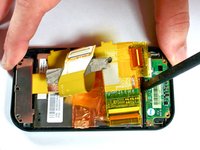
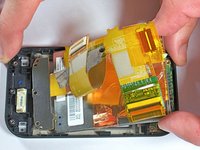
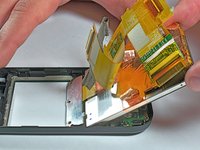
  11. UTStarcom XV6700 Screen Replacement: passo 11, imagem 1 %32 UTStarcom XV6700 Screen Replacement: passo 11, imagem 2 %32 UTStarcom XV6700 Screen Replacement: passo 11, imagem 3 %32
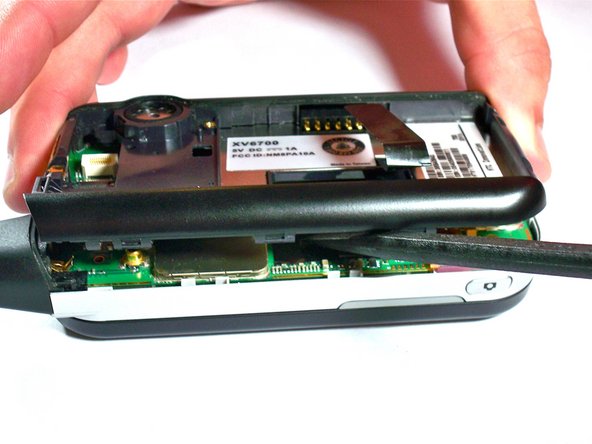
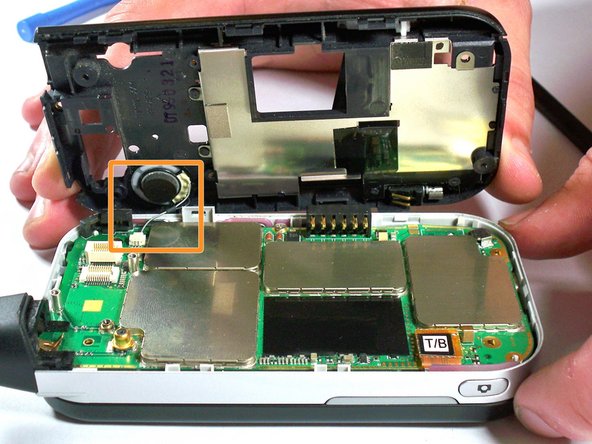
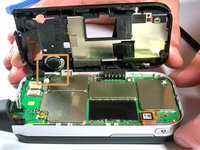
    • Use the spudger or plastic opening tools to apply firm but gentle pressure equally around the outside of the case.

    • Carefully pry the black portion of the case away from the silver portion.

    • Do not try to remove the case completely. The speaker wire is still connected to the motherboard.

    Pergunte ao FixBot

    Comentar

  12. UTStarcom XV6700 Screen Replacement: passo 12, imagem 1 %32
    Ferramenta utilizada neste passo:
    Tweezers
    $4.99
    • Using tweezers, pull with gentle pressure in the direction of the wire to unplug from the motherboard connector.

    Pergunte ao FixBot

    Comentar

  13. UTStarcom XV6700 Screen Replacement: passo 13, imagem 1 %32
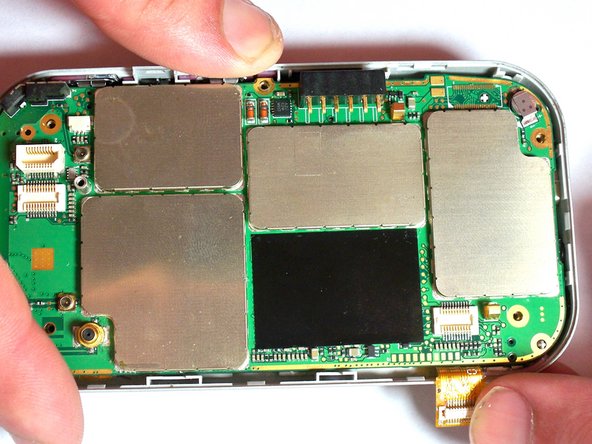
    • Remove the 4.0-mm #00 Phillips screw holding the motherboard in place. The screw is in the middle of the motherboard, near the outside edge.

    Pergunte ao FixBot

    Comentar

  14. UTStarcom XV6700 Screen Replacement: passo 14, imagem 1 %32 UTStarcom XV6700 Screen Replacement: passo 14, imagem 2 %32
    • With your fingers, disconnect the keyboard cable from the motherboard. The cable is orange with the letters T/B printed on the connector.

    Pergunte ao FixBot

    Comentar

  15. UTStarcom XV6700 Screen Replacement: passo 15, imagem 1 %32 UTStarcom XV6700 Screen Replacement: passo 15, imagem 2 %32
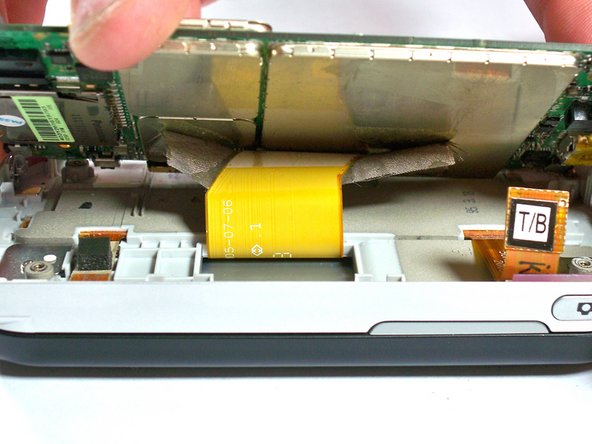
    • Carefully lift up on the motherboard with the spudger until you can see the display cable connected to the underside of the motherboard. The display cable connector will be taped over.

    Pergunte ao FixBot

    Comentar

  16. UTStarcom XV6700 Screen Replacement: passo 16, imagem 1 %32
    • Use the spudger to peel away the tape from the connector.

    Pergunte ao FixBot

    Comentar

  17. UTStarcom XV6700 Screen Replacement: passo 17, imagem 1 %32
    • Using the spudger, pry away the display cable connector from the motherboard. The motherboard is now completely disconnected.

    Pergunte ao FixBot

    Comentar

  18. UTStarcom XV6700 Screen Replacement, Screen: passo 18, imagem 1 %32
    • Remove the four 4.0-mm #00 Phillips screws that secure the slide-out keyboard to the screen enclosure.

    Pergunte ao FixBot

    Comentar

  19. UTStarcom XV6700 Screen Replacement: passo 19, imagem 1 %32 UTStarcom XV6700 Screen Replacement: passo 19, imagem 2 %32
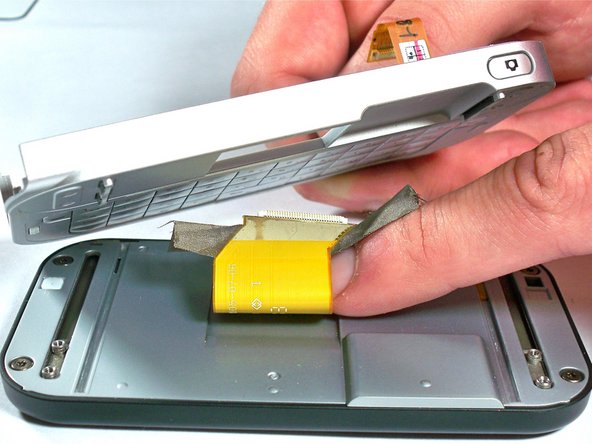
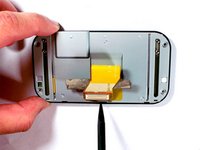
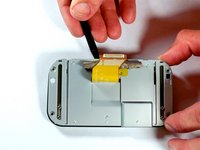
    • Carefully pull the display cable through the opening in the keyboard panel. The keyboard panel can then be set aside.

    Pergunte ao FixBot

    Comentar

  20. UTStarcom XV6700 Screen Replacement: passo 20, imagem 1 %32
    • Remove four 5.0-mm Torx T6 screws from the screen enclosure.

    Pergunte ao FixBot

    Comentar

  21. UTStarcom XV6700 Screen Replacement: passo 21, imagem 1 %32 UTStarcom XV6700 Screen Replacement: passo 21, imagem 2 %32 UTStarcom XV6700 Screen Replacement: passo 21, imagem 3 %32
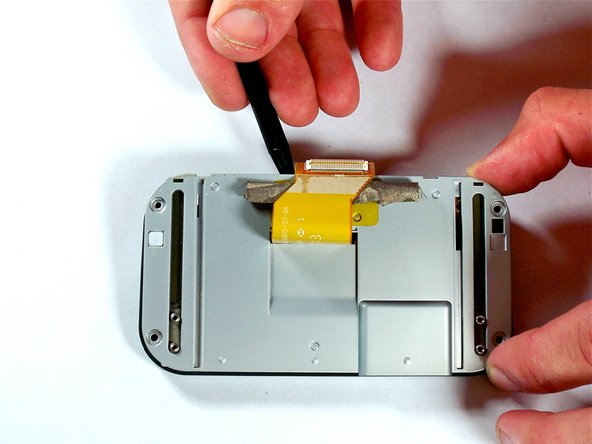
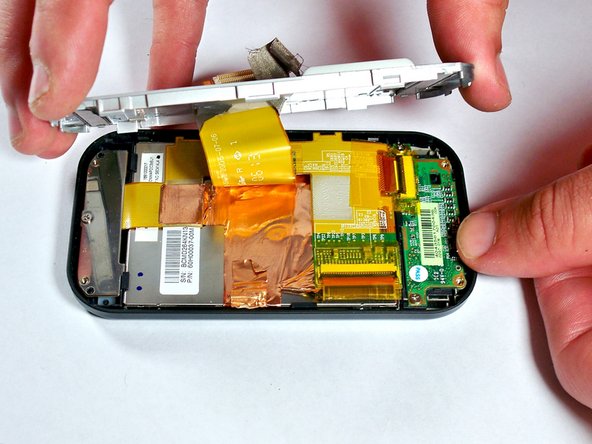
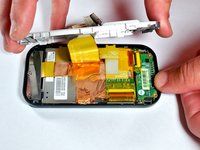
    • Pry the silver cover off the screen enclosure. The display cable should be pulled through the opening in the silver cover.

    Pergunte ao FixBot

    Comentar

  22. UTStarcom XV6700 Screen Replacement: passo 22, imagem 1 %32 UTStarcom XV6700 Screen Replacement: passo 22, imagem 2 %32
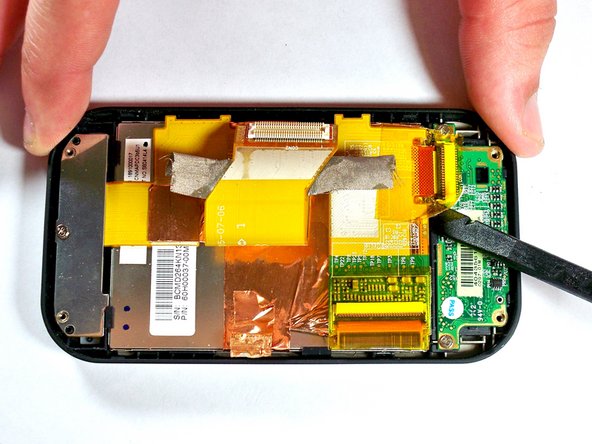
    • Use the spudger to remove the tape from the connector between the screen and the front button circuit board.

    • Pry up on the brown connector to remove.

    Pergunte ao FixBot

    Comentar

  23. UTStarcom XV6700 Screen Replacement: passo 23, imagem 1 %32
    • Remove one 4.0-mm #00 Phillips screws from the silver bracket holding the screen assembly in place.

    Pergunte ao FixBot

    Comentar

  24. UTStarcom XV6700 Screen Replacement: passo 24, imagem 1 %32 UTStarcom XV6700 Screen Replacement: passo 24, imagem 2 %32 UTStarcom XV6700 Screen Replacement: passo 24, imagem 3 %32
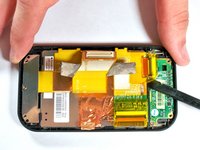
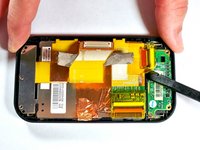
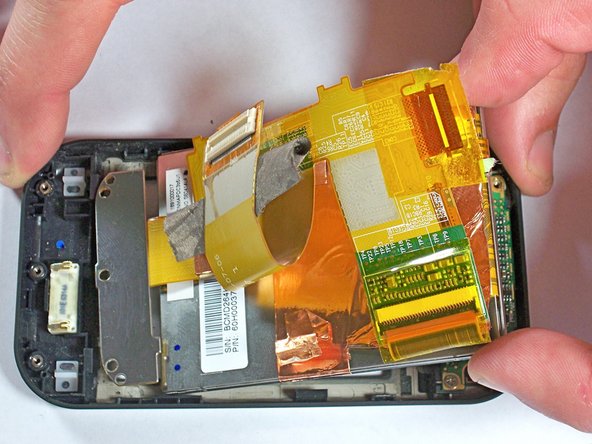
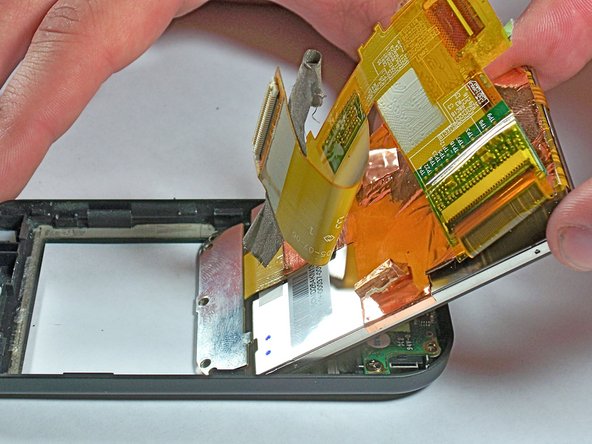
    • Remove the screen by using the spudger to gently but firmly pry the screen away from the outer case.

    • Use your hand to lift the screen completely away from the case.

    Pergunte ao FixBot

    Comentar

Conclusão

To reassemble your device, follow these instructions in reverse order.

Cancelar: não concluí este guia.

Uma outra pessoa concluiu este guia.

0Comentários do guia

Comentar

Visualizações:

Últimas 24 horas: 0

Últimos 7 dias: 6

Últimos 30 dias: 31

Ao todo: 647