Ir para o conteúdo principal
Participe da comunidade de reparos - Criar conta

Texas Instruments TI-83 Plus Keyboard Mat Replacement

O que você precisa

  1. Texas Instruments TI-83 Plus Keyboard Mat Replacement, Backup Battery: passo 1, imagem 1 %32 Texas Instruments TI-83 Plus Keyboard Mat Replacement, Backup Battery: passo 1, imagem 2 %32
    • Remove the battery cover.

    • Remove the AAA batteries from the calculator.

    Pergunte ao FixBot

    Comentar

  2. Texas Instruments TI-83 Plus Keyboard Mat Replacement: passo 2, imagem 1 %32
    • Remove the 5mm Philips #00 screw holding backup battery cover.

    • Remove the backup battery cover.

    Pergunte ao FixBot

    Comentar

  3. Texas Instruments TI-83 Plus Keyboard Mat Replacement: passo 3, imagem 1 %32
    • Use plastic opening tool to remove the backup battery. Place the tool in the small cut-out next to the battery and pry the battery out.

    • Be careful, the backup battery is spring loaded and may shoot up when you remove it.

    Pergunte ao FixBot

    Comentar

  4. Texas Instruments TI-83 Plus Keyboard Mat Replacement, Back Case: passo 4, imagem 1 %32
    • Unscrew the six 7.5mm T6 screws on the back case. You will need to use a screwdriver with a long and skinny head.

    Pergunte ao FixBot

    Comentar

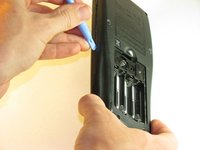
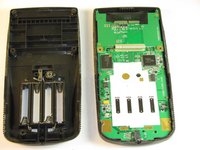
  5. Texas Instruments TI-83 Plus Keyboard Mat Replacement: passo 5, imagem 1 %32 Texas Instruments TI-83 Plus Keyboard Mat Replacement: passo 5, imagem 2 %32
    • Pry back case off. Insert the plastic opening tool in the track for the protective cover and pry the halves of the case apart.

    Pergunte ao FixBot

    Comentar

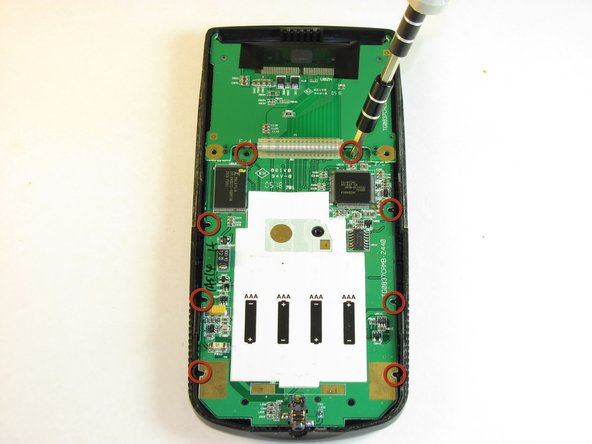
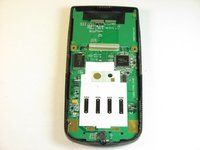
  6. Texas Instruments TI-83 Plus Keyboard Mat Replacement, Motherboard & Screen: passo 6, imagem 1 %32 Texas Instruments TI-83 Plus Keyboard Mat Replacement, Motherboard & Screen: passo 6, imagem 2 %32
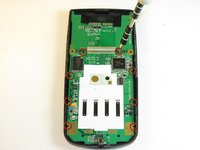
    • Keep the screen face-down during this step. Only the motherboard is attached to the face-plate and the screen may fall out.

    • Remove the eight (8) 5mm Philips #00 screws on the motherboard.

    Pergunte ao FixBot

    Comentar

  7. Texas Instruments TI-83 Plus Keyboard Mat Replacement: passo 7, imagem 1 %32 Texas Instruments TI-83 Plus Keyboard Mat Replacement: passo 7, imagem 2 %32
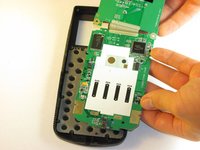
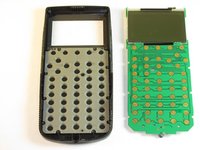
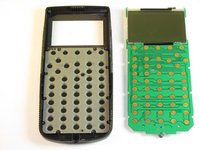
    • Carefully remove the motherboard and screen. Grab the board by its side with one hand and the screen with the other. Carefully lift the two parts up.

    • Keep the face-plate face-down to prevent the keys from falling out.

    Pergunte ao FixBot

    Comentar

  8. Texas Instruments TI-83 Plus Keyboard Mat Replacement, Keyboard Mat: passo 8, imagem 1 %32 Texas Instruments TI-83 Plus Keyboard Mat Replacement, Keyboard Mat: passo 8, imagem 2 %32
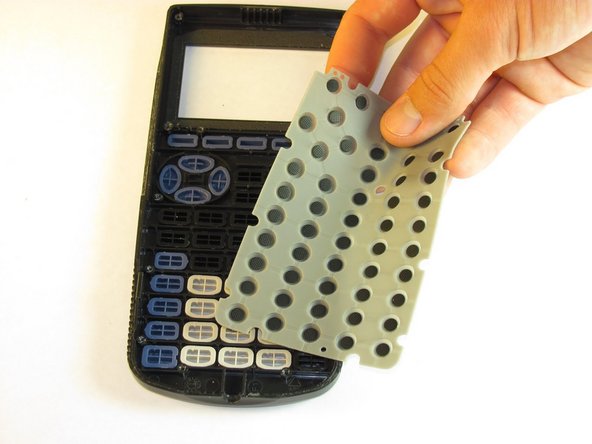
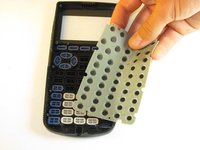
    • Remove light gray rubber keyboard mat.

    • Keep your calculator face down to ensure the individual keys do not fall out.

    Pergunte ao FixBot

    Comentar

  9. Texas Instruments TI-83 Plus Keyboard Mat Replacement: passo 9, imagem 1 %32
    • Clean the contacts on the keyboard with a soft cloth.

    Pergunte ao FixBot

    Comentar

Conclusão

To reassemble your device, follow these instructions in reverse order.

Cancelar: não concluí este guia.

Uma outra pessoa concluiu este guia.

corey

Membro desde: 10/02/12

11 Reputação

Autoria de 1 guia

Equipe

Cal Poly, Team 18-37, Regan Fall 2012 Membro de Cal Poly, Team 18-37, Regan Fall 2012

CPSU-REGAN-F12S18G37

5 Membros

Autoria de 5 guias

0Comentários do guia

Comentar

Visualizações:

Últimas 24 horas: 3

Últimos 7 dias: 15

Últimos 30 dias: 58

Ao todo: 5,096