Essa tradução foi gerada por um programa e ainda não foi revisada por uma pessoa. Falas essa língua? Dá uma olhada.

Substituição do disco rígido do HP Elitebook 840 G1

Última atualização em 6 de ago de 2026
Visualizações: 32 mil
Visualizar Estatísticas:
- Últimas 24 horas:
- 6
- Últimos 7 dias:
- 39
- Últimos 30 dias:
- 171
- Ao todo:
- 31.607
Comentários: 9
5 comments on steps, 4 guide comments.
Go to guide commentsConcluído: 12 13
12 pessoas marcaram este guia como "concluído". Será você o próximo?
13· pessoas marcaram este guia como "concluído". Incluindo você — ótimo trabalho!
Favorites: 2 3
2 pessoas favoritaram (e se inscreveram) neste guia. Você será o próximo?
3 pessoas marcaram como favorito (e assinaram) este guia - incluindo você!
Precisa de mais images
Mais algumas imagens faria os procedimentos deste guia ficarem mais claros.
Introdução
Ir para o passo 1 ↓Se a tela azul da morte aparecer ou se o disco rígido emitir ruídos estranhos, substitua o disco rígido com falha ou defeituoso no seu HP Elitebook 840 G1.
O que você precisa
Kits de conserto
Estes kits contêm todas as peças e ferramentas necessárias para executar este guia.


Peças


Ferramentas

-
-
-
Deslize a trava para a direita, para longe do símbolo de cadeado.
-
Deslize a tampa para longe da trava para removê-la.
 Pergunte ao FixBot
-
-
-
Após remover a capa traseira, você poderá ver a bateria e as duas travas que a mantêm no lugar.
-
As duas travas devem ser puxadas para trás; uma delas possui uma mola e deve ser mantida pressionada para que seja possível remover a bateria.
-
-
-
-
-
-
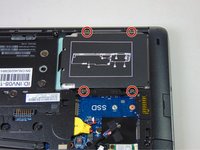
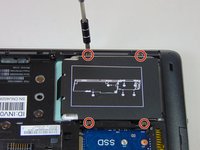
Afrouxe os quatro parafusos Phillips que prendem o disco rígido.
-
-
-
Segure a aba de puxar na carcaça de plástico do disco rígido e puxe-a para fora e para o lado.
-
Remova o disco rígido de 2,5" do suporte de plástico.
-
-



Para a remontagem de seu dispositivo, siga estas instruções na ordem inversa.
Cancelar: não concluí este guia.
12 outras pessoas executaram este guia.

Equipe

USF Tampa, Team 5-3, Blackwell Fall 2015 Membro de USF Tampa, Team 5-3, Blackwell Fall 2015
USFT-BLACKWELL-F15S5G3
4 Membros
Autoria de 60 guias
4Comentários do guia
I'm surprised not to see a caution about removing the hard drive, but I guess generally I fixit users are pretty computer savvy!
The NEW hard drive does NOT have any OP system. How does that work now ?????
In case you're still looking for an answer:
-Create a bootable usb flash drive with your os of choice: Download rufus, get iso file of os, flash the iso to the usb drive via rufus. (Unfortunately need a pc for this part).
-Put usb drive to your notebook and turn it on.
-Most notebooks should automatically start from that usb drive. However if not: your notebook brand should have specific button for that (Eg.: ESC, F2). You can google that and find out… OR choose usb drive as first boot option in your BIOS.
PS: If windows asks for key on installation, skip that part and use Microsoft Toolkit to activate it later ;)
Another answer to this would be to copy the contents of your old drive to the new drive. You can use various sata connectors to do this, either from the laptop itself, or using another computer.
