Ir para o conteúdo principal
Participe da comunidade de reparos - Criar conta

Sony VAIO PCG-F360 Fan Replacement

O que você precisa

  1. Sony VAIO PCG-F360 Fan Replacement, Battery: passo 1, imagem 1 %32
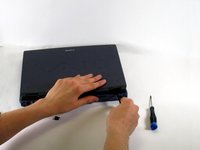
    • Position the laptop screen-side down as shown.

    • In this position the battery housing will be located on the right hand side.

    Pergunte ao FixBot

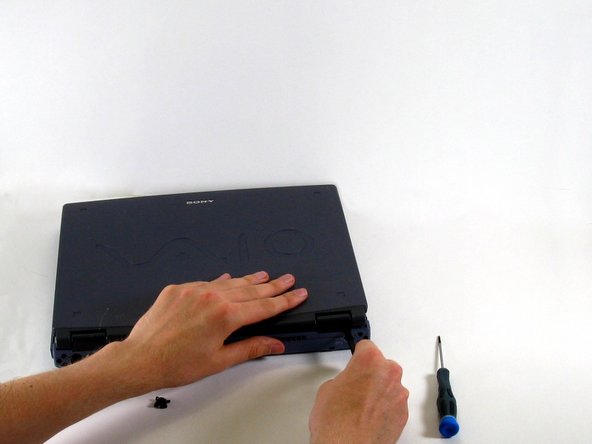
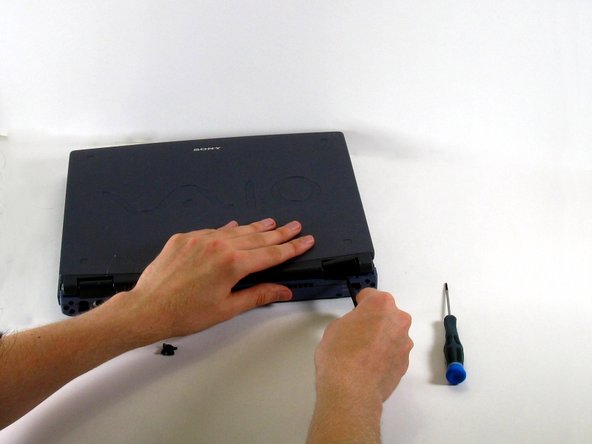
    Comentar

  2. Sony VAIO PCG-F360 Fan Replacement: passo 2, imagem 1 %32
    • Lift the panel up and then out to gain access to the battery.

    Pergunte ao FixBot

    Comentar

  3. Sony VAIO PCG-F360 Fan Replacement: passo 3, imagem 1 %32
    • Use the indentations to pull the old battery out.

    Pergunte ao FixBot

    Comentar

  4. Sony VAIO PCG-F360 Fan Replacement: passo 4, imagem 1 %32
    • The battery is now removed and it is safe to move on to uninstalling other components.

    Pergunte ao FixBot

    Comentar

  5. Sony VAIO PCG-F360 Fan Replacement, Keyboard: passo 5, imagem 1 %32 Sony VAIO PCG-F360 Fan Replacement, Keyboard: passo 5, imagem 2 %32 Sony VAIO PCG-F360 Fan Replacement, Keyboard: passo 5, imagem 3 %32
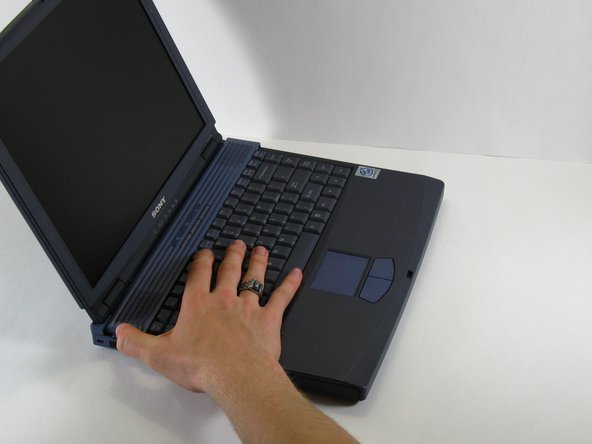
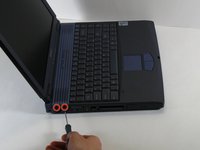
    • There are two screws on the left hand side of the laptop near the IR (Infared remote) receiver (see image). Remove them using a Phillips #00 Screwdriver.

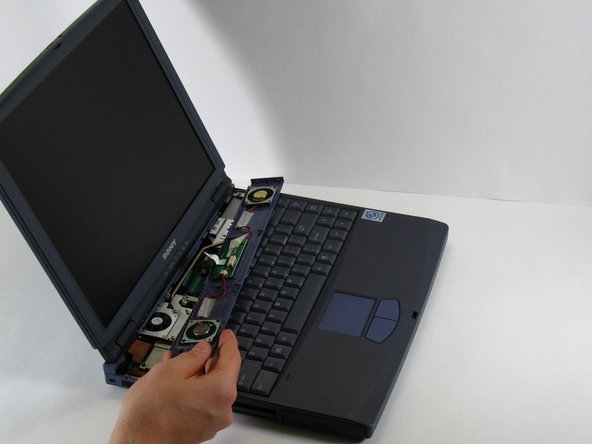
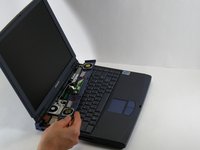
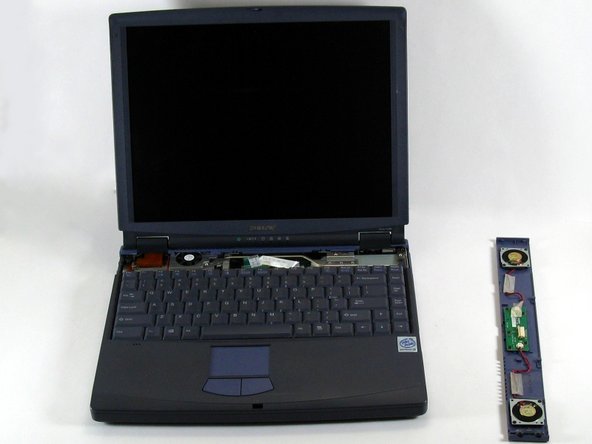
    • Slide the speaker panel towards the left, then carefully flip it over onto the keyboard.

    • Make sure not to pull the speaker panel away from the computer just yet - it is still connected!

    Pergunte ao FixBot

    Comentar

  6. Sony VAIO PCG-F360 Fan Replacement: passo 6, imagem 1 %32 Sony VAIO PCG-F360 Fan Replacement: passo 6, imagem 2 %32 Sony VAIO PCG-F360 Fan Replacement: passo 6, imagem 3 %32
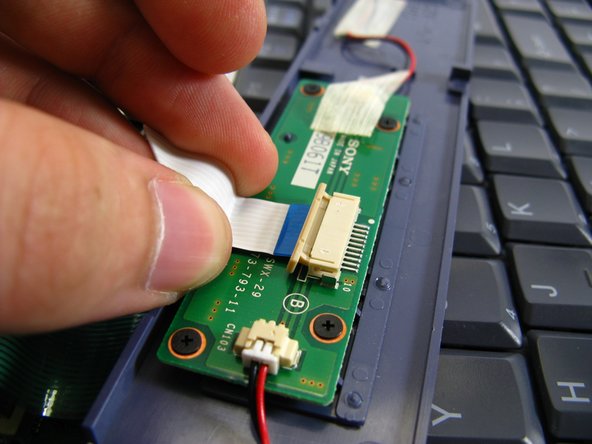
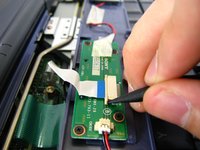
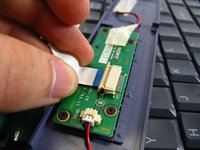
    • On the inside of the speaker panel, using a spudger, push the beige tab in the direction of the ribbon. It should only move a small amount.

    • Remove the ribbon by gently pulling on it, there should be little or no resistance.

    • Now the speaker panel can be set aside.

    Pergunte ao FixBot

    Comentar

  7. Sony VAIO PCG-F360 Fan Replacement: passo 7, imagem 1 %32 Sony VAIO PCG-F360 Fan Replacement: passo 7, imagem 2 %32
    • Remove the metal screw that will be located at the red circle.

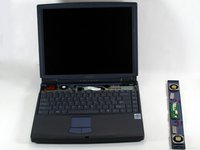
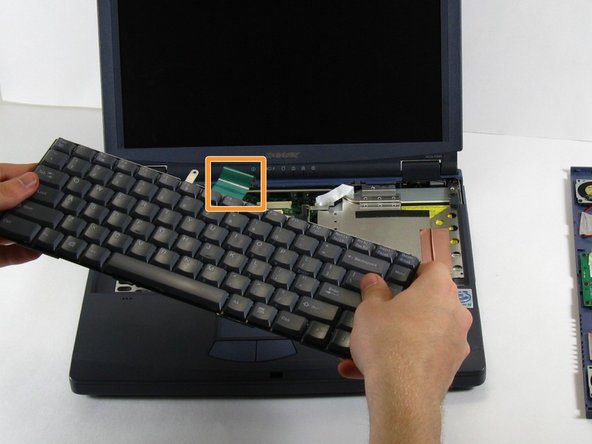
    • Pull on the green strip, and the keyboard should come free easily.

    Pergunte ao FixBot

    Comentar

  8. Sony VAIO PCG-F360 Fan Replacement, Display: passo 8, imagem 1 %32 Sony VAIO PCG-F360 Fan Replacement, Display: passo 8, imagem 2 %32 Sony VAIO PCG-F360 Fan Replacement, Display: passo 8, imagem 3 %32
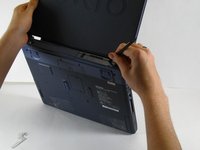
    • Remove the six screws along the hinges (three on either side).

    • Twist and pry at the hinge covers with a spudger until they pop up and remove them.

    Pergunte ao FixBot

    Comentar

  9. Sony VAIO PCG-F360 Fan Replacement: passo 9, imagem 1 %32 Sony VAIO PCG-F360 Fan Replacement: passo 9, imagem 2 %32
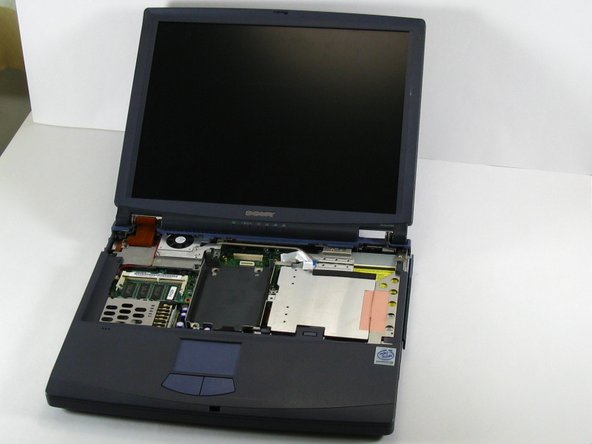
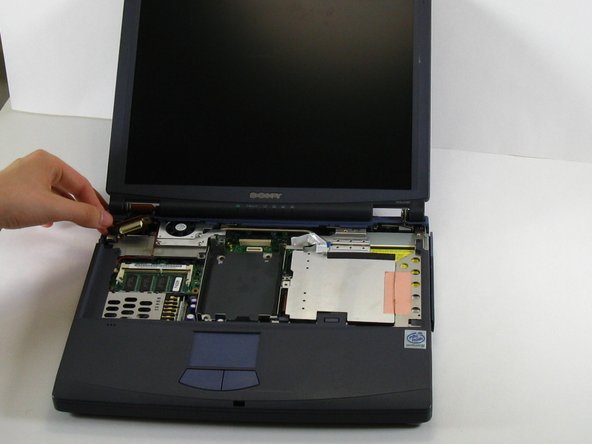
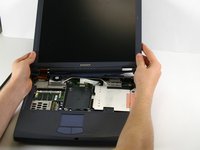
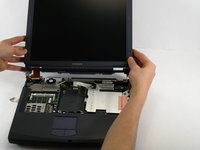
    • With the computer facing you open its lid carefully, so that the computer looks like this.

    • Because you are removing screws from the hinge, be especially careful to not damage the hinge or the screen when opening the laptop. Be slow about opening it and make sure that the display doesn't fall out.

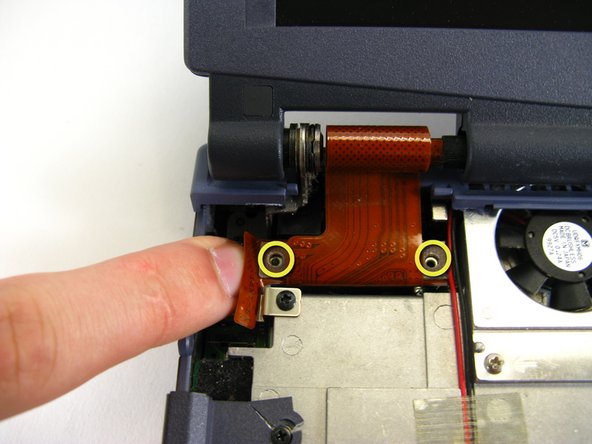
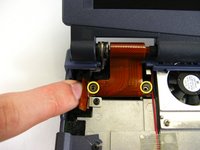
    • Remove the two screws holding the ribbon cable in place (pictured here without screws).

    Pergunte ao FixBot

    Comentar

  10. Sony VAIO PCG-F360 Fan Replacement: passo 10, imagem 1 %32 Sony VAIO PCG-F360 Fan Replacement: passo 10, imagem 2 %32 Sony VAIO PCG-F360 Fan Replacement: passo 10, imagem 3 %32
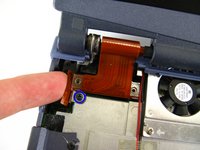
    • Remove the black screw with your Phillips screwdriver.

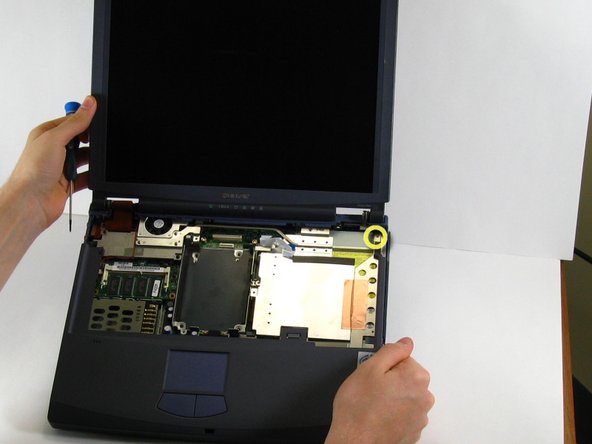
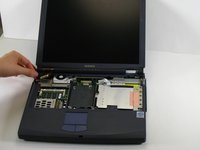
    • Remove the screw in the upper right corner while holding the bottom right side of the computer display.

    • Carefully pry the ribbon from its connector and lift it up.

    Pergunte ao FixBot

    Comentar

  11. Sony VAIO PCG-F360 Fan Replacement: passo 11, imagem 1 %32
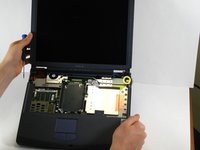
    • Remove the screw in the upper left corner that connects the display frame to the laptop.

    Pergunte ao FixBot

    Comentar

  12. Sony VAIO PCG-F360 Fan Replacement: passo 12, imagem 1 %32 Sony VAIO PCG-F360 Fan Replacement: passo 12, imagem 2 %32 Sony VAIO PCG-F360 Fan Replacement: passo 12, imagem 3 %32
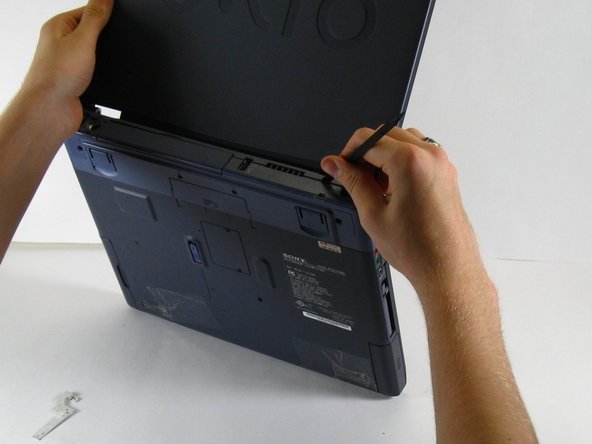
    • Tilt the display backwards. Grip the display from its base to reduce torque.

    • Use a spudger to pry the upper part of the back panel by pushing in the tabs located along its length.

    • This step is particularly tricky during reassembly, as the plastic must be perfectly aligned or it will not snap in. If it does not snap in correctly, the screen won't fit properly.

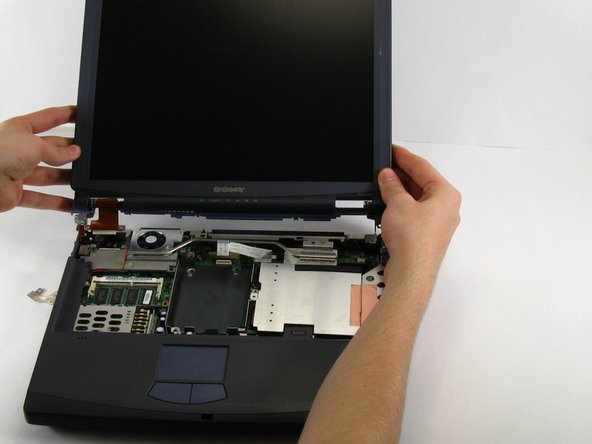
    • Carefully lift the display free of the case.

    Pergunte ao FixBot

    Comentar

  13. Sony VAIO PCG-F360 Fan Replacement, Fan: passo 13, imagem 1 %32
    • Remove the two silver screws with a #00 Philips head screw driver.

    Pergunte ao FixBot

    Comentar

  14. Sony VAIO PCG-F360 Fan Replacement: passo 14, imagem 1 %32
    • Remove the three black screws with the #00 Philips head screw driver.

    Pergunte ao FixBot

    Comentar

  15. Sony VAIO PCG-F360 Fan Replacement: passo 15, imagem 1 %32
    • Carefully pull out the fan.

    • You can now clean or replace the fan.

    Pergunte ao FixBot

    Comentar

Conclusão

To reassemble your device, follow these instructions in reverse order.

Cancelar: não concluí este guia.

Hannah Millea

Membro desde: 03/11/14

401 Reputação

Autoria de 4 guias

Equipe

0Comentários do guia

Comentar

Visualizações:

Últimas 24 horas: 1

Últimos 7 dias: 10

Últimos 30 dias: 43

Ao todo: 716