Ir para o conteúdo principal
Participe da comunidade de reparos - Criar conta

Samsung Eternity Digitizer and Screen Replacement

O que você precisa

    • Remove the back battery cover.

    Pergunte ao FixBot
    Comentar

  1. Samsung Eternity Digitizer and Screen Replacement: passo 2, imagem 1 %32
    • Using a nylon spudger, remove the phone's battery.

    Pergunte ao FixBot

    Comentar

  2. Samsung Eternity Digitizer and Screen Replacement: passo 3, imagem 1 %32
    • Remove six (4.28 x 1.25)mm screws using the Phillips #00 screwdriver.

    Pergunte ao FixBot

    Comentar

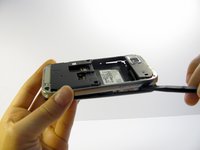
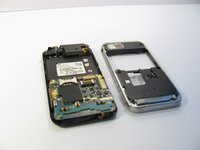
  3. Samsung Eternity Digitizer and Screen Replacement: passo 4, imagem 1 %32 Samsung Eternity Digitizer and Screen Replacement: passo 4, imagem 2 %32
    • Use a nylon spudger to gently pry the silver plastic back plate from the body of the phone.

    Pergunte ao FixBot

    Comentar

  4. Samsung Eternity Digitizer and Screen Replacement, Motherboard: passo 5, imagem 1 %32
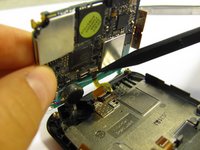
    • It is very easy to rip motherboard cables and damage fragile motherboard clips. Be careful when you are removing every component.

    • Pull the antenna plug out of its socket.

    Pergunte ao FixBot
    Comentar

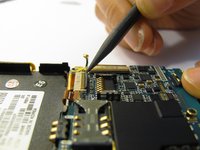
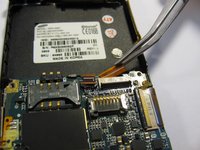
  5. Samsung Eternity Digitizer and Screen Replacement: passo 6, imagem 1 %32 Samsung Eternity Digitizer and Screen Replacement: passo 6, imagem 2 %32 Samsung Eternity Digitizer and Screen Replacement: passo 6, imagem 3 %32
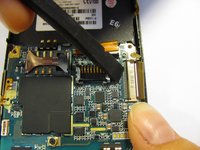
    • Pop the two black hinged-release levers toward their ribbons, then slide the ribbons out.

    Pergunte ao FixBot
    Comentar

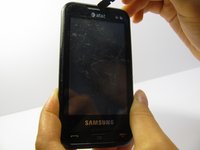
  6. Samsung Eternity Digitizer and Screen Replacement: passo 7, imagem 1 %32
    • Pop the red hinged-release lever away from its ribbon. Then pull it out.

    Pergunte ao FixBot
    Comentar

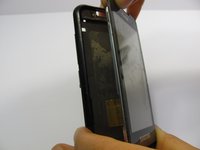
  7. Samsung Eternity Digitizer and Screen Replacement: passo 8, imagem 1 %32
    • Peel the button sensor on the side of the motherboard off of the case.

    Pergunte ao FixBot
    Comentar

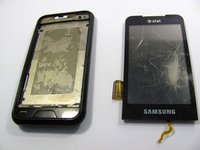
  8. Samsung Eternity Digitizer and Screen Replacement: passo 9, imagem 1 %32 Samsung Eternity Digitizer and Screen Replacement: passo 9, imagem 2 %32 Samsung Eternity Digitizer and Screen Replacement: passo 9, imagem 3 %32
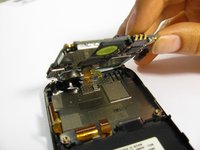
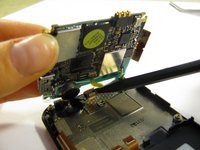
    • Slightly pull up one side of the motherboard.

    • Pull the button/microphone plug out of its socket.

    • Pop the red hinged-release lever away from its ribbon, then slide the ribbon out.

    Pergunte ao FixBot
    Comentar

  9. Samsung Eternity Digitizer and Screen Replacement: passo 10, imagem 1 %32
    • You have successfully removed the motherboard from the phone.

    Pergunte ao FixBot

    Comentar

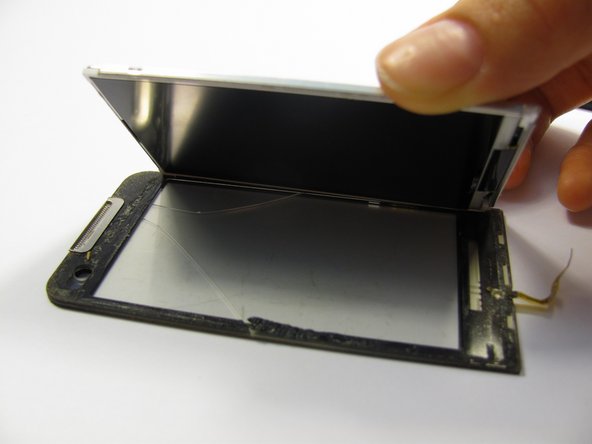
  10. Samsung Eternity Digitizer and Screen Replacement, Digitizer and Screen: passo 11, imagem 1 %32
    • Flip the phone over so you are looking at the front screen of the phone.

    Pergunte ao FixBot
    Comentar

  11. Samsung Eternity Digitizer and Screen Replacement: passo 12, imagem 1 %32 Samsung Eternity Digitizer and Screen Replacement: passo 12, imagem 2 %32 Samsung Eternity Digitizer and Screen Replacement: passo 12, imagem 3 %32
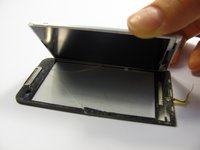
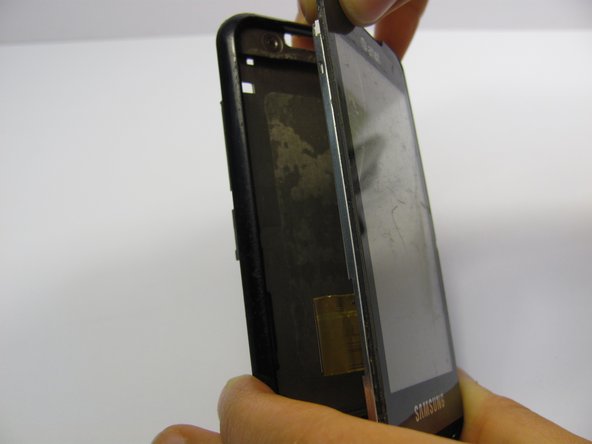
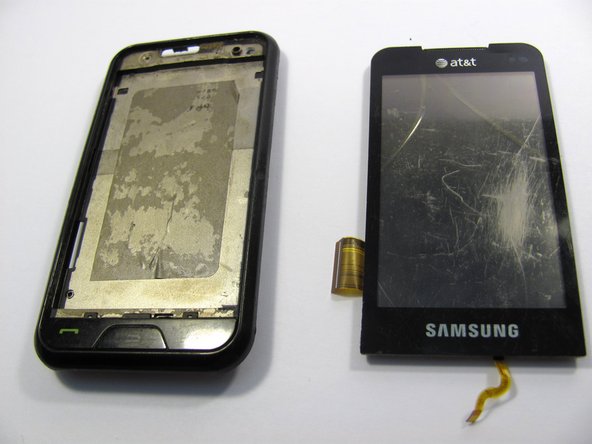
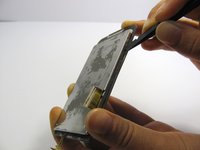
    • Use a small tool to pry the digitizer and screen (together) from the frame of the phone.

    • This may take some time and careful work because it is glued down to the frame.

    • Be careful when you pull the lower part of this piece away from the phone frame because there is a ribbon attached to the digitizer that you don't want to break. There is also a ribbon on the side of the screen to be aware of.

    Pergunte ao FixBot
    Comentar

  12. Samsung Eternity Digitizer and Screen Replacement: passo 13, imagem 1 %32 Samsung Eternity Digitizer and Screen Replacement: passo 13, imagem 2 %32 Samsung Eternity Digitizer and Screen Replacement: passo 13, imagem 3 %32
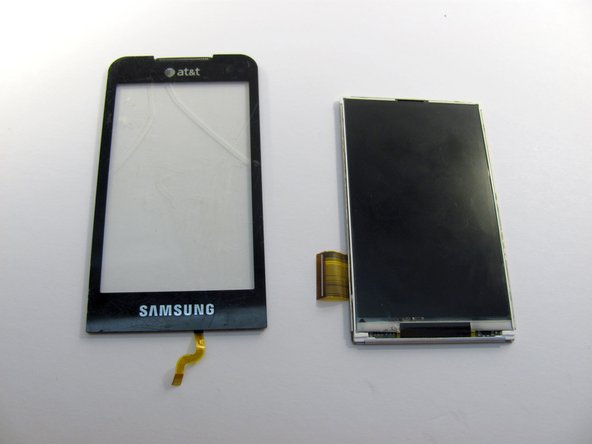
    • Next, carefully pull the digitizer away from the screen.

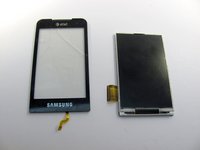
    • At this point you can replace either the screen or the digitizer.

    • Cleaning the screen with a glass cleaning cloth before reassembling will remove any smudges or fingerprints from disassembling the device.

    Pergunte ao FixBot
    Comentar

Conclusão

To reassemble your device, follow these instructions in reverse order.

Cancelar: não concluí este guia.

5 outras pessoas executaram este guia.

Equipe

Cal Poly, Team 15-11, Regan Spring 2011 Membro de Cal Poly, Team 15-11, Regan Spring 2011

CPSU-REGAN-S11S15G11

5 Membros

Autoria de 14 guias

3Comentários do guia

You did not mention how to glue the digitizer to LCD. That is a very important step.

cashyapan - Responder Compartilhar

Do these steps also work for the Samsung Eternity 2?

Brian Coukis The 90's Kid! - Responder Compartilhar

Está mierda no sale

Luz esther Martinez Pérez - Responder Compartilhar

Comentar

Visualizações:

Últimas 24 horas: 2

Últimos 7 dias: 11

Últimos 30 dias: 40

Ao todo: 7,295