Ir para o conteúdo principal
Participe da comunidade de reparos - Criar conta

Samsung Captivate Glide Screen Replacement

O que você precisa

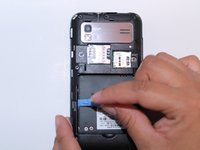
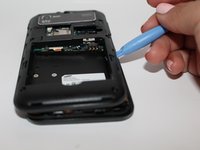
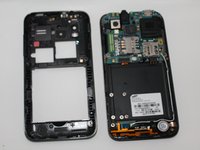
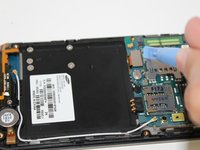
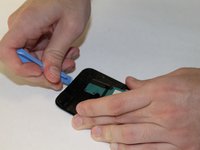
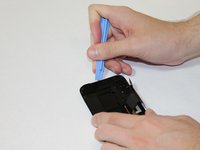
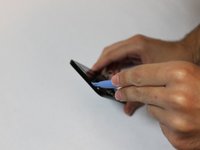
  1. Samsung Captivate Glide Screen Replacement, Motherboard: passo 1, imagem 1 %32 Samsung Captivate Glide Screen Replacement, Motherboard: passo 1, imagem 2 %32 Samsung Captivate Glide Screen Replacement, Motherboard: passo 1, imagem 3 %32
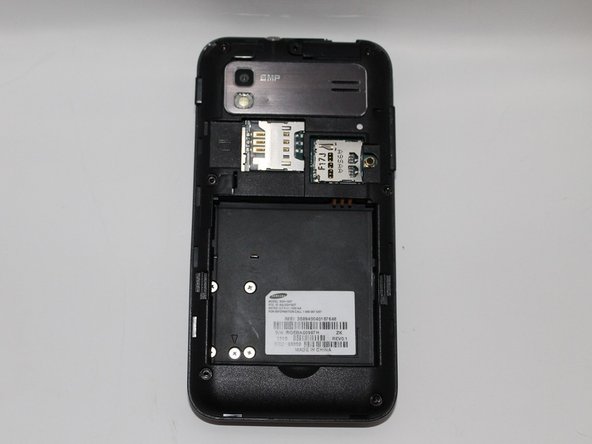
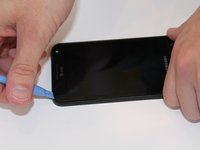
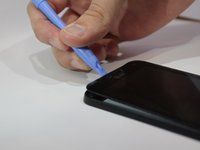
    • Remove back cover using fingernail or plastic opening tool. The cover pulls up and off.

    Pergunte ao FixBot
  2. Samsung Captivate Glide Screen Replacement: passo 2, imagem 1 %32 Samsung Captivate Glide Screen Replacement: passo 2, imagem 2 %32
    • Remove battery with plastic opening tool or finger.

    Pergunte ao FixBot
  3. Samsung Captivate Glide Screen Replacement: passo 3, imagem 1 %32 Samsung Captivate Glide Screen Replacement: passo 3, imagem 2 %32
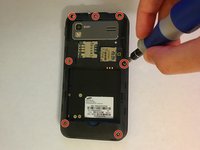
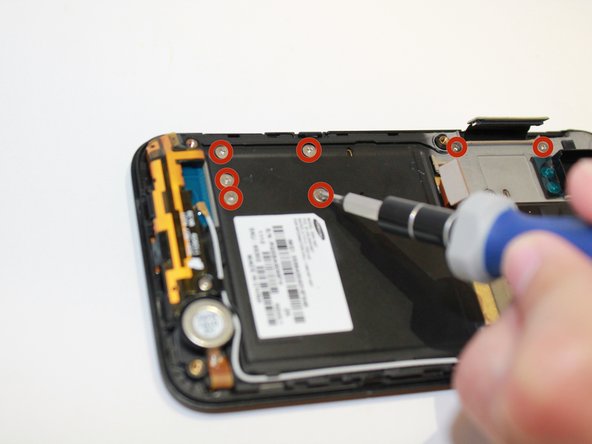
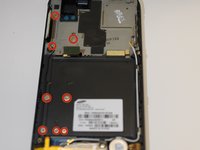
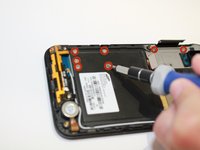
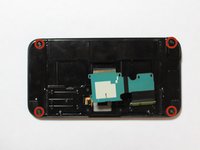
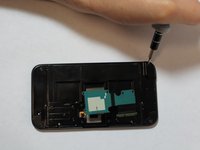
    • Remove the seven screws from backplate using the #00 screwdriver.

    Pergunte ao FixBot
  4. Samsung Captivate Glide Screen Replacement: passo 4, imagem 1 %32 Samsung Captivate Glide Screen Replacement: passo 4, imagem 2 %32 Samsung Captivate Glide Screen Replacement: passo 4, imagem 3 %32
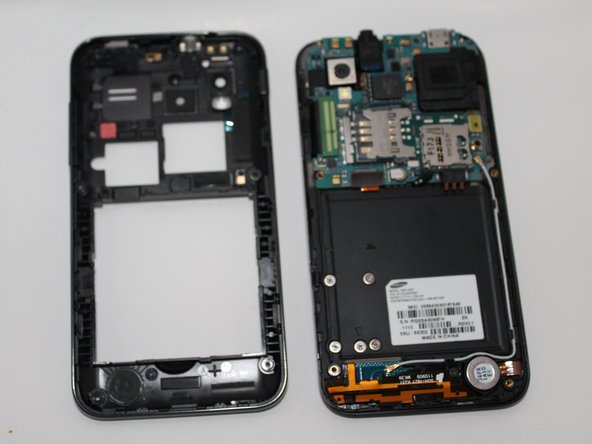
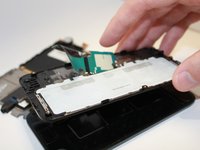
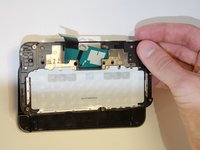
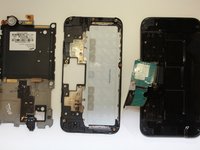
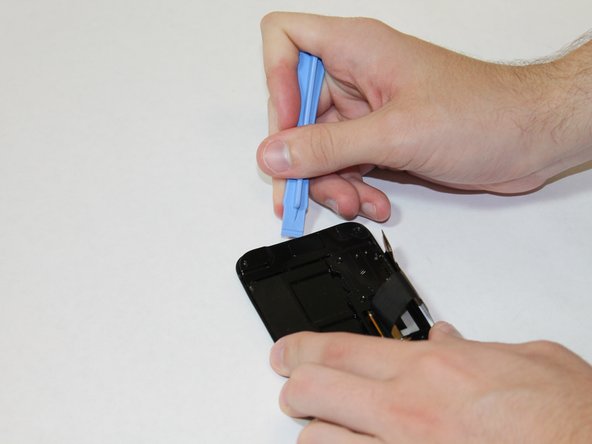
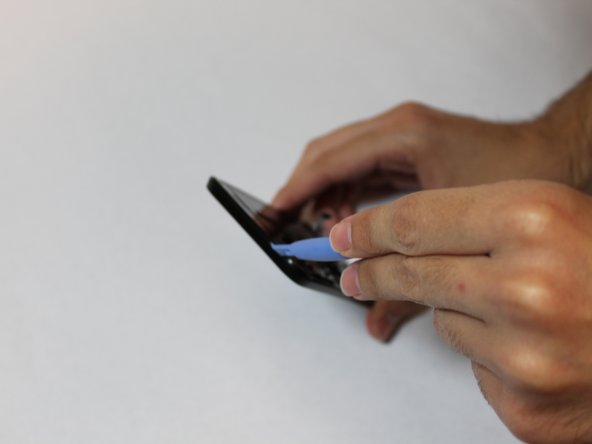
    • Remove the back plate using the plastic opening tool.

    • There is a lip on each side, and both must be pried up.

    • You can work your way around the edges after prying the two sides.

    Pergunte ao FixBot
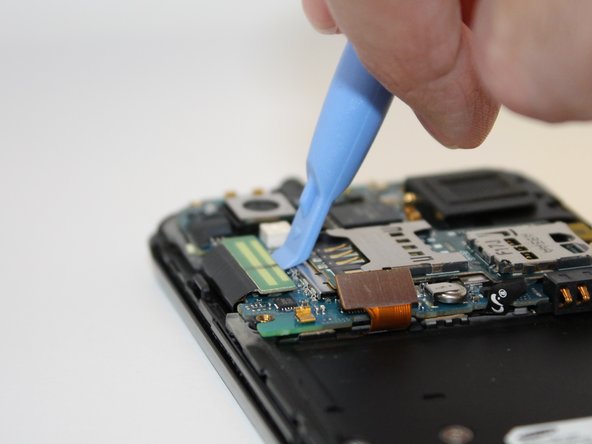
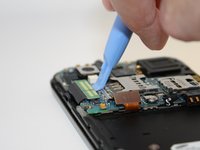
  5. Samsung Captivate Glide Screen Replacement: passo 5, imagem 1 %32 Samsung Captivate Glide Screen Replacement: passo 5, imagem 2 %32
    • Use the plastic opening tool to detach the two tabs connecting the motherboard to the base of the phone.

    Pergunte ao FixBot
  6. Samsung Captivate Glide Screen Replacement: passo 6, imagem 1 %32
    Ferramenta utilizada neste passo:
    Tweezers
    $4.99
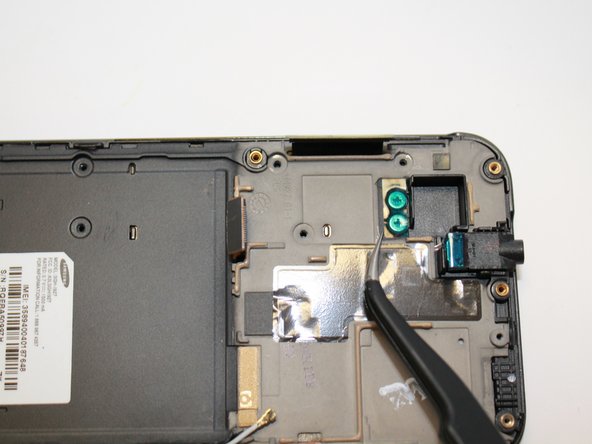
    • Disconnect the antenna cable from the motherboard using tweezers.

    Pergunte ao FixBot
  7. Samsung Captivate Glide Screen Replacement: passo 7, imagem 1 %32
    • Remove the single screw connecting the motherboard to the base of the phone by using the #00 Phillips screwdriver.

    Pergunte ao FixBot
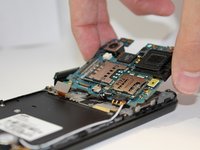
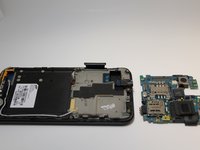
  8. Samsung Captivate Glide Screen Replacement: passo 8, imagem 1 %32 Samsung Captivate Glide Screen Replacement: passo 8, imagem 2 %32
    • Lift the motherboard out of the base of the phone.

    Pergunte ao FixBot
  9. Samsung Captivate Glide Screen Replacement, Screen: passo 9, imagem 1 %32 Samsung Captivate Glide Screen Replacement, Screen: passo 9, imagem 2 %32
    • Remove the eight screws with the #00 screwdriver.

    Pergunte ao FixBot
  10. Samsung Captivate Glide Screen Replacement: passo 10, imagem 1 %32 Samsung Captivate Glide Screen Replacement: passo 10, imagem 2 %32
    Ferramenta utilizada neste passo:
    Tweezers
    $4.99
    Pergunte ao FixBot
  11. Samsung Captivate Glide Screen Replacement: passo 11, imagem 1 %32
    • Remove screws with the #00 screwdriver.

    Pergunte ao FixBot
  12. Samsung Captivate Glide Screen Replacement: passo 12, imagem 1 %32
    • Using the plastic opening tool, remove the back plate by prying on the four main points.

    • You may encounter difficultly at certain points. Work the plastic opening tool along the edge to keep back plate from closing again.

    Pergunte ao FixBot
  13. Samsung Captivate Glide Screen Replacement: passo 13, imagem 1 %32
    • Lift the back plate.

    • To remove to slide flex cable, gently peel back from the back plate and remove back plate.

    Pergunte ao FixBot
  14. Samsung Captivate Glide Screen Replacement: passo 14, imagem 1 %32 Samsung Captivate Glide Screen Replacement: passo 14, imagem 2 %32 Samsung Captivate Glide Screen Replacement: passo 14, imagem 3 %32
    • Slide the flex cable through the slot. Be careful to not tear the cable.

    • Set the front plate down.

    Pergunte ao FixBot
  15. Samsung Captivate Glide Screen Replacement: passo 15, imagem 1 %32 Samsung Captivate Glide Screen Replacement: passo 15, imagem 2 %32
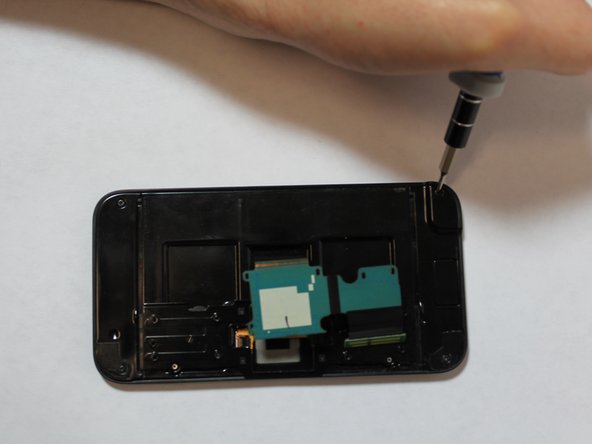
    • Remove the four corner screws using the #00 screwdriver.

    Pergunte ao FixBot
  16. Samsung Captivate Glide Screen Replacement: passo 16, imagem 1 %32 Samsung Captivate Glide Screen Replacement: passo 16, imagem 2 %32 Samsung Captivate Glide Screen Replacement: passo 16, imagem 3 %32
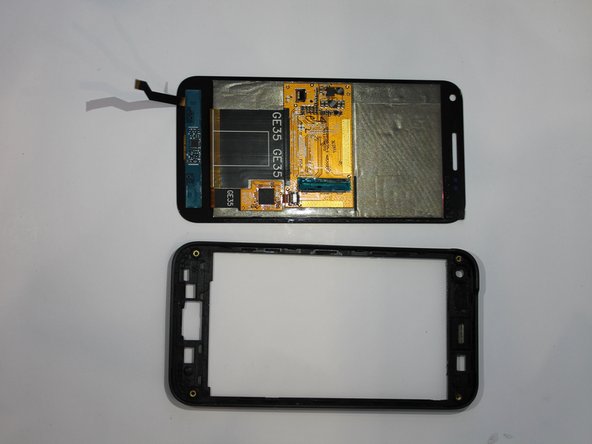
    • Using the plastic opening tool, release all the clips on all four sides holding the screen assembly.

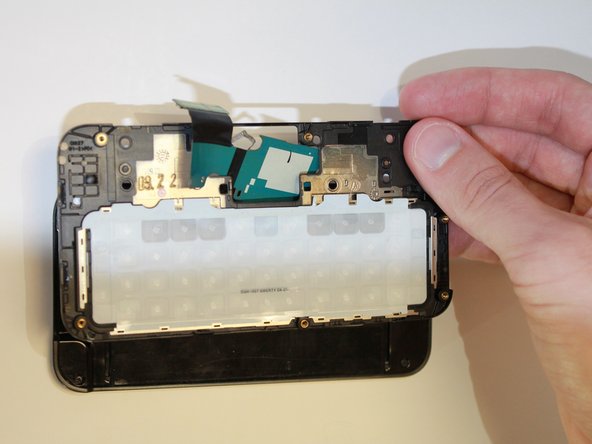
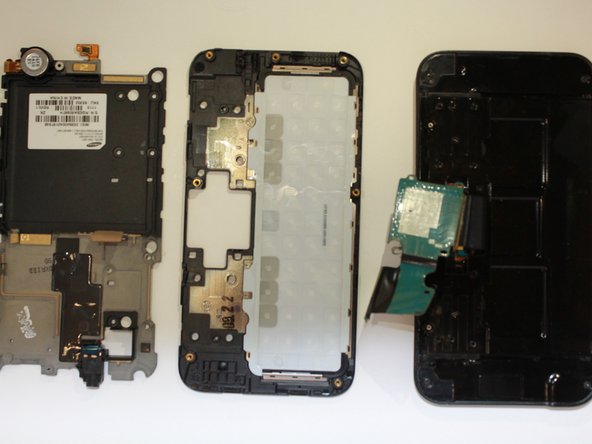
    • You can now remove the back plate by sliding the flex cable through the slot.

    Pergunte ao FixBot
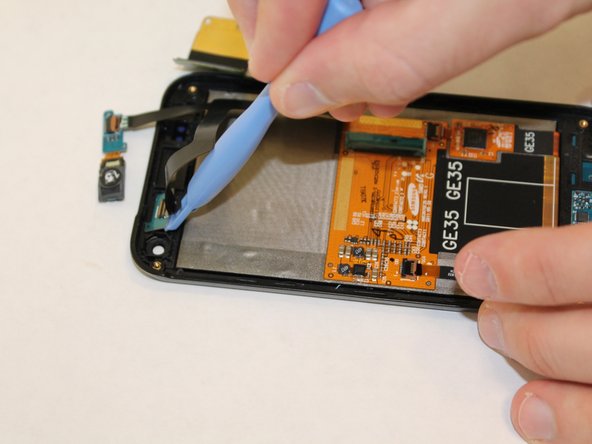
  17. Samsung Captivate Glide Screen Replacement: passo 17, imagem 1 %32 Samsung Captivate Glide Screen Replacement: passo 17, imagem 2 %32 Samsung Captivate Glide Screen Replacement: passo 17, imagem 3 %32
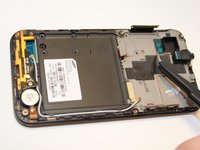
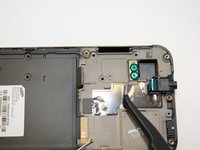
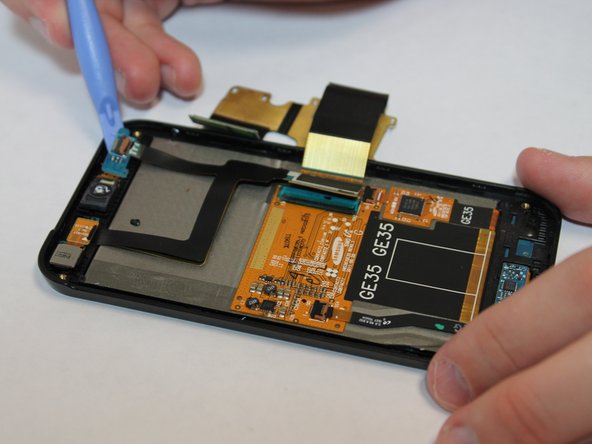
    • Use the plastic opening tool to release the main jaw connector, front speaker and camera.

    Pergunte ao FixBot
  18. Samsung Captivate Glide Screen Replacement: passo 18, imagem 1 %32 Samsung Captivate Glide Screen Replacement: passo 18, imagem 2 %32
    • By using the plastic opening tool you can release the keypad flex cable from the jaw connecter clamp.

    Pergunte ao FixBot
  19. Samsung Captivate Glide Screen Replacement: passo 19, imagem 1 %32 Samsung Captivate Glide Screen Replacement: passo 19, imagem 2 %32
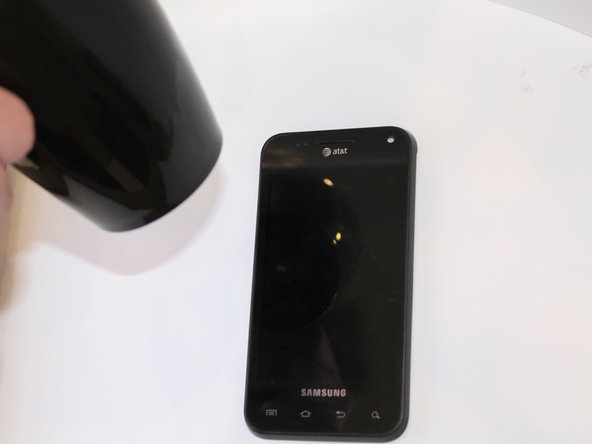
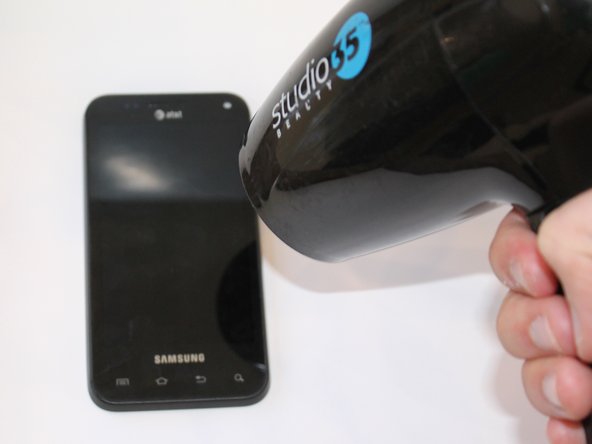
    • Use a heat gun or blow dryer.

    • Heat the outside edges using quick movements for about 45 seconds.

    Pergunte ao FixBot
  20. Samsung Captivate Glide Screen Replacement: passo 20, imagem 1 %32 Samsung Captivate Glide Screen Replacement: passo 20, imagem 2 %32 Samsung Captivate Glide Screen Replacement: passo 20, imagem 3 %32
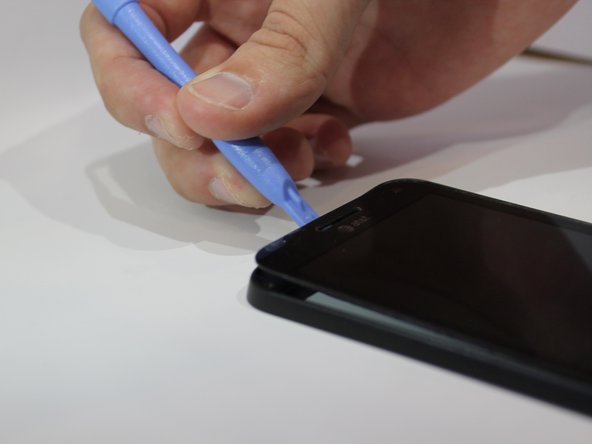
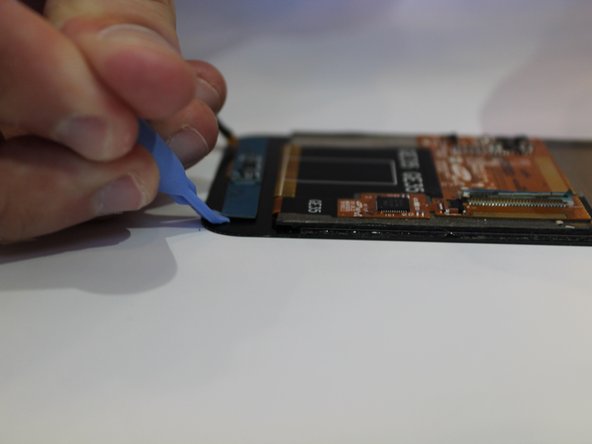
    • Using the plastic opening tool to pry around the edges, release the touch screen from the screen frame.

    Pergunte ao FixBot
  21. Samsung Captivate Glide Screen Replacement: passo 21, imagem 1 %32 Samsung Captivate Glide Screen Replacement: passo 21, imagem 2 %32 Samsung Captivate Glide Screen Replacement: passo 21, imagem 3 %32
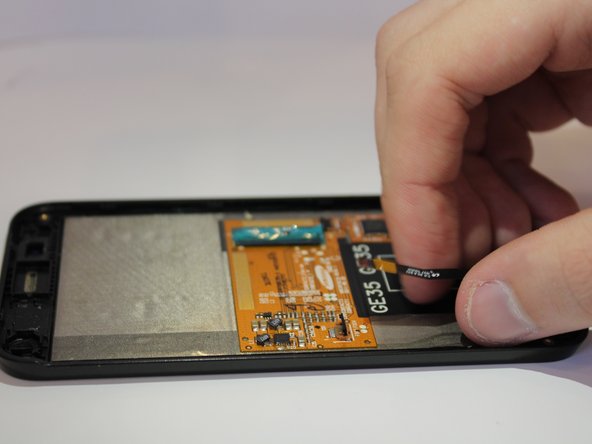
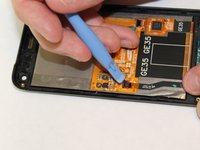
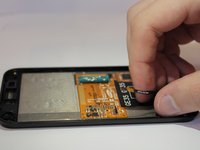
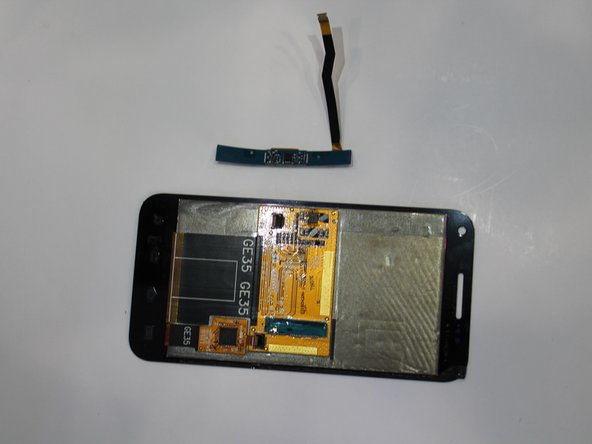
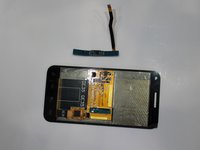
    • While adhesive is still warm, use the plastic opening tool to gently remove the keyboard flex cable from the screen.

    • You can now replace the screen assembly.

    Pergunte ao FixBot
Conclusão

To reassemble your device, follow these instructions in reverse order.

2 outras pessoas executaram este guia.

Tyler Moore

Membro desde: 09/23/14

160 Reputação

Autoria de 1 guia

Equipe

USF Tampa, Team 5-3, Mcgee Fall 2014 Membro de USF Tampa, Team 5-3, Mcgee Fall 2014

USFT-MCGEE-F14S5G3

4 Membros

Autoria de 5 guias

0Comentários do guia

Comentar

Visualizações:

Últimas 24 horas: 0

Últimos 7 dias: 3

Últimos 30 dias: 32

Ao todo: 1,276