Essa tradução foi gerada por um programa e ainda não foi revisada por uma pessoa. Falas essa língua? Dá uma olhada.
Introdução
Use este guia para substituir um display rachado ou quebrado.
O que você precisa
-
-
Ferramenta utilizada neste passo:P5 Pentalobe Screwdriver Retina MacBook Pro and Air$5.99
-
Remova os dez parafusos a seguir:
-
Dois parafusos Pentalobe de 8 mm
-
Oito parafusos Pentalobe de 2,5 mm
 Pergunte ao FixBot
-
-
-
Encaixe os dedos entre a tela e a carcaça inferior e puxe para cima para remover a carcaça inferior do Air.
-
-
-
-
-
Use a ponta chata de uma espátula para levantar ambos os lados curtos do conector da bateria, desconectando-o do seu soquete na placa lógica.
-
Dobre o cabo da bateria levemente para longe da placa lógica para que o conector não entre em contato acidentalmente com o seu soquete.
-
-
-
-
-
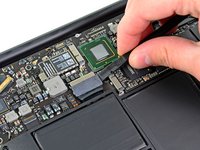
Remova o único parafuso Torx T5 de 2,9 mm que prende o SSD à placa lógica.
-
-
-
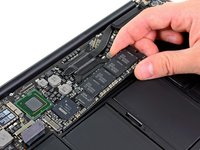
Use uma espátula para ajudar a levantar a extremidade livre do SSD apenas o suficiente para segurá-lo com a outra mão.
-
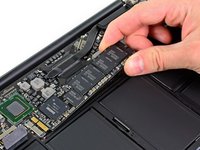
Puxe o drive para fora do seu soquete e remova-o da placa lógica.
-
-
-
-
-
Use a ponta chata da espátula para desconectar o cabo da placa de E/S do seu soquete na placa de E/S.
-
-
-
Descole o cabo da placa de E/S do adesivo que o prende à ventoinha.
-
-
-
Use a ponta chata da espátula para levantar o conector da placa de E/S para fora do seu soquete na placa lógica
-
Remova o cabo da placa de E/S.
-
-
-
-
-
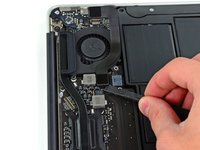
Use a ponta de uma espátula para levantar com cuidado a aba de retenção no soquete ZIF do cabo da ventoinha.
-
-
-
Remova os três parafusos a seguir que prendem a ventoinha à carcaça superior:
-
Dois parafusos Torx T5 de 5,2 mm
-
Um parafuso Torx T5 de 3,6 mm
-
-
-
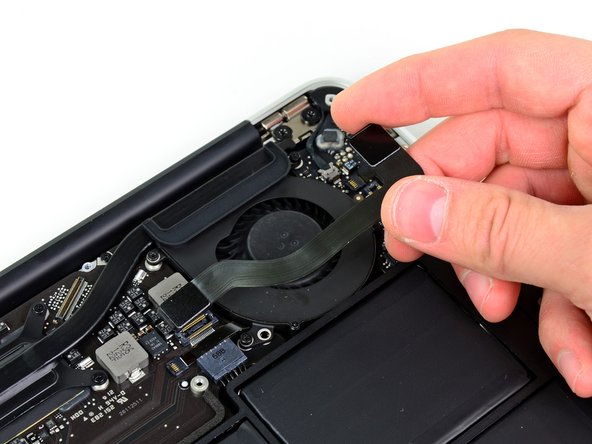
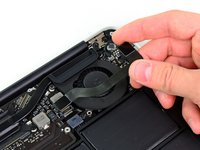
Levante o ventilador para fora da carcaça superior e puxe com cuidado o cabo plano do ventilador para fora do soquete enquanto o remove do Air.
-
-
-
-
-
Remova os cinco parafusos a seguir que prendem a bateria à carcaça superior:
-
Dois parafusos Torx T5 de 5,2 mm
-
Um parafuso Torx T5 de 6 mm
-
Dois parafusos Torx T5 de 2,6 mm
-
-
-
-
Levante a bateria pela borda mais próxima da placa lógica e remova-a da carcaça superior.
-
-
-
-
-
Use a ponta chata da espátula para liberar a alça adesiva que prende o cabo de alimentação da placa de E/S à carcaça superior.
-
Desconecte a placa de E/S puxando o cabo de alimentação para fora do seu soquete na placa lógica.
-
-
-
Use a ponta de uma espátula para levantar a aba de retenção no soquete ZIF do cabo plano da retroiluminação do teclado.
-
Puxe o cabo plano da retroiluminação do teclado para fora do seu soquete.
-
-
-
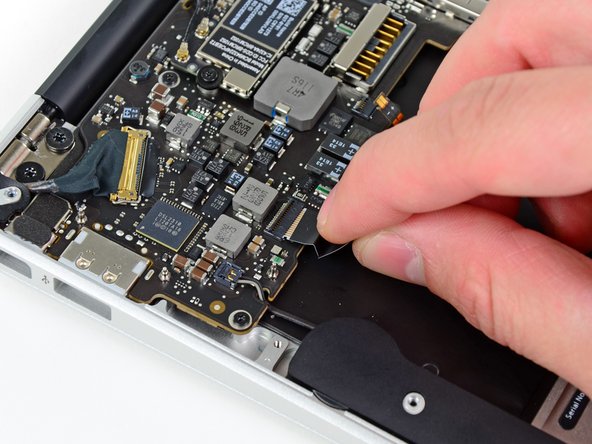
Use a ponta de uma espátula ou a sua unha para levantar a aba de retenção no soquete ZIF do cabo plano do Trackpad.
-
Puxe o cabo plano do Trackpad para fora do seu soquete, diretamente em direção à borda frontal do Air.
-
-
-
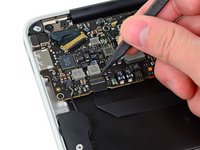
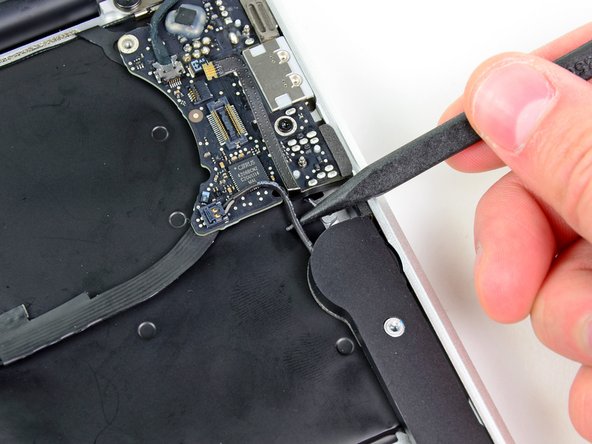
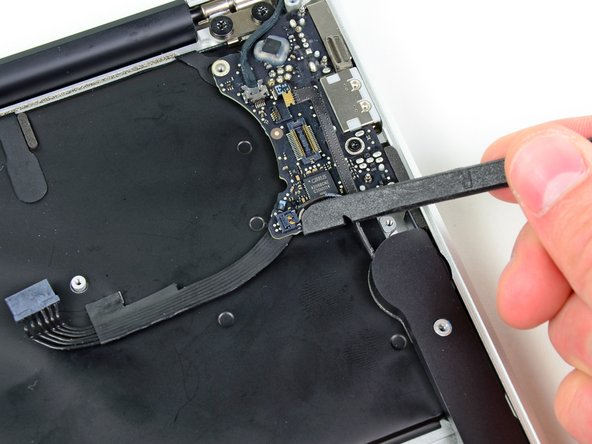
Use a ponta de uma espátula para desenrutar o cabo do alto-falante direito da ranhura cortada na placa lógica.
-
-
-
Use a ponta chata da espátula para desconectar o cabo do alto-falante direito, retirando-o do seu soquete na placa lógica.
-
-
-
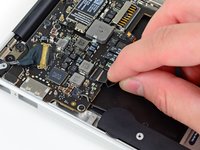
Empurre suavemente a ponta de uma espátula sob a aba de plástico preta colada à trava do cabo de dados da tela para fazer a trava abrir para cima e se soltar do soquete.
-
Remova a pequena junta de vedação de borracha do canto da carcaça superior, perto do cabo de dados da tela.
-
-
-
Enquanto mantém a trava afastada do soquete, puxe suavemente o cabo de dados da tela para fora do soquete.
-
-
-
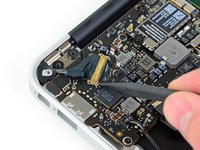
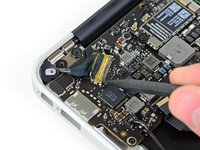
Use a ponta chata da espátula para desconectar ambos os conectores do cabo da antena dos seus soquetes na placa AirPort/Bluetooth.
-
-
-
Desconecte cuidadosamente os cabos da antena do slot recortado na placa lógica.
-
-
-
Remova os três parafusos Torx T5 de 3,6 mm que prendem a placa lógica à carcaça superior.
-
-
-
Levante suavemente o conjunto da placa lógica para fora da carcaça superior, tomando cuidado com o dissipador de calor frágil e quaisquer cabos que possam ficar presos.
-
-
-
-
-
Remova a pequena junta de vedação do canto da carcaça superior mais próximo da placa de E/S.
-
-
-
Use a ponta de uma espátula para levantar cuidadosamente a aba de retenção no soquete ZIF do cabo do microfone.
-
Puxe o cabo plano do microfone para fora do soquete.
-
-
-
Desencaminhe o cabo do alto-falante esquerdo do entalhe cortado na placa de E/S.
-
Use a ponta plana de uma espátula para desconectar o conector do cabo do alto-falante esquerdo do soquete na placa de E/S.
-
-
-
Puxe o cabo da câmera paralelamente à face da placa de E/S em direção à borda traseira do Air para desconectá-lo do soquete.
-
-
-
Remova o único parafuso Torx T5 de 3,6 mm que prende a placa de E/S à carcaça superior.
-
-
-
Com cuidado, levante a placa de E/S pela borda mais próxima da placa lógica e remova-a da carcaça superior.
-
-
-
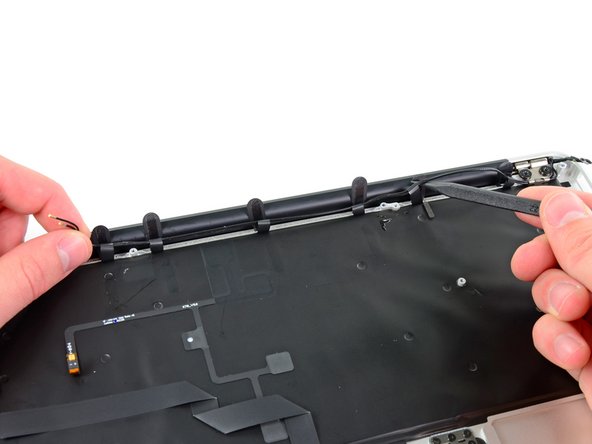
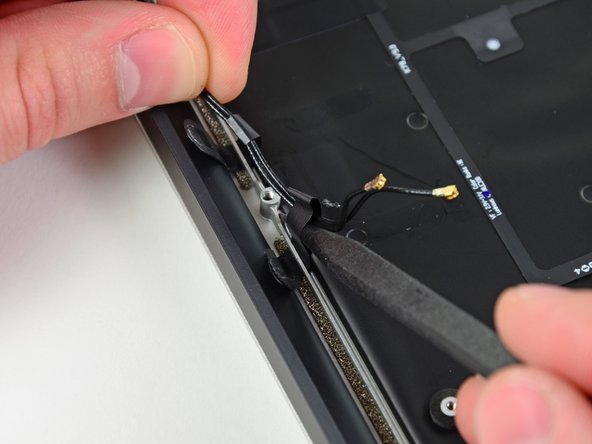
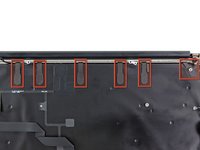
Descole as seis presilhas de cabo que prendem os cabos da antena ao gabinete superior.
-
Com cuidado, puxe as presilhas de cabo levemente para fora do canal cortado no gabinete superior, uma de cada vez.
-
Use sua espátula para abrir as presilhas de plástico enquanto retira os cabos da antena de dentro delas.
-
Repita este processo para todas as presilhas de retenção.
-
-
-
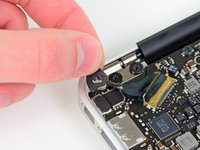
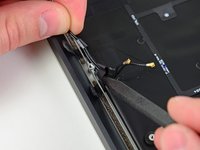
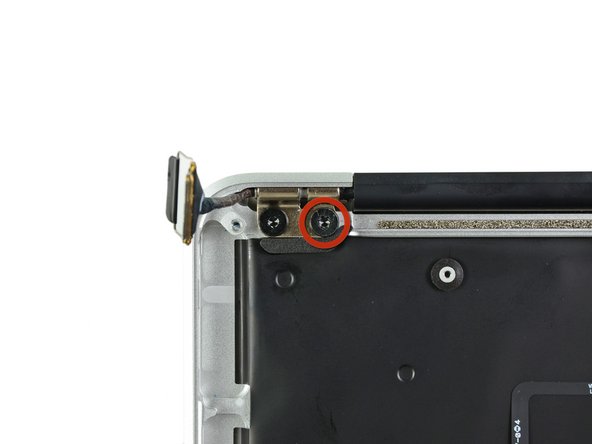
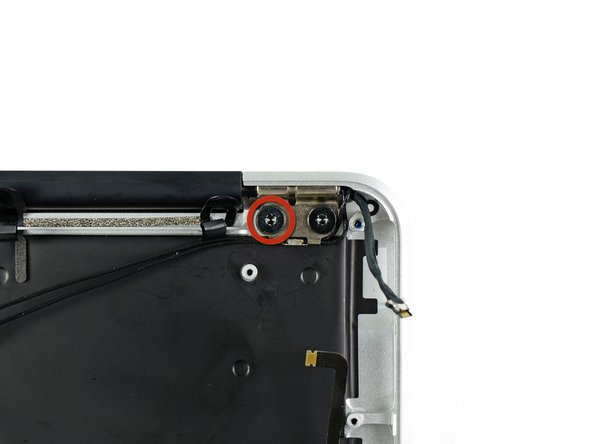
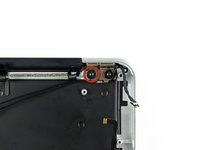
Remova o parafuso Torx interno de 4,9 mm que prende cada dobradiça da tela à carcaça superior (dois parafusos no total).
-
-
-
Abra a tela até que ela fique perpendicular à caixa superior e coloque-a sobre uma mesa, conforme mostrado.
-
Enquanto segura o Air com firmeza, remova o parafuso Torx de 4,9 mm restante do suporte inferior da tela.
-
-
-
Remova o último parafuso Torx de 4,9 mm que prende a tela à estrutura superior.
-
-
-
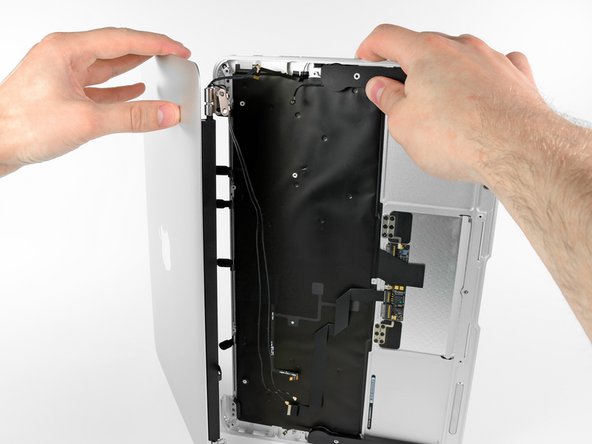
Empurre a parte superior levemente em direção ao conjunto do display e, em seguida, gire-a para longe da frente do conjunto do display.
-
Assim que as duas dobradiças do display estiverem liberadas da parte superior, remova o display e reserve-o.
-
-












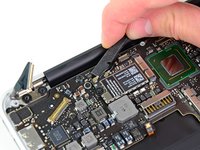
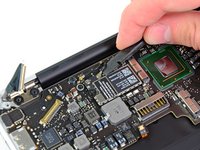


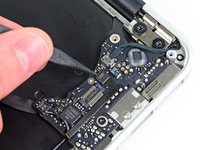
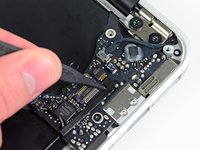




Para a remontagem de seu dispositivo, siga estas instruções na ordem inversa.
Cancelar: não concluí este guia.
73 outras pessoas executaram este guia.

5Comentários do guia
Thanks a lot for this guide! My daughter wrecked the display on my Macbook Air. I have never done any repairs on a notebook before, but I ordered the new display assembly and the toolkit and went ahead anyways.
When I saw my Macbook Air in pieces before me, I had my doubts that it would ever work again, but placing the last screw and then pressing the power button, it just worked!
Thanks again!
Because my MacBook Air late 2011 ‘s hinge was broken, I would like to replace a new one DIY! Thank for show me hoe to disassemble it.
Very helpful - thank you very much. I watched your Youtube video (for a slightly different model) to get an idea of the process, then followed this guide step-by-step for my exact model. Very clear and easy to follow, with great directions and pictures.
Used this excellent and comprehensive guide for early 11” Air along side the video guide for the later 13” Macbook Air to swap out the display on a 2015 11” Macbook Air - All very similar and made a daunting job straight forward - Thanks!
Switched two monitors and made a great job thanks to this amzing guide. Very easy.
