Ir para o conteúdo principal
Participe da comunidade de reparos - Criar conta
Lenovo ThinkPad X1 Yoga 2nd Generation Keyboard Replacement

O que você precisa

  1. Lenovo ThinkPad X1 Yoga 2nd Generation Keyboard Replacement, Back Cover: passo 1, imagem 1 %32
    • Ensure the laptop is powered off and the charging cable is disconnected before opening the back cover.

    • Flip over the laptop to access the back cover.

    Pergunte ao FixBot

    Comentar

  2. Lenovo ThinkPad X1 Yoga 2nd Generation Keyboard Replacement: passo 2, imagem 1 %32 Lenovo ThinkPad X1 Yoga 2nd Generation Keyboard Replacement: passo 2, imagem 2 %32
    • Use a Phillips #0 screwdriver to remove the eight 8 mm screws.

    Pergunte ao FixBot

    Comentar

  3. Lenovo ThinkPad X1 Yoga 2nd Generation Keyboard Replacement: passo 3, imagem 1 %32
    • Remove the back cover.

    • A popping sound may occur when the back cover is removed.

    Pergunte ao FixBot

    Comentar

  4. Lenovo ThinkPad X1 Yoga 2nd Generation Keyboard Replacement, Speakers: passo 4, imagem 1 %32 Lenovo ThinkPad X1 Yoga 2nd Generation Keyboard Replacement, Speakers: passo 4, imagem 2 %32
    Ferramenta utilizada neste passo:
    Tweezers
    $3.99
    • Follow the ribbon cable that runs from the left speaker to the motherboard.

    • Pull the black connector up and release the cable wire by hand.

    • If needed, pull this connector up using the Pro/ESD/angled tweezers.

    Pergunte ao FixBot

    Comentar

  5. Lenovo ThinkPad X1 Yoga 2nd Generation Keyboard Replacement: passo 5, imagem 1 %32 Lenovo ThinkPad X1 Yoga 2nd Generation Keyboard Replacement: passo 5, imagem 2 %32
    • Remove two 6 mm Phillips #0 screws from each speaker.

    Pergunte ao FixBot

    Comentar

  6. Lenovo ThinkPad X1 Yoga 2nd Generation Keyboard Replacement: passo 6, imagem 1 %32 Lenovo ThinkPad X1 Yoga 2nd Generation Keyboard Replacement: passo 6, imagem 2 %32
    • Use your fingers to remove the speakers from the device.

    Pergunte ao FixBot

    Comentar

  7. Lenovo ThinkPad X1 Yoga 2nd Generation Keyboard Replacement, Battery: passo 7, imagem 1 %32
    • Use a spudger to pop the ribbon cable that runs from the upper-middle portion of the battery to the motherboard out of the motherboard.

    • Do not use a metal spudger as indicated in the photos. The metal spudger should only be used for serious prying power. If it's used on the internal components of a device, it may puncture or damage the components in your device.

    Pergunte ao FixBot

    Comentar

  8. Lenovo ThinkPad X1 Yoga 2nd Generation Keyboard Replacement: passo 8, imagem 1 %32
    • Use a Phillips #0 screwdriver to remove one 6 mm screw from the bottom-middle portion of the battery.

    Pergunte ao FixBot

    Comentar

  9. Lenovo ThinkPad X1 Yoga 2nd Generation Keyboard Replacement: passo 9, imagem 1 %32
    • Remove the battery.

    Pergunte ao FixBot

    Comentar

  10. Lenovo ThinkPad X1 Yoga 2nd Generation Keyboard Replacement, Fan: passo 10, imagem 1 %32 Lenovo ThinkPad X1 Yoga 2nd Generation Keyboard Replacement, Fan: passo 10, imagem 2 %32
    Ferramenta utilizada neste passo:
    Tweezers
    $4.99
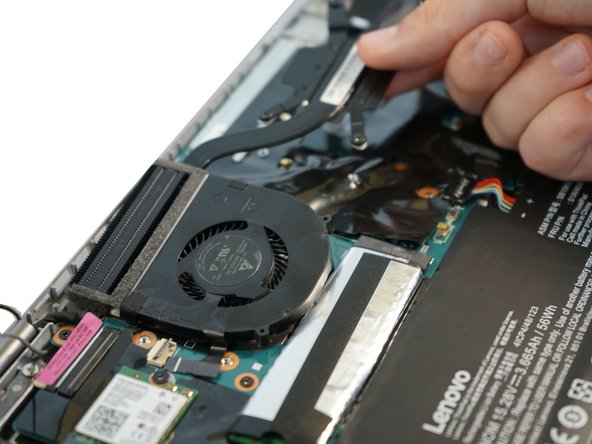
    • Lift up the small, metal tab using a spudger.

    • Do not use the metal spudger unless if it's being used for serious prying power. The metal spudger may damage or puncture internal components in the device if too much pressure is applied.

    • Gently lift the ribbon cable from its socket using nylon-tipped reverse tweezers.

    Pergunte ao FixBot

    Comentar

  11. Lenovo ThinkPad X1 Yoga 2nd Generation Keyboard Replacement: passo 11, imagem 1 %32
    • Using the Phillips #0 screwdriver, unscrew the four 4 mm screws directly next to the fan.

    Pergunte ao FixBot

    Comentar

  12. Lenovo ThinkPad X1 Yoga 2nd Generation Keyboard Replacement: passo 12, imagem 1 %32 Lenovo ThinkPad X1 Yoga 2nd Generation Keyboard Replacement: passo 12, imagem 2 %32
    • Loosen the four 5 mm screws in the metal extension attached to the fan.

    • The screws do not need to be completely removed from the fan.

    • Remove the fan using your fingers.

    Pergunte ao FixBot

    Comentar

  13. Lenovo ThinkPad X1 Yoga 2nd Generation Keyboard Replacement, Motherboard: passo 13, imagem 1 %32
    • Using a Phillips #0 screwdriver, remove all 16 of the 6 mm screws connecting the motherboard to the computer.

    Pergunte ao FixBot

    Comentar

  14. Lenovo ThinkPad X1 Yoga 2nd Generation Keyboard Replacement: passo 14, imagem 1 %32 Lenovo ThinkPad X1 Yoga 2nd Generation Keyboard Replacement: passo 14, imagem 2 %32
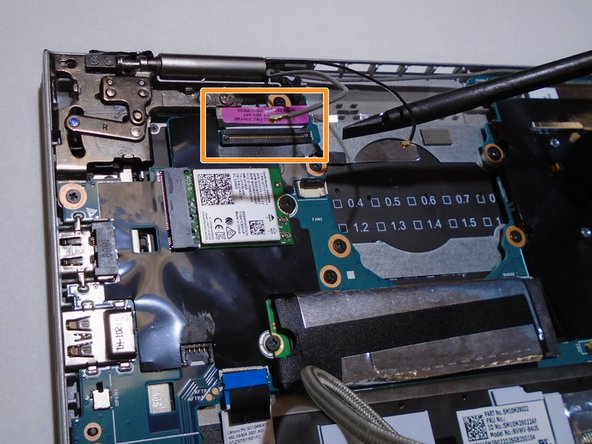
    • Using the nylon spudger, disconnect the grey and black wires.

    • Using the nylon spudger, gently disconnect the pink tab from the motherboard.

    Pergunte ao FixBot

    Comentar

  15. Lenovo ThinkPad X1 Yoga 2nd Generation Keyboard Replacement: passo 15, imagem 1 %32
    • Carefully remove the black tape with your fingers.

    • Do not remove the sticky residue from the back of the section.

    Pergunte ao FixBot

    Comentar

  16. Lenovo ThinkPad X1 Yoga 2nd Generation Keyboard Replacement: passo 16, imagem 1 %32 Lenovo ThinkPad X1 Yoga 2nd Generation Keyboard Replacement: passo 16, imagem 2 %32 Lenovo ThinkPad X1 Yoga 2nd Generation Keyboard Replacement: passo 16, imagem 3 %32
    • Lift the Black flap using a plastic spudger.

    • Pull out the ribbon cable with the black tab.

    Pergunte ao FixBot

    Comentar

  17. Lenovo ThinkPad X1 Yoga 2nd Generation Keyboard Replacement: passo 17, imagem 1 %32
    • Remove the purple tab by gently pulling it out.

    Pergunte ao FixBot

    Comentar

  18. Lenovo ThinkPad X1 Yoga 2nd Generation Keyboard Replacement: passo 18, imagem 1 %32
    • Remove the blue tab by gently pulling it out.

    Pergunte ao FixBot

    Comentar

  19. Lenovo ThinkPad X1 Yoga 2nd Generation Keyboard Replacement: passo 19, imagem 1 %32 Lenovo ThinkPad X1 Yoga 2nd Generation Keyboard Replacement: passo 19, imagem 2 %32 Lenovo ThinkPad X1 Yoga 2nd Generation Keyboard Replacement: passo 19, imagem 3 %32
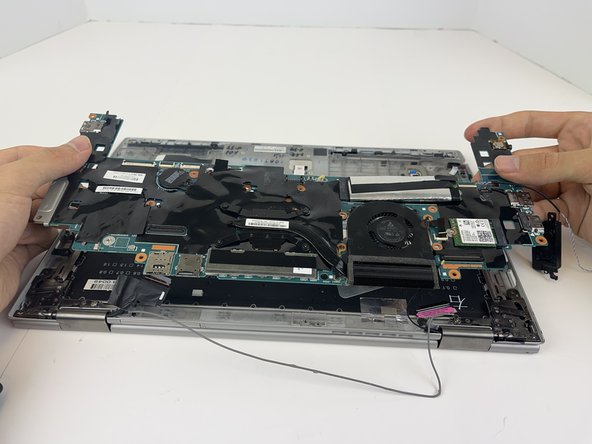
    • Gently lift up on the sides with your hands and remove the motherboard.

    Pergunte ao FixBot

    Comentar

  20. Lenovo ThinkPad X1 Yoga 2nd Generation Keyboard Replacement, Keyboard: passo 20, imagem 1 %32 Lenovo ThinkPad X1 Yoga 2nd Generation Keyboard Replacement, Keyboard: passo 20, imagem 2 %32
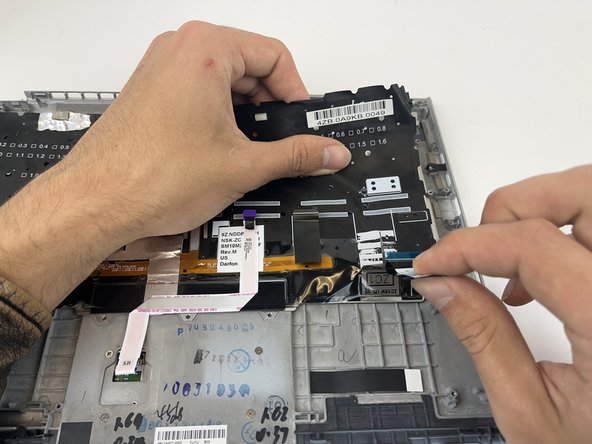
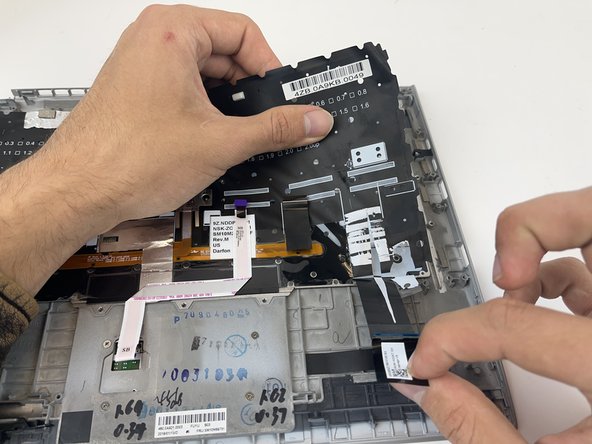
    • Lift the black flap with the plastic spudger.

    • Pull out the ribbon cable with the black tab.

    Pergunte ao FixBot

    Comentar

  21. Lenovo ThinkPad X1 Yoga 2nd Generation Keyboard Replacement: passo 21, imagem 1 %32
    • Use the spudger to gently pry up the ribbon cable.

    Pergunte ao FixBot

    Comentar

  22. Lenovo ThinkPad X1 Yoga 2nd Generation Keyboard Replacement: passo 22, imagem 1 %32
    • Use the spudger to disconnect the ribbon cable.

    Pergunte ao FixBot

    Comentar

  23. Lenovo ThinkPad X1 Yoga 2nd Generation Keyboard Replacement: passo 23, imagem 1 %32 Lenovo ThinkPad X1 Yoga 2nd Generation Keyboard Replacement: passo 23, imagem 2 %32
    • Use the Phillips #0 screwdriver to remove the three 2.8 mm screws holding down this metal plate.

    • Repeat the same process with the identical metal plate on the opposite side.

    Pergunte ao FixBot

    Comentar

  24. Lenovo ThinkPad X1 Yoga 2nd Generation Keyboard Replacement: passo 24, imagem 1 %32 Lenovo ThinkPad X1 Yoga 2nd Generation Keyboard Replacement: passo 24, imagem 2 %32
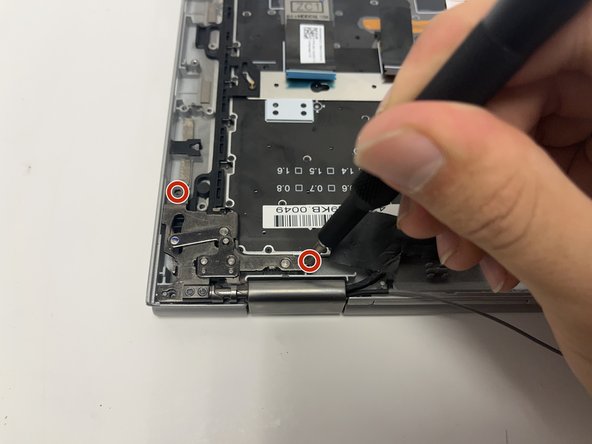
    • Use the Phillips #0 screwdriver to remove the two 5.4 mm screws connecting the hinge mount to the base.

    • Repeat on the opposite hinge mount.

    Pergunte ao FixBot

    Comentar

  25. Lenovo ThinkPad X1 Yoga 2nd Generation Keyboard Replacement: passo 25, imagem 1 %32 Lenovo ThinkPad X1 Yoga 2nd Generation Keyboard Replacement: passo 25, imagem 2 %32 Lenovo ThinkPad X1 Yoga 2nd Generation Keyboard Replacement: passo 25, imagem 3 %32
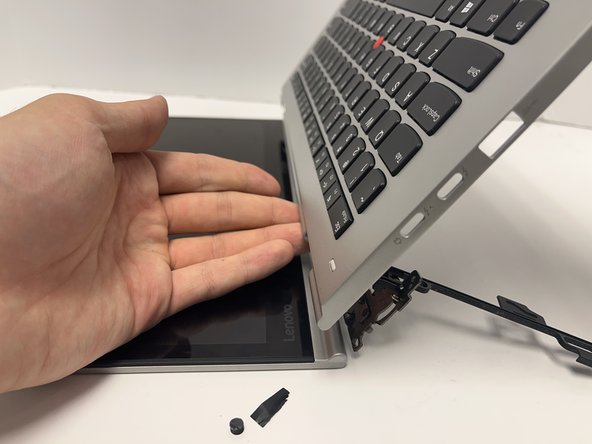
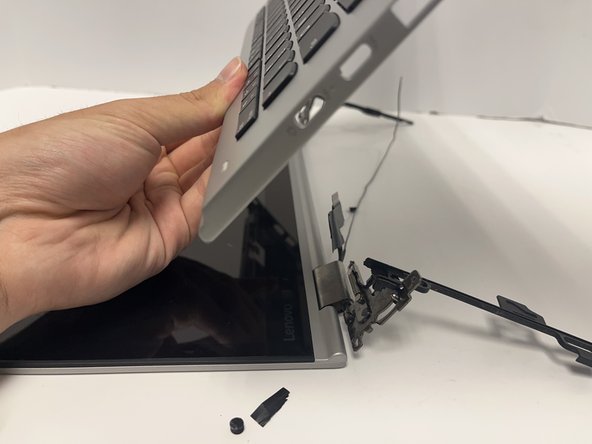
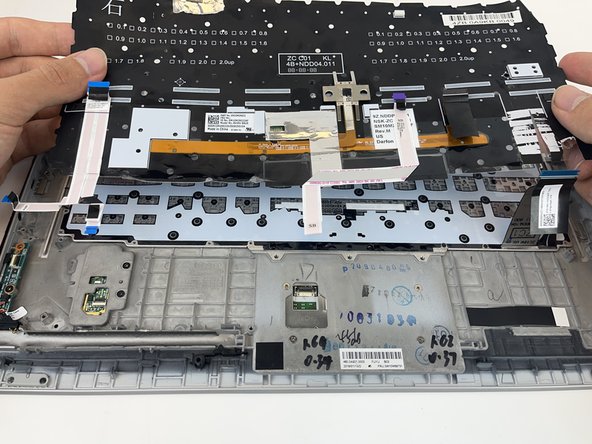
    • Open the laptop hinge by pulling the screen away from the keyboard.

    • Lift the keyboard up and off the hinge brackets.

    Pergunte ao FixBot

    Comentar

  26. Lenovo ThinkPad X1 Yoga 2nd Generation Keyboard Replacement: passo 26, imagem 1 %32 Lenovo ThinkPad X1 Yoga 2nd Generation Keyboard Replacement: passo 26, imagem 2 %32 Lenovo ThinkPad X1 Yoga 2nd Generation Keyboard Replacement: passo 26, imagem 3 %32
    • Use the Phillips #0 screwdriver to remove the two 3.2 mm screws securing the metal bar on the right side.

    • Repeat with the identical bar on the left.

    Pergunte ao FixBot

    Comentar

  27. Lenovo ThinkPad X1 Yoga 2nd Generation Keyboard Replacement: passo 27, imagem 1 %32
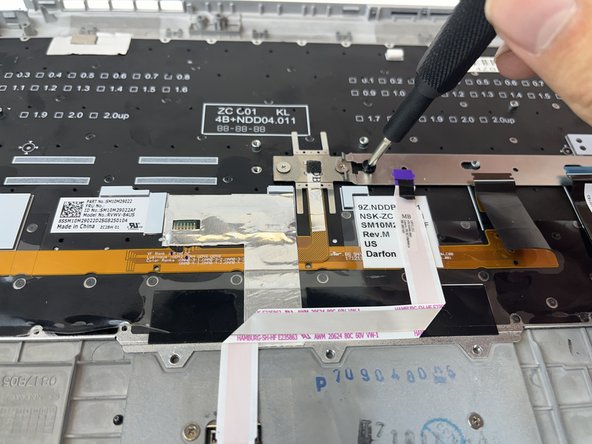
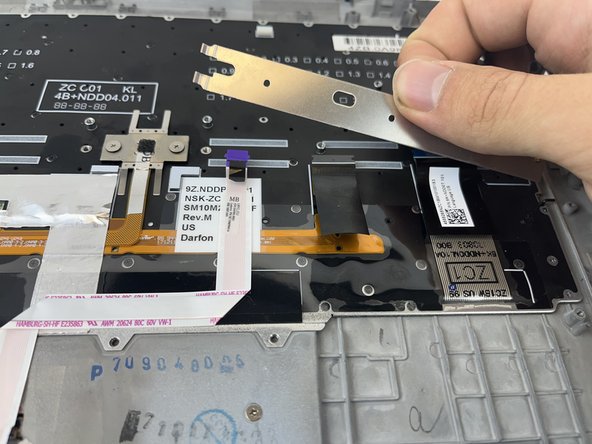
    • Use the Phillips #0 screwdriver to remove the two 2.5 mm screws on the metal plate in the center of the keyboard.

    Pergunte ao FixBot

    Comentar

  28. Lenovo ThinkPad X1 Yoga 2nd Generation Keyboard Replacement: passo 28, imagem 1 %32 Lenovo ThinkPad X1 Yoga 2nd Generation Keyboard Replacement: passo 28, imagem 2 %32 Lenovo ThinkPad X1 Yoga 2nd Generation Keyboard Replacement: passo 28, imagem 3 %32
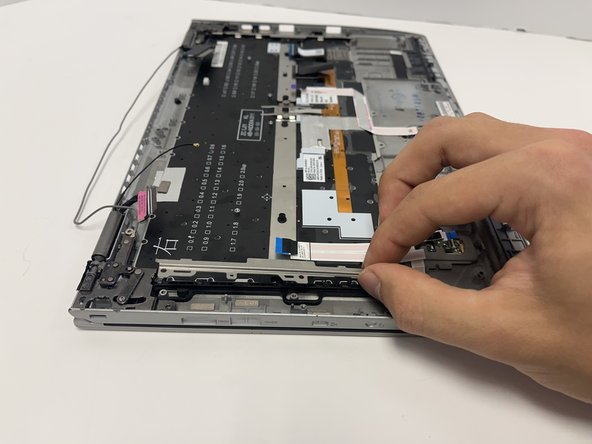
    • Carefully pull back on the black tab to remove the ribbon cable from the back of the keyboard.

    Pergunte ao FixBot

    Comentar

  29. Lenovo ThinkPad X1 Yoga 2nd Generation Keyboard Replacement: passo 29, imagem 1 %32 Lenovo ThinkPad X1 Yoga 2nd Generation Keyboard Replacement: passo 29, imagem 2 %32 Lenovo ThinkPad X1 Yoga 2nd Generation Keyboard Replacement: passo 29, imagem 3 %32
    • Use the plastic spudger to pry up the black plastic sheet on the back of the keyboard.

    • Gently pull the sticky edges of the plastic sheet with your hands and a spudger.

    • Lift and carefully remove the plastic sheet.

    Pergunte ao FixBot

    Comentar

  30. Lenovo ThinkPad X1 Yoga 2nd Generation Keyboard Replacement: passo 30, imagem 1 %32 Lenovo ThinkPad X1 Yoga 2nd Generation Keyboard Replacement: passo 30, imagem 2 %32
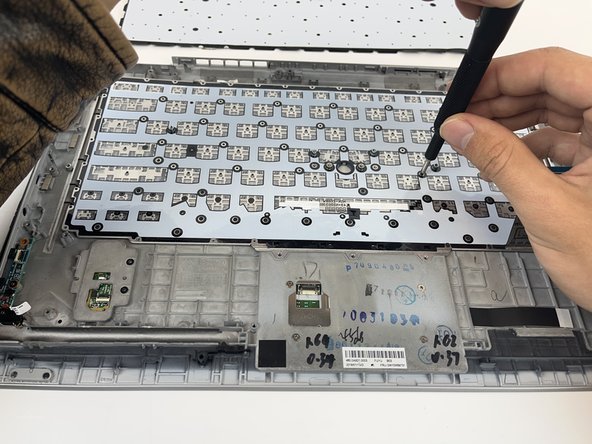
    • Remove all the 2 mm screws from the back of the keyboard using a Phillips #000 screwdriver.

    Pergunte ao FixBot

    Comentar

  31. Lenovo ThinkPad X1 Yoga 2nd Generation Keyboard Replacement: passo 31, imagem 1 %32 Lenovo ThinkPad X1 Yoga 2nd Generation Keyboard Replacement: passo 31, imagem 2 %32
    • Gently lift the keyboard out of the laptop.

    Pergunte ao FixBot

    Comentar

Conclusão

To reassemble your device, follow these instructions in reverse order.

Cancelar: não concluí este guia.

3 outras pessoas executaram este guia.

1Comentário do guia

Thank You Mate !

Rajesh Mohan - Responder Compartilhar

Comentar

Visualizações:

Últimas 24 horas: 4

Últimos 7 dias: 23

Últimos 30 dias: 129

Ao todo: 4,669