Ir para o conteúdo principal

HyperX QuadCast S USB Connector and Auxiliary Port Replacement

O que você precisa

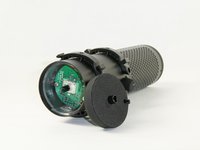
  1. HyperX QuadCast S USB Connector and Auxiliary Port Replacement, Gain Control Knob: passo 1, imagem 1 %32 HyperX QuadCast S USB Connector and Auxiliary Port Replacement, Gain Control Knob: passo 1, imagem 2 %32 HyperX QuadCast S USB Connector and Auxiliary Port Replacement, Gain Control Knob: passo 1, imagem 3 %32
    • Set the microphone on a flat surface.

    • Pull each of the support bands upwards and off of the notches to release the microphone from its base.

    • There are four support bands in total, but it does not matter which band you choose to take off first.

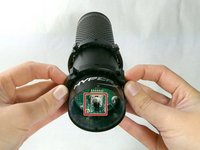
  2. HyperX QuadCast S USB Connector and Auxiliary Port Replacement: passo 2, imagem 1 %32 HyperX QuadCast S USB Connector and Auxiliary Port Replacement: passo 2, imagem 2 %32 HyperX QuadCast S USB Connector and Auxiliary Port Replacement: passo 2, imagem 3 %32
    • Orientate the microphone with the gain control knob upwards.

    • Pull outwards from the microphone to release the gain control knob.

    • It will not take much force to release the knob from the microphone. Be aware that a small "pop" may be heard once the knob is unplugged.

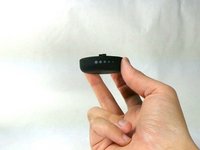
  3. HyperX QuadCast S USB Connector and Auxiliary Port Replacement: passo 3, imagem 1 %32 HyperX QuadCast S USB Connector and Auxiliary Port Replacement: passo 3, imagem 2 %32 HyperX QuadCast S USB Connector and Auxiliary Port Replacement: passo 3, imagem 3 %32
    • Remove the gain control knob.

    • The gain control knob connects to the tiny black pin indicated. When reattaching the knob, make sure to properly align the hole to the shape of the pin.

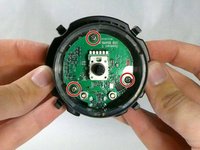
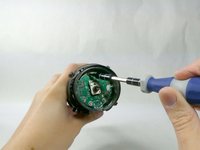
  4. HyperX QuadCast S USB Connector and Auxiliary Port Replacement, I/O Board: passo 4, imagem 1 %32 HyperX QuadCast S USB Connector and Auxiliary Port Replacement, I/O Board: passo 4, imagem 2 %32
    • Remove the three 6 mm Phillips #0 screws.

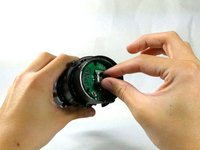
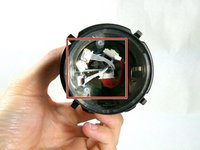
  5. HyperX QuadCast S USB Connector and Auxiliary Port Replacement: passo 5, imagem 1 %32 HyperX QuadCast S USB Connector and Auxiliary Port Replacement: passo 5, imagem 2 %32 HyperX QuadCast S USB Connector and Auxiliary Port Replacement: passo 5, imagem 3 %32
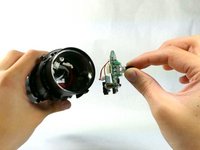
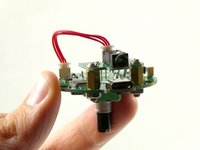
    • Begin to pull out the I/O board.

    • Unplug any cables connected to the I/O board.

    • Some of the cables will need to be soldered back to any replacement I/O board to function properly.

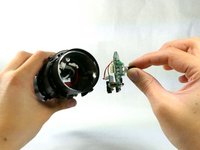
  6. HyperX QuadCast S USB Connector and Auxiliary Port Replacement: passo 6, imagem 1 %32 HyperX QuadCast S USB Connector and Auxiliary Port Replacement: passo 6, imagem 2 %32
    • Finish pulling out the I/O board to remove it from the microphone.

  7. HyperX QuadCast S USB Connector and Auxiliary Port Replacement, USB Connector and Auxiliary Port: passo 7, imagem 1 %32
    • Remove the USB-C port.

  8. HyperX QuadCast S USB Connector and Auxiliary Port Replacement: passo 8, imagem 1 %32
    • Remove the auxiliary port.

Conclusão

To reassemble your device, follow these instructions in reverse order.

Nathan Arruda

Membro desde: 10/25/22

765 Reputação

Autoria de 6 guias

Equipe

UMass Dartmouth, Team 4-1, Sinclaire Fall 2022 Membro de UMass Dartmouth, Team 4-1, Sinclaire Fall 2022

UMASSD-SINCLAIRE-F22S4G1

5 Membros

Autoria de 9 guias

3Comentários do guia

do you have a motherboard replace for the original hyperx quadcast? current looking for a replacement right now.

tairkyu - Responder

Unfortunately, HyperX doesn't sell the motherboards separately, making sourcing and replacing the board difficult. With our research, the only difference between the two microphone models is the illumination so the boards and the other features should be the same hardware. We'd recommend trying to source another quad cast for parts if you can find one that doesn't have a damaged board.

Nathan Arruda - Responder

is it possible to replace Mini-B USB port with a USB-C port? Also is this repair simular for the normal HyperX Quadcast if you replace with a Mini-B USB port?

Alex Krieger - Responder

Comentar

Visualizações:

Últimas 24 horas: 6

Últimos 7 dias: 26

Últimos 30 dias: 152

Ao todo: 7,900