Ir para o conteúdo principal

Battery Disconnect

Pré-requisito somente
Este é um guia somente para pré-requisitos! Este guia faz parte de outro procedimento e não deve ser usado sozinho.

O que você precisa

  1. Battery Disconnect, Unfasten the HDD hatch: passo 1, imagem 1 %32 Battery Disconnect, Unfasten the HDD hatch: passo 1, imagem 2 %32
    • Use a Phillips screwdriver to remove the screw securing the HDD hatch on the bottom left of the lower case.

  2. Battery Disconnect, Remove the HDD hatch: passo 2, imagem 1 %32 Battery Disconnect, Remove the HDD hatch: passo 2, imagem 2 %32 Battery Disconnect, Remove the HDD hatch: passo 2, imagem 3 %32
    • Insert the flat end of a spudger under the cutout on the top right corner of the HDD hatch and pry it up.

    • Remove the HDD hatch.

  3. Battery Disconnect, Unfasten the HDD assembly: passo 3, imagem 1 %32 Battery Disconnect, Unfasten the HDD assembly: passo 3, imagem 2 %32
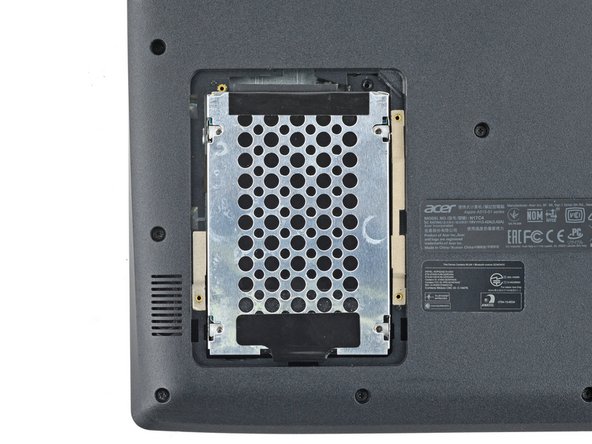
    • Your HDD assembly may be secured to the lower case with screws. If it's not, skip this step.

    • Use a Phillips screwdriver to remove the four screws securing the HDD assembly.

  4. Battery Disconnect: passo 4, imagem 1 %32 Battery Disconnect: passo 4, imagem 2 %32 Battery Disconnect: passo 4, imagem 3 %32
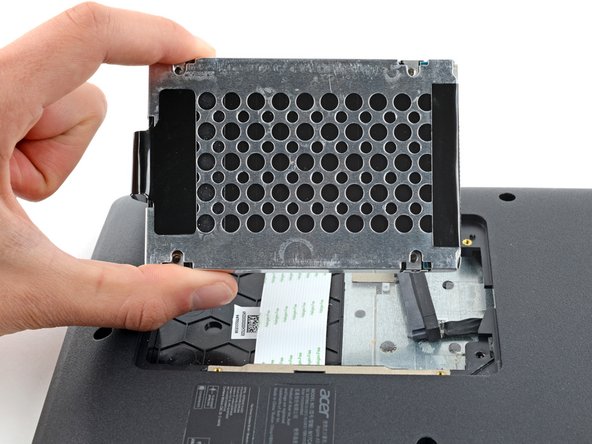
    • Firmly grip the HDD assembly and HDD cable connector head.

    • Pull the HDD cable connector out of its socket.

    • Remove the HDD assembly.

  5. Battery Disconnect, Unfasten the lower case: passo 5, imagem 1 %32 Battery Disconnect, Unfasten the lower case: passo 5, imagem 2 %32
    • Use a Phillips screwdriver to remove the eighteen 6.6 mm screws securing the case.

  6. Battery Disconnect, Insert an opening pick: passo 6, imagem 1 %32 Battery Disconnect, Insert an opening pick: passo 6, imagem 2 %32
    • Insert an opening pick between the lower case and the chassis on the front right edge.

  7. Battery Disconnect, Release the case's front clips: passo 7, imagem 1 %32 Battery Disconnect, Release the case's front clips: passo 7, imagem 2 %32 Battery Disconnect, Release the case's front clips: passo 7, imagem 3 %32
    • Slide the pick along the front edge to release the clips securing the lower case.

  8. Battery Disconnect, Release the remaining clips: passo 8, imagem 1 %32 Battery Disconnect, Release the remaining clips: passo 8, imagem 2 %32
    • Continue sliding the opening pick along the perimeter of the lower case to release the remaining clips.

  9. Battery Disconnect: passo 9, imagem 1 %32 Battery Disconnect: passo 9, imagem 2 %32 Battery Disconnect: passo 9, imagem 3 %32
    • Lift the lower case from the chassis and remove it.

    • During reassembly, this is a good point to power on your laptop and test all functions before sealing it up. Be sure to power your laptop back down before you continue working.

  10. Battery Disconnect, Disconnect the battery: passo 10, imagem 1 %32 Battery Disconnect, Disconnect the battery: passo 10, imagem 2 %32 Battery Disconnect, Disconnect the battery: passo 10, imagem 3 %32
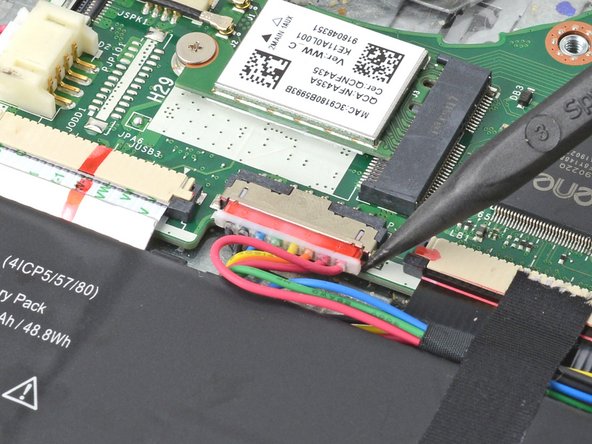
    • Use the pointed end of a spudger to push each side of the battery connector until it comes out of the socket.

Conclusão

To reassemble your device, follow these instructions in reverse order.

Spencer Day

Membro desde: 09/14/22

155.809 Reputação

Autoria de 1.033 guias

Equipe

iFixit Membro de iFixit

Staff

123 Membros

Autoria de 23.828 guias

0Comentários do guia

Comentar

Visualizações:

Últimas 24 horas: 0

Últimos 7 dias: 0

Últimos 30 dias: 1

Ao todo: 72