Ir para o conteúdo principal
Participe da comunidade de reparos - Criar conta

Asus G73JW-XT1 Optical Drive Replacement

O que você precisa

  1. Asus G73JW-XT1  Optical Drive Replacement, Battery: passo 1, imagem 1 %32
    • Flip the device over so the battery port is easy to access.

  2. Asus G73JW-XT1  Optical Drive Replacement: passo 2, imagem 1 %32 Asus G73JW-XT1  Optical Drive Replacement: passo 2, imagem 2 %32
    • Slide the left slider to the left so that it locks in place.

    • Slide the right slider to the right while pushing the battery away from you. The battery should disconnect.

  3. Asus G73JW-XT1  Optical Drive Replacement, Optical Drive: passo 3, imagem 1 %32 Asus G73JW-XT1  Optical Drive Replacement, Optical Drive: passo 3, imagem 2 %32
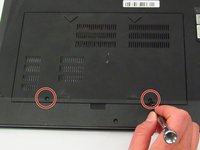
    • Turn the device off and remove any power cords. Dissassembling the device while it is under power may result in electric shock and potential damage to the device.

    • Rotate the device so the battery port is facing away.

    • Remove two 5.5 mm Phillips #0 screws on the back panel.

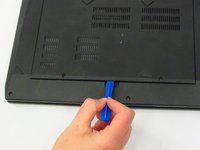
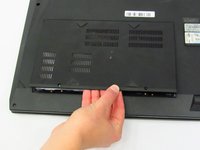
  4. Asus G73JW-XT1  Optical Drive Replacement: passo 4, imagem 1 %32 Asus G73JW-XT1  Optical Drive Replacement: passo 4, imagem 2 %32 Asus G73JW-XT1  Optical Drive Replacement: passo 4, imagem 3 %32
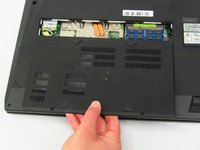
    • Insert the opener tool into the small groove at the edge of the panel.

    • Using opener tool, gently pry the back panel upward until it lifts free from the device.

    • Gently lift the panel off with your fingers.

  5. Asus G73JW-XT1  Optical Drive Replacement: passo 5, imagem 1 %32
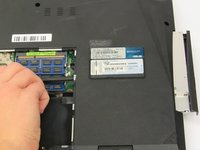
    • Remove one 5.5 mm Phillips #0 screw directly to the right of the RAM cards.

  6. Asus G73JW-XT1  Optical Drive Replacement: passo 6, imagem 1 %32 Asus G73JW-XT1  Optical Drive Replacement: passo 6, imagem 2 %32
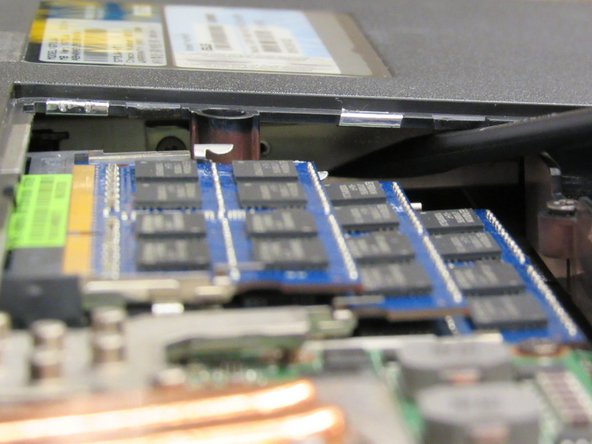
    • Insert the plastic opening tool in the gap between the motherboard and the back panel, directly to the right of the RAM cards.

    • Gently push the optical drive outwards. This should require very little pressure.

    • Grab the loose optical drive with your fingers and pull it free.

Conclusão

To reassemble your device, follow these instructions in reverse order.

Uma outra pessoa concluiu este guia.

0Comentários do guia

Comentar

Visualizações:

Últimas 24 horas: 2

Últimos 7 dias: 19

Últimos 30 dias: 39

Ao todo: 536